
AI Modes
AI Modes let you choose how BLNG approaches your prompt, trading off speed against deliberation. Pick a mode from the mode button in the prompt area, next to the Add references (+) button.
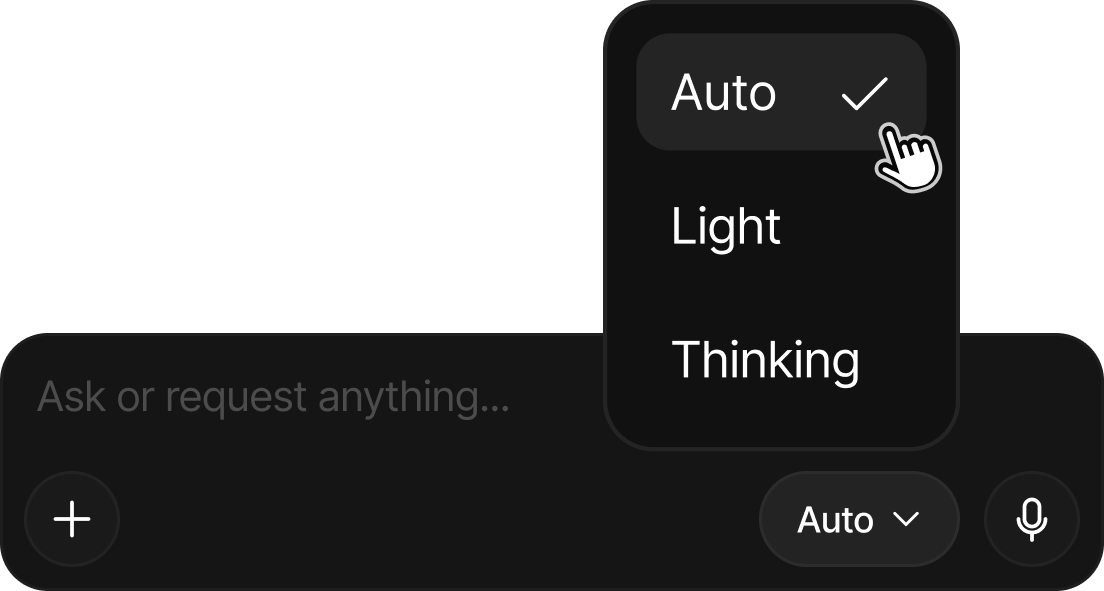
The three modes
| Mode | Best for | What it does |
|---|---|---|
| Auto | Most prompts (default) | Reads your prompt, your canvas, and your references, then picks the best approach for that request: which image model to use, what quality to run, and how strictly to follow your inputs. |
| Light | Quick tests and iterations | Locks in speed-optimized settings: results sooner, with somewhat less fine detail. Ideal while you explore directions and expect to throw most results away. |
| Thinking | Complex or precise briefs | Locks in the highest quality settings and is more willing to break your request into deliberate steps, each reviewed as it completes. |
Auto may also rephrase your request behind the scenes so the image model reads it better, and it tells you what it decided with short Auto Mode notes in the chat while it works.
Those deliberate steps are a multi-step generation: see How Generation Works for what they look like in the chat.
When to choose Thinking
Reach for Thinking when a prompt is complex, multi-part, or detail-sensitive: an intricate design brief, or a collection where the relationships between pieces matter. Simple transformations don't need it, turning a sketch into a photorealistic render runs fine on Auto or Light.
Switching modes
You can change modes between prompts at any time; the mode you pick applies to your next send. There's no penalty for switching: start in Auto, drop to Light while you explore, and move to Thinking when you're ready to nail down something complex.
Not sure which to use? Leave it on Auto: it adapts to the request for you.