
Chat Panel
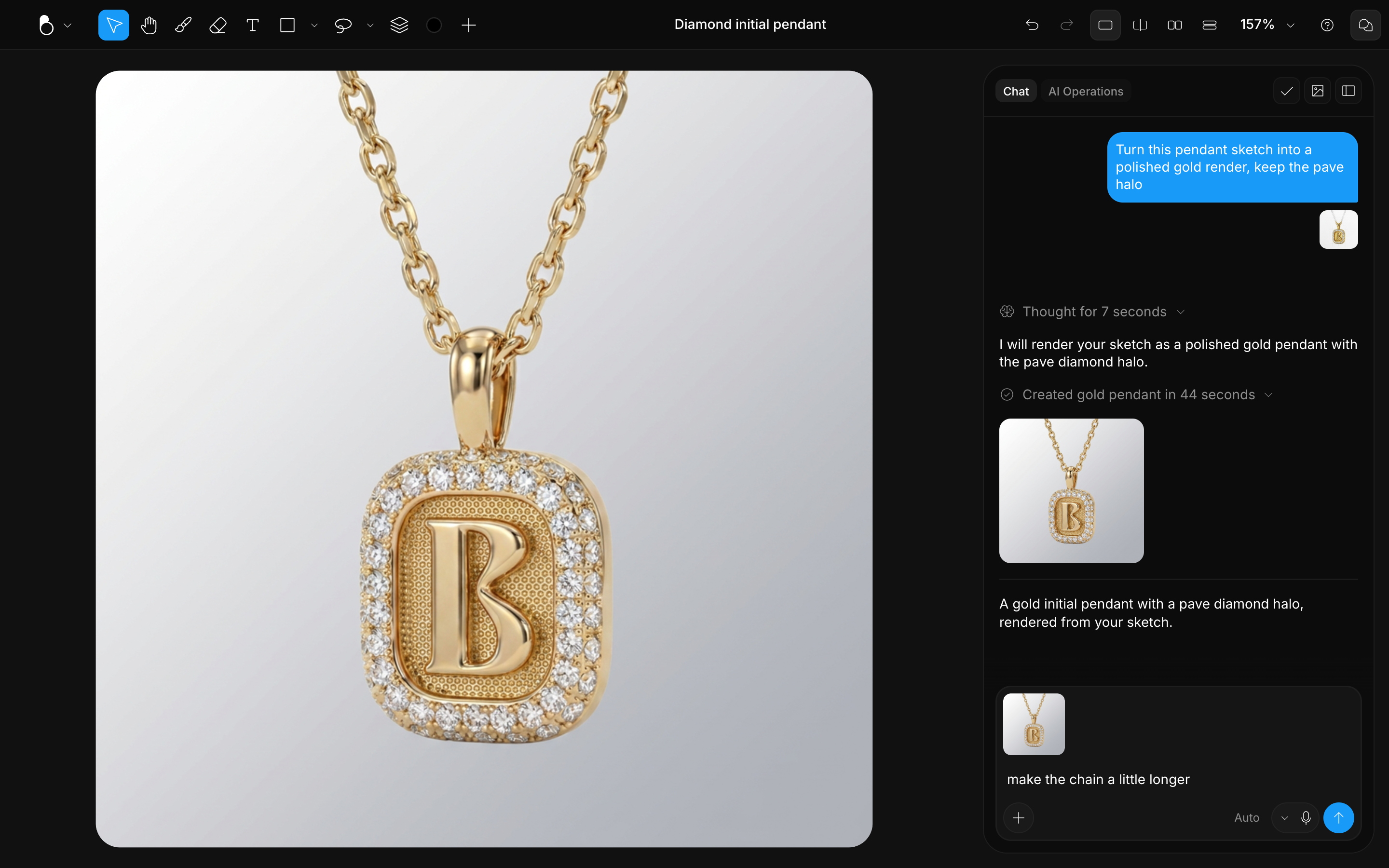
The Chat panel is your command center for creating with AI in BLNG. From here you describe what you want, attach references, choose how the result should look, and generate.
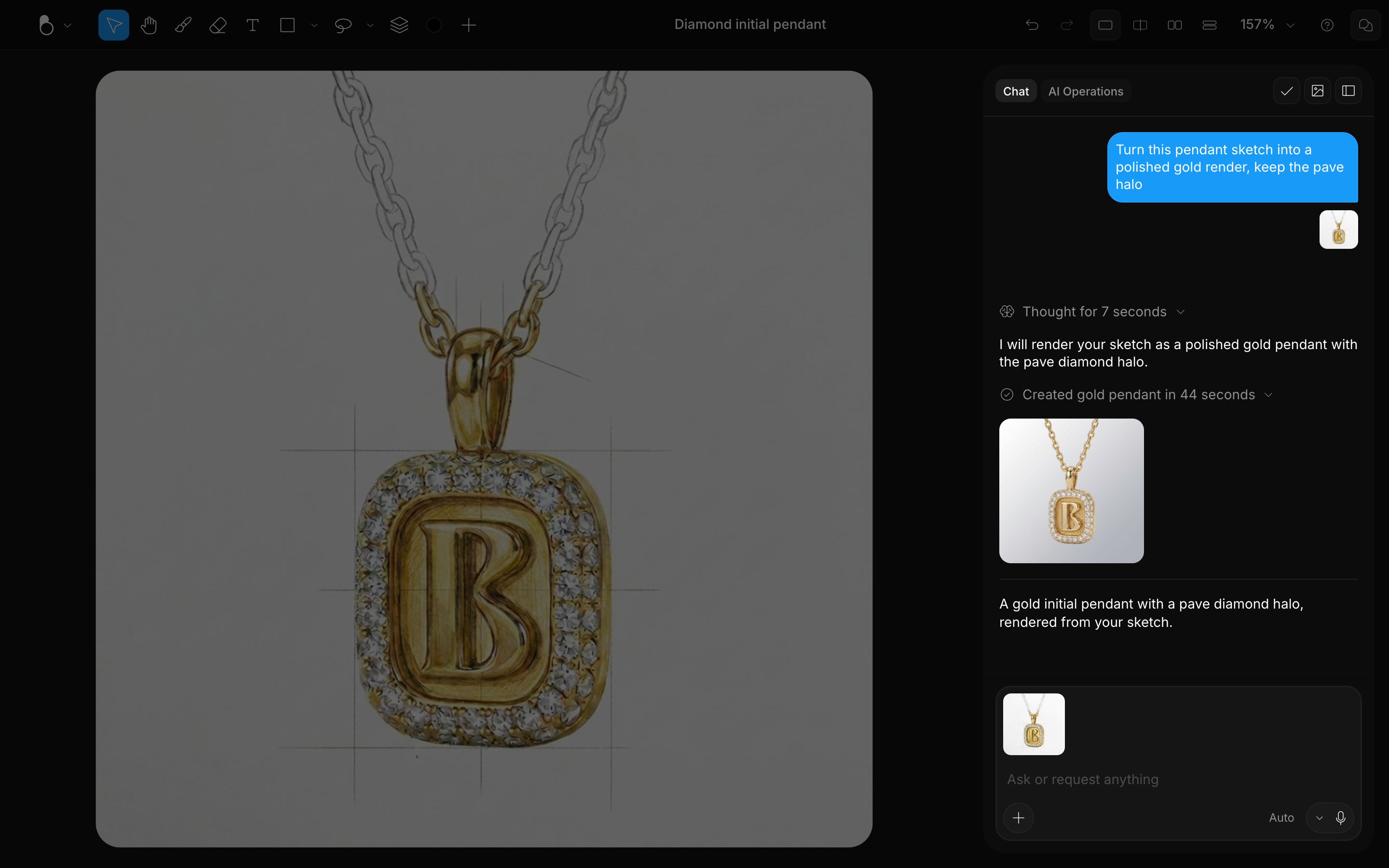
What’s in the Chat panel
Based on what you need to do, you'll find multiple tools, view modes, and things you can do with the chat: typing a prompt, adding references, filtering results, running AI Operations, and more.
Prompt field
The prompt is the main guide for every generation: canvas, references, and settings all shape the result, but the prompt is where you tell BLNG what you actually want. Describe it in your own words, from a quick idea to a fully detailed request. The better the prompt, the closer the result. See Writing Better Prompts.
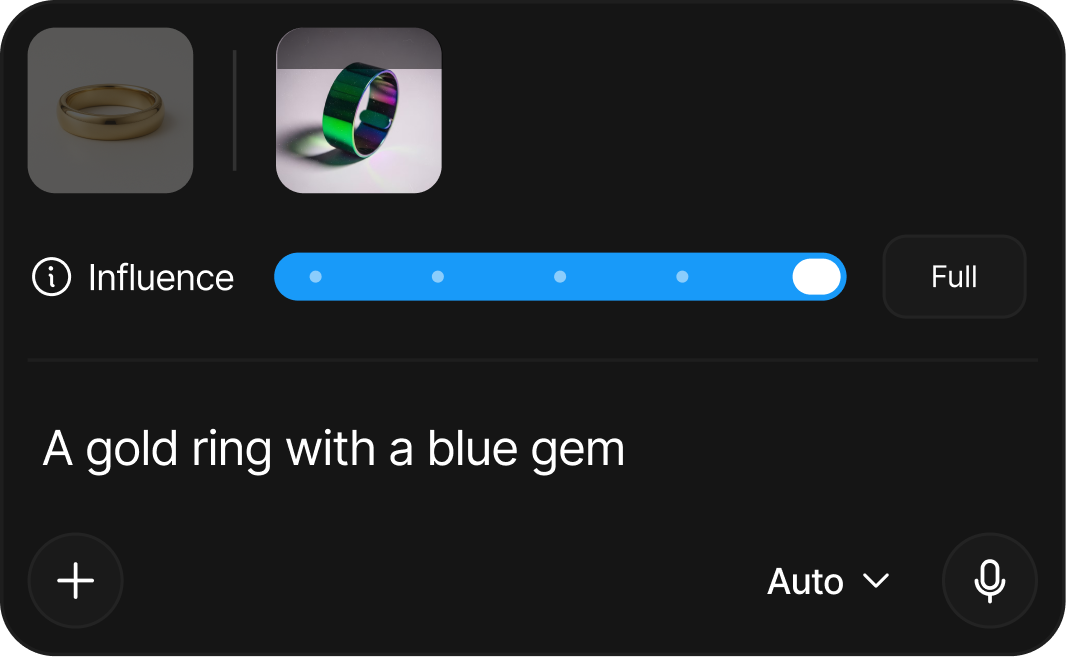
Reference row
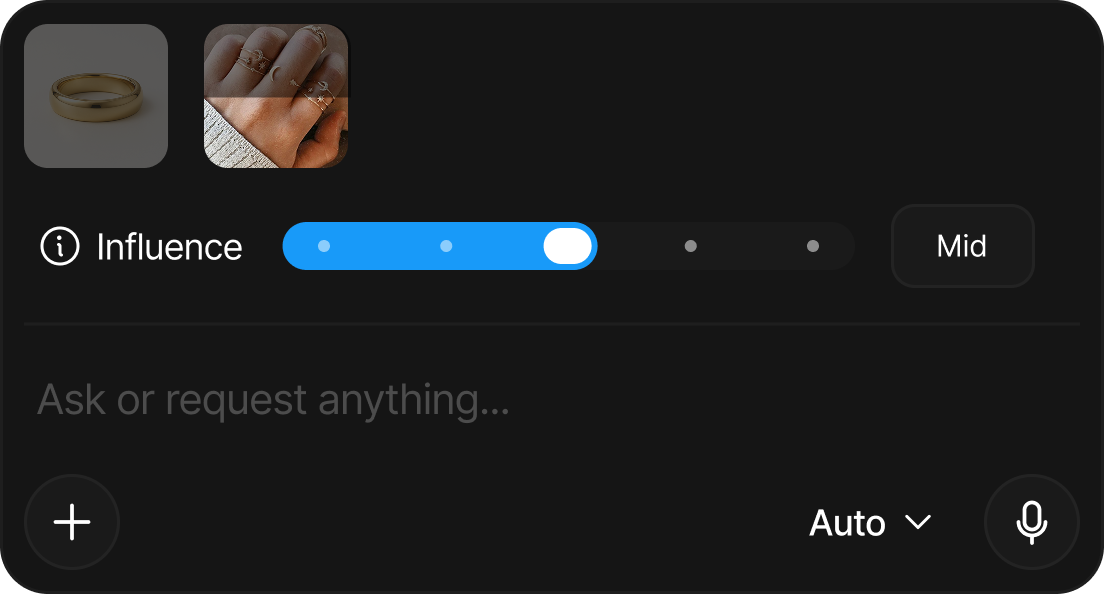
References are the images and videos that guide a generation. The row shows everything the AI is looking at: the first thumbnail is your canvas, and next to it go any references you attach, an image or a video each, up to 10 in total. You can add them in several ways: dragging, pasting, or the Add references (+) button at the bottom-left of the prompt box, which opens your file picker for images and videos from your computer. References go into this row, not onto the canvas. The canvas thumbnail is a single still of the whole artboard, so when a request is about one image or an existing video, add it to the chat first; otherwise BLNG works from that still. See Reference Images.
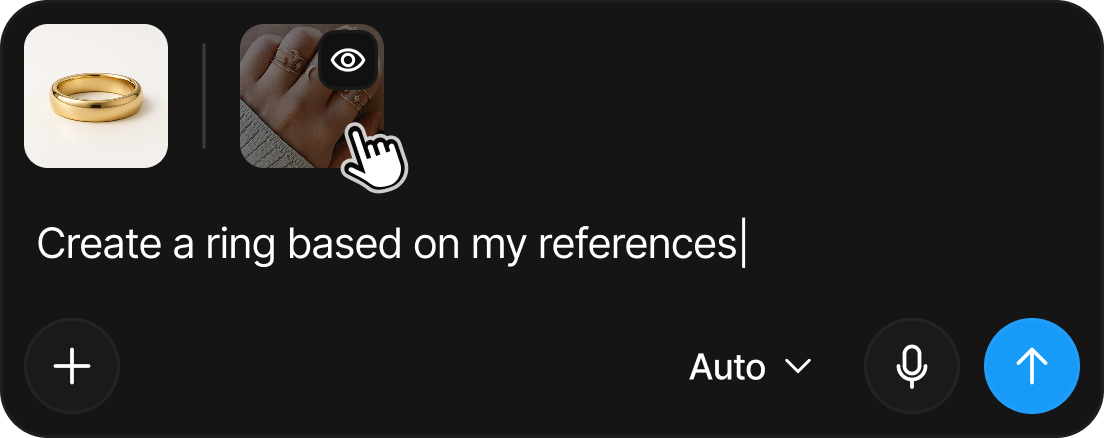
Scene Style
The scene style defines the background and overall look. By default none is selected: the AI chooses the scene on its own, reading your canvas and any previous generations. Once you pick one, it will respect it and work it into everything you generate. Options range from White, Arctic, Noir, or Aurora, to any custom color, a transparent background or an image of your own. See Scene Styles.
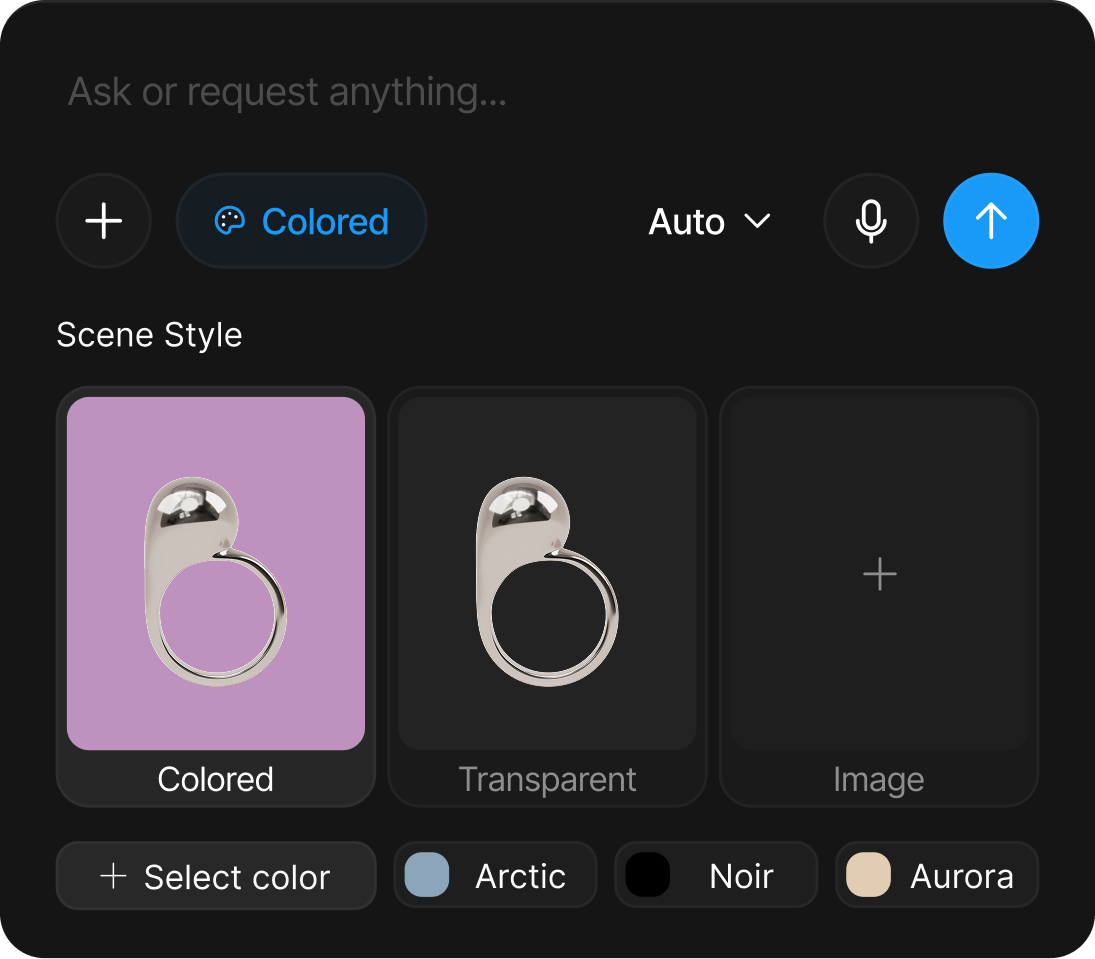
Influence
Influence controls how closely the AI follows a given input, from loose inspiration to a strict match. Your canvas and each reference have their own dial, with five levels: None, Low, Mid, High, and Full. See Influence.
AI mode
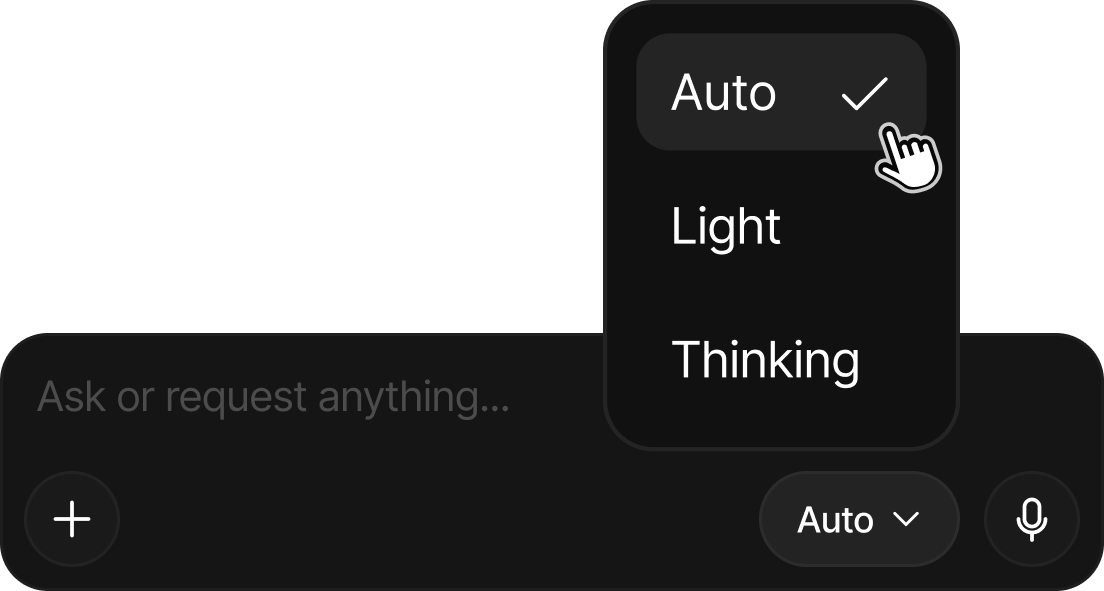
The AI mode sets how BLNG approaches your prompt, trading speed against deliberation: Auto picks the best approach for each request (the default), Light favors quick results while you explore, and Thinking works through complex prompts step by step. See AI Modes.
Mic button
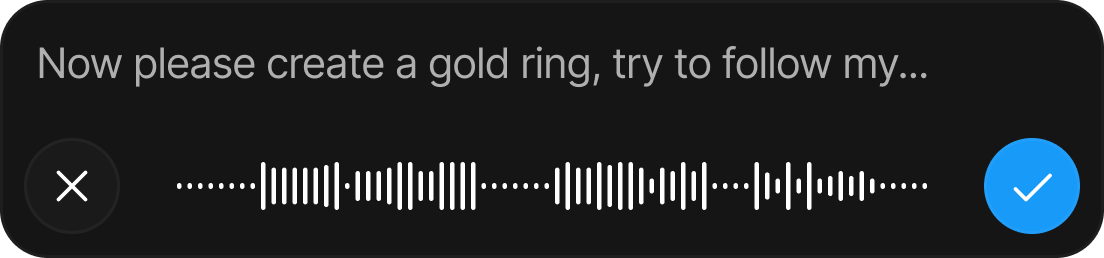
Dictate instead of typing: your words are transcribed live into the prompt field as you speak. The mic follows your browser's language by default, and a dropdown lets you choose from more than a dozen supported languages. See Voice Input.
Send
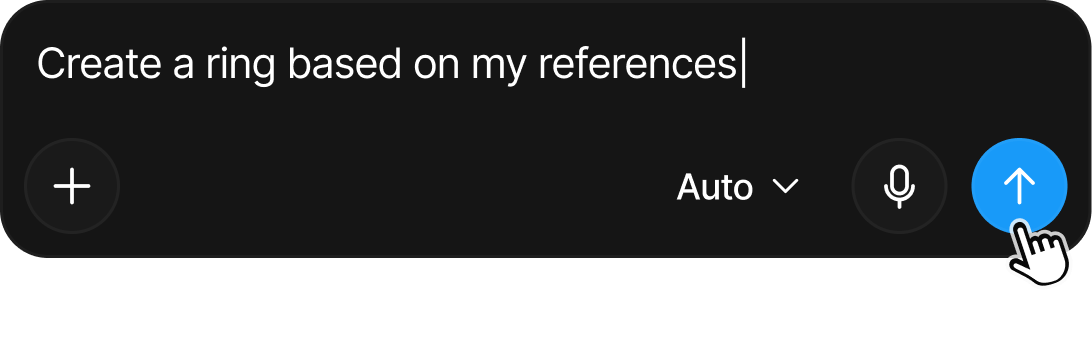
The arrow button sends your request. Everything in the panel travels with it: your prompt, references, scene style, influence, and AI mode.
Generating a result
When you hit send, BLNG gets to work: it reads your prompt, your canvas, and your references, thinks through the request, and generates. The result appears in the Preview Pane next to your canvas, so you can compare output against input directly.
Watching BLNG think
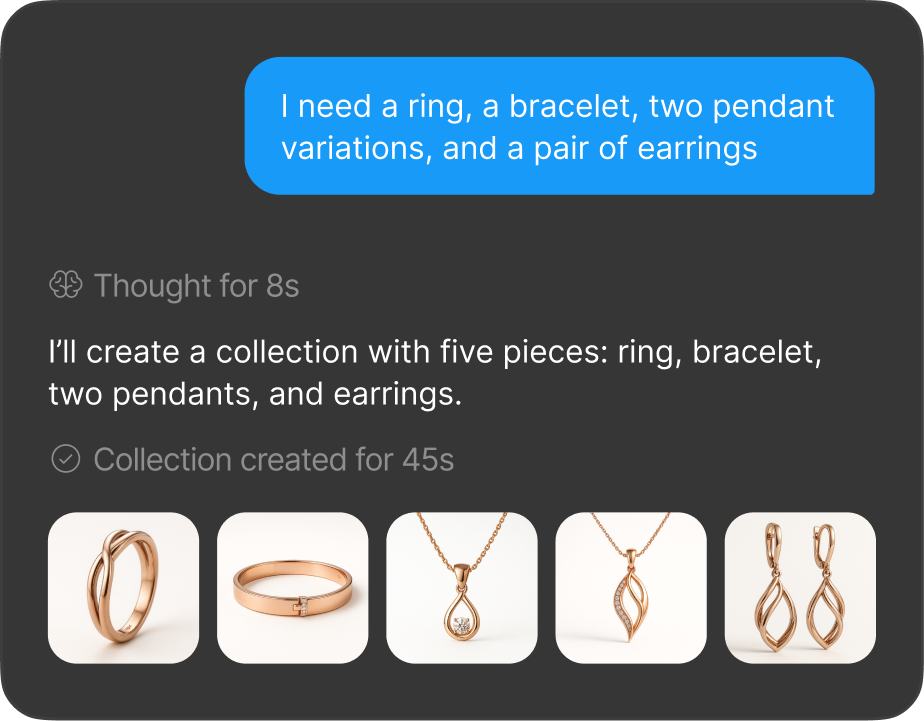
While a job runs, a Thinking caption cycles through BLNG's reasoning in real time. When it finishes, the reasoning collapses into a Thinking Completed button: expand it to read how the AI interpreted your sketch, what it planned to keep, and how it rendered materials and background. It's the quickest way to confirm you were understood.
Stopping a generation
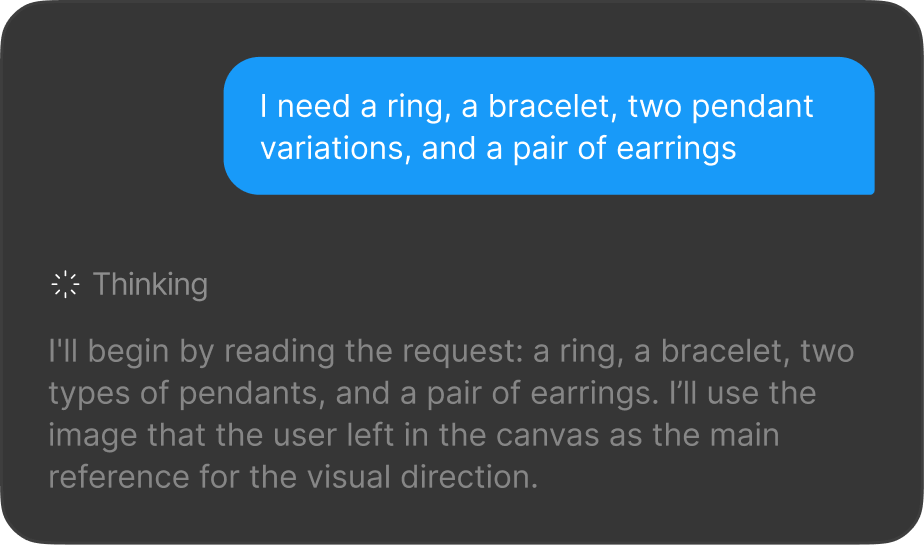
A running job never locks you in: hit Stop and send your next prompt straight away, useful when you've spotted a problem mid-generation and don't want to wait it out.
Asking questions without generating
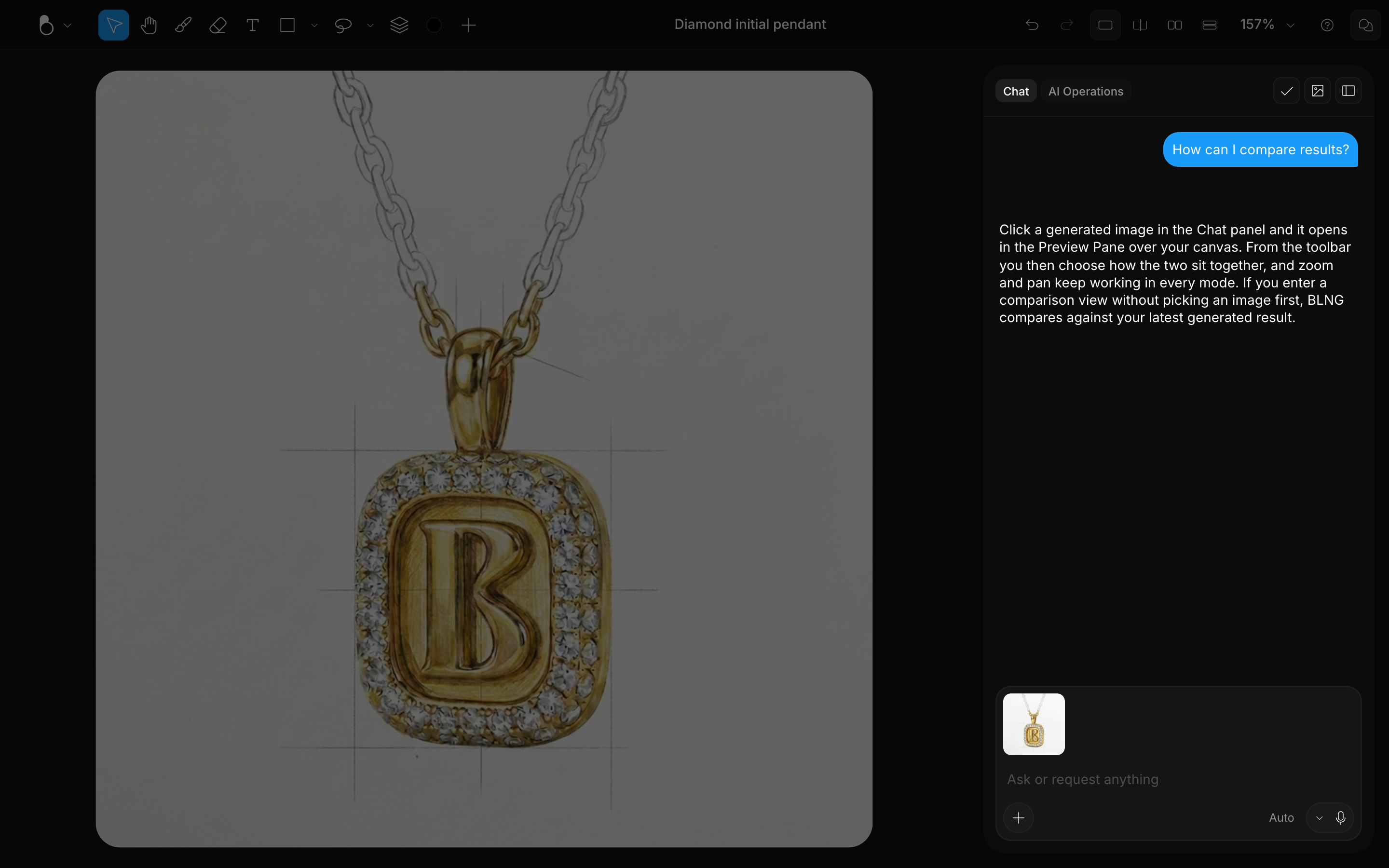
The chat isn't only for generating. Phrase your message as a question ("what's the difference between the scene styles?", "why did the band get thicker?") and BLNG answers in text, no image produced. If you want to think out loud first, say so ("don't generate anything yet") and BLNG will hold off until you ask for a result.
Iterating on a result
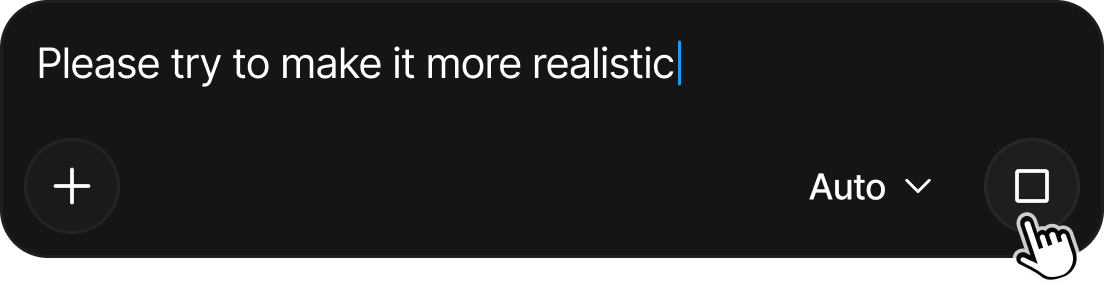
The first result is not always the last: adjust your wording, swap references, or change the scene style and regenerate. Each step builds on the previous one, so you can dial in exactly what you want.
Browsing your generations
Filtering
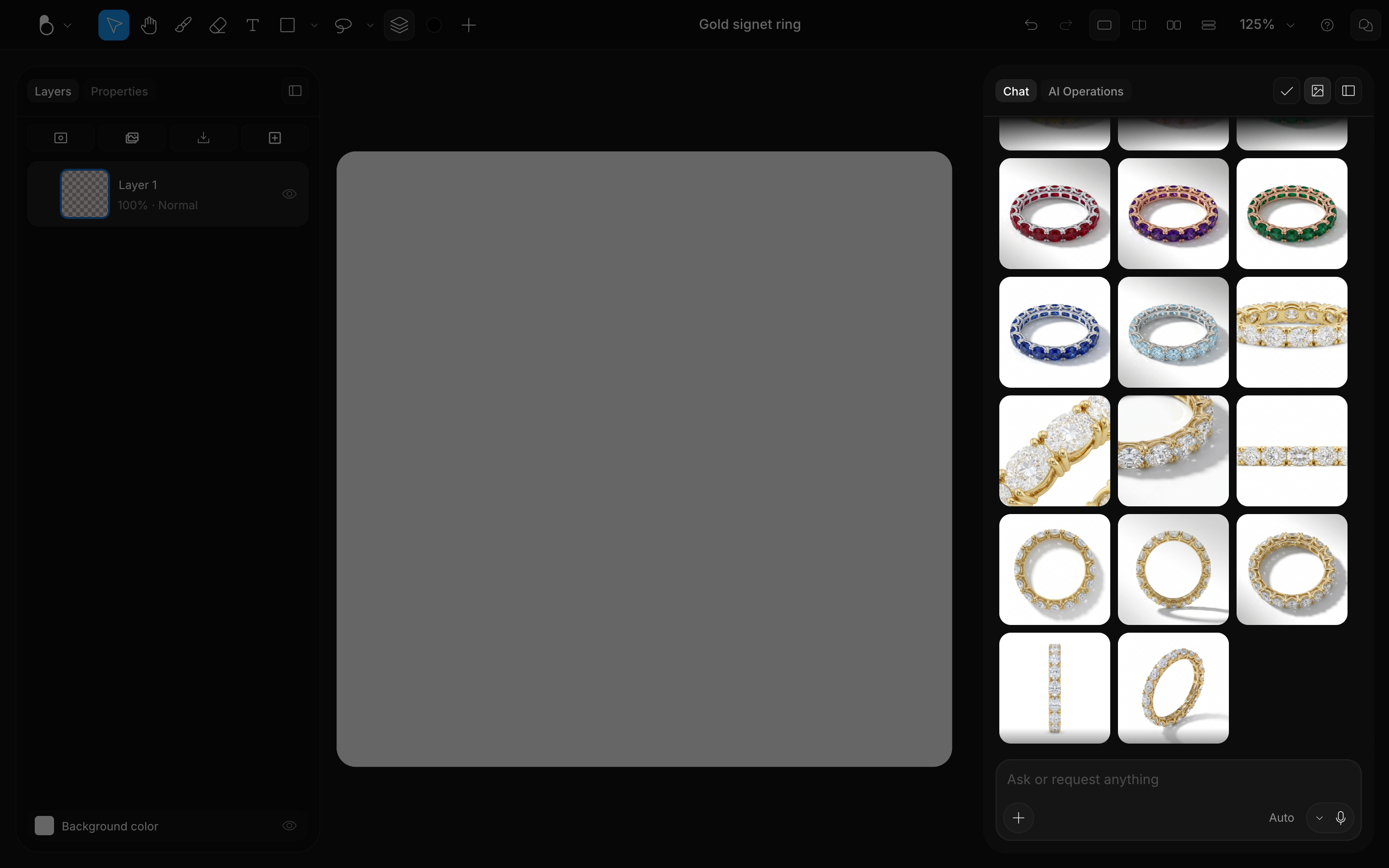
The image icon at the top right of the panel filters the conversation down to just your generated images, everything from this design in one grid, so you can find a result without scrolling the chat.
Selecting
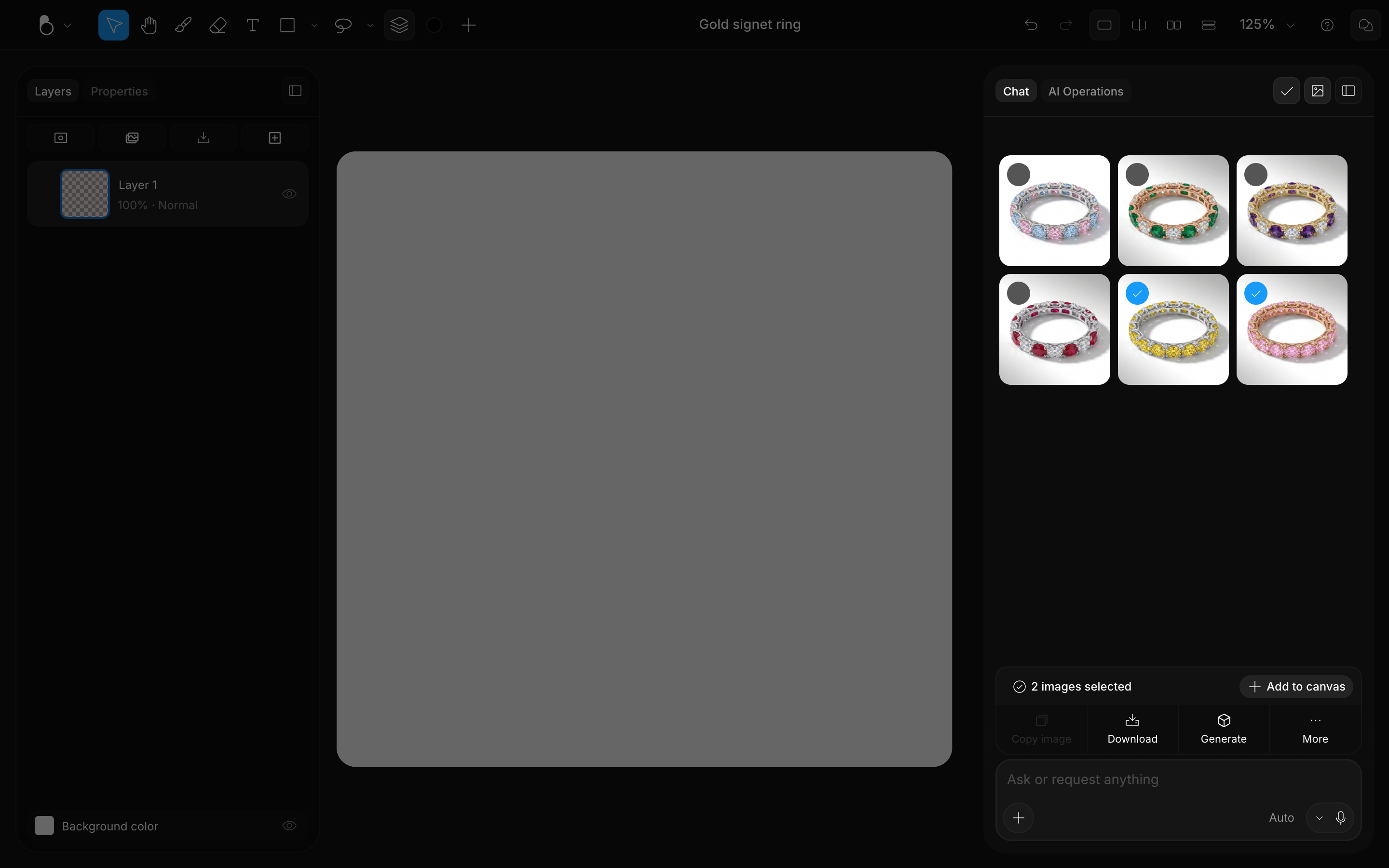
There are two ways to start selecting: the check button at the top of the panel, or Cmd+click on any result (Shift+click extends the selection in a range). As you select, contextual actions appear above the chat input, matching what your selection supports: things like downloading, adding to canvas, or generating in 3D.
Close panel
When you want the whole screen for your canvas, close the panel entirely: the chat collapses into a bubble, and one click brings it back.