
Dashboard & Projects
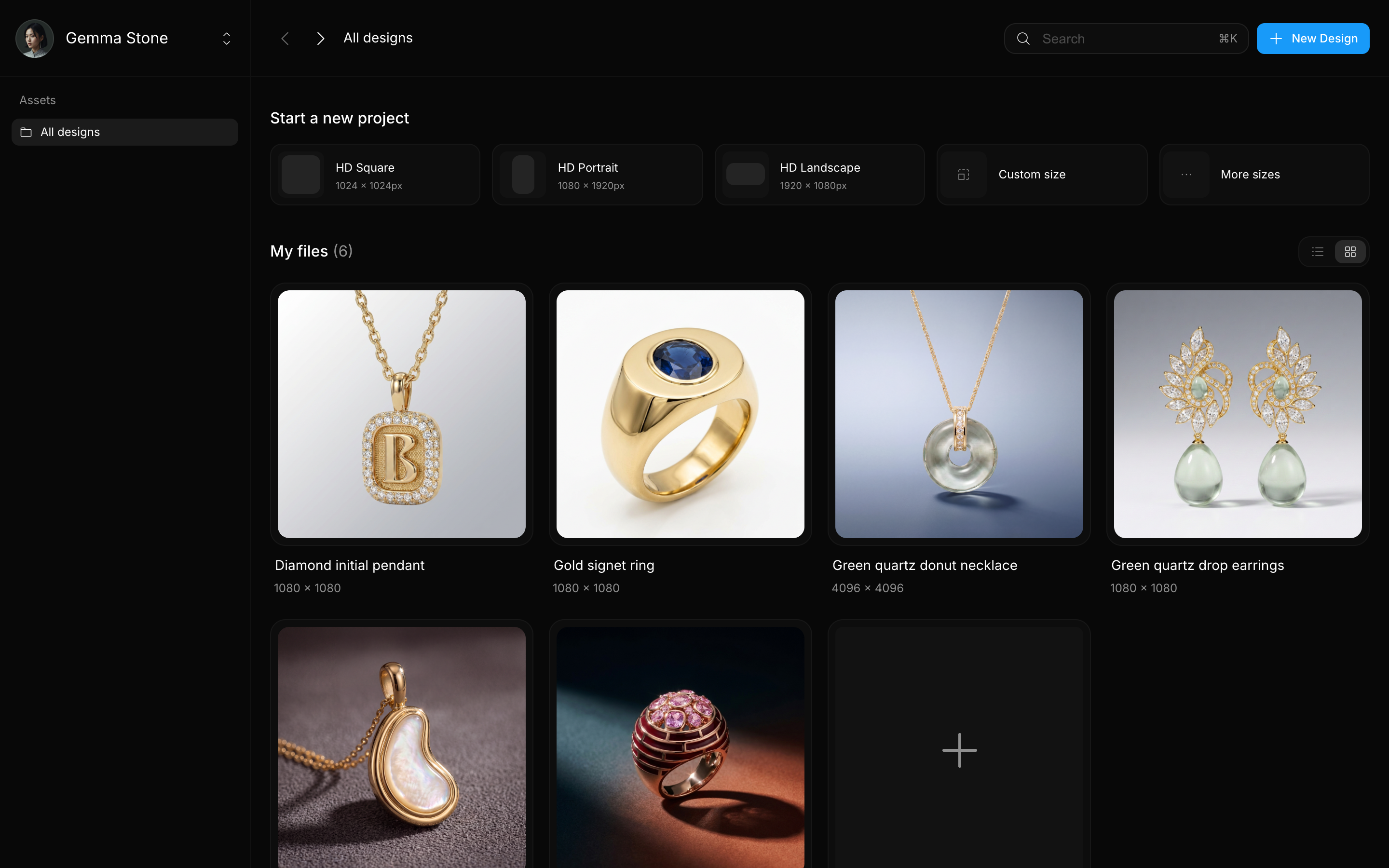
The Dashboard is your home screen in BLNG. It's the first thing you see after signing in, and it's where all your designs are displayed.
What you can do from the Dashboard
- Create a design: pick a size in the Start a new project strip, or click New Design at the top of the Dashboard to open the size picker straight away.
- Open a design: click any tile to open it in the editor. Right-click a tile and choose Open in a new tab to keep the Dashboard around.
- Search your files: the search bar (Cmd/Ctrl + K) filters My files by name as you type, which is why naming designs well pays off.
- Switch the view and sort: toggle between a grid of tiles and a list. In list view, click the Name, Last edited, or Created column header to sort; click again to flip the direction.
Account options
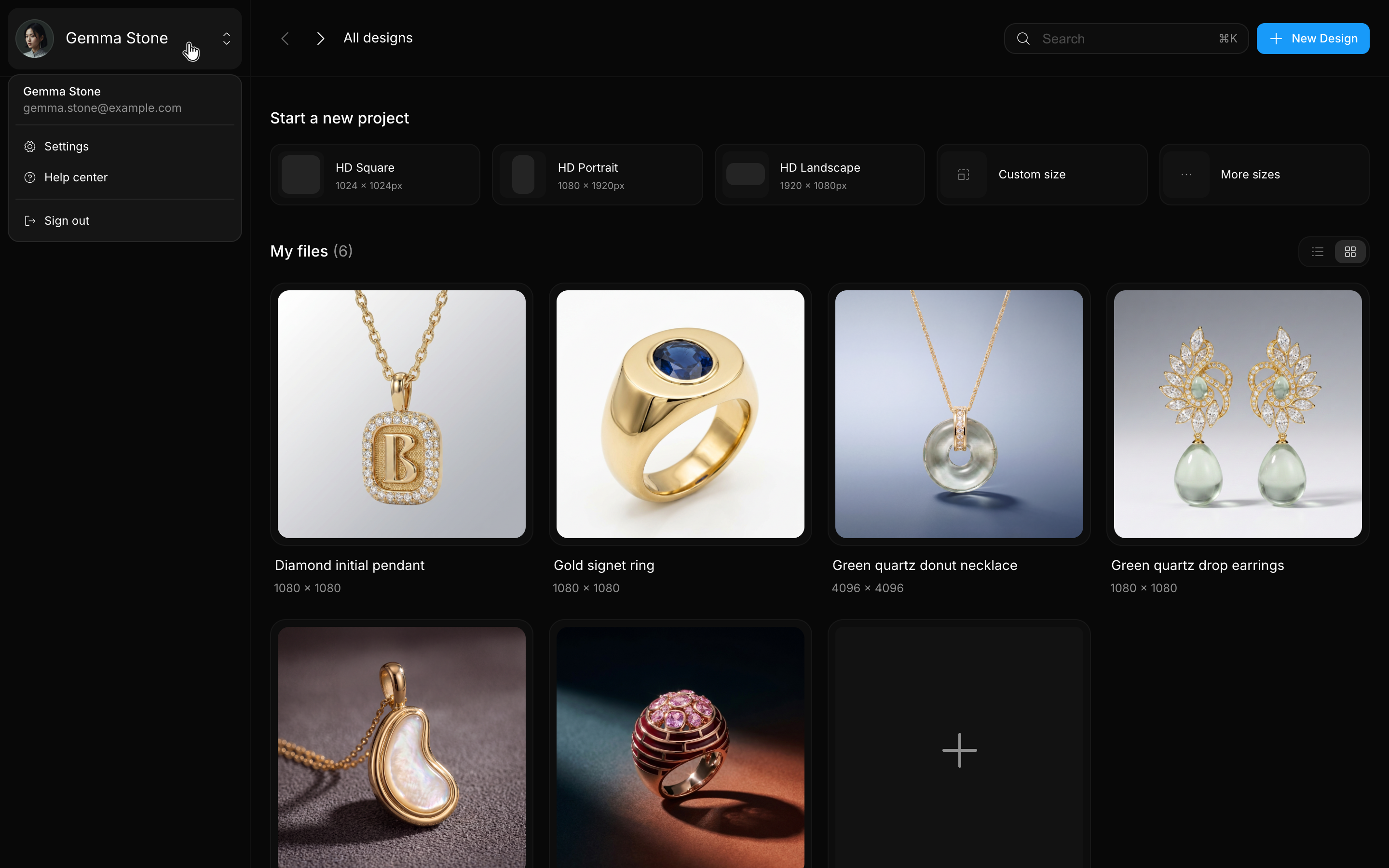
The profile block at the top of the left sidebar shows your name and your current plan, so you always know which tier you're on. Click it to reach Settings, the Help center, or to Sign out. See Account Details for what each settings page holds.
Create a new design
A new design gives you a fresh canvas to work on. You choose the canvas size up front, then jump straight into the editor.
Start a new design
- From your Dashboard, pick a size in the Start a new project strip. It opens on the three HD formats: HD Square (1080 × 1080 px), marked AI Best Performance and the safe default if you're not sure; HD Portrait (1080 × 1920 px); and HD Landscape (1920 × 1080 px). Sizes you pin or create yourself take the front slots as you use them.
- Need something else? Click More sizes, pick a preset in the Set the canvas size dialog, and press Start. See Templates & Canvas Sizes for the full list and for custom sizes.
- BLNG opens the editor with your new canvas, ready for prompting and drawing.
What happens next
Your new design appears on the Dashboard and is saved to your account automatically, so you can close it and pick up later. Open the Chat panel to generate your first image, or use the toolbar's tools to start drawing. See Your First Design.
Not sure which size to pick? Choose the format closest to where your design will be used. The canvas size is fixed once the project exists, so a different size means a new design. See Crop & Resize for what you can resize instead.
Naming your designs
BLNG names a new design automatically and may update that name once, to match what you generate. The moment you rename it yourself the name is yours, and BLNG stops renaming it.
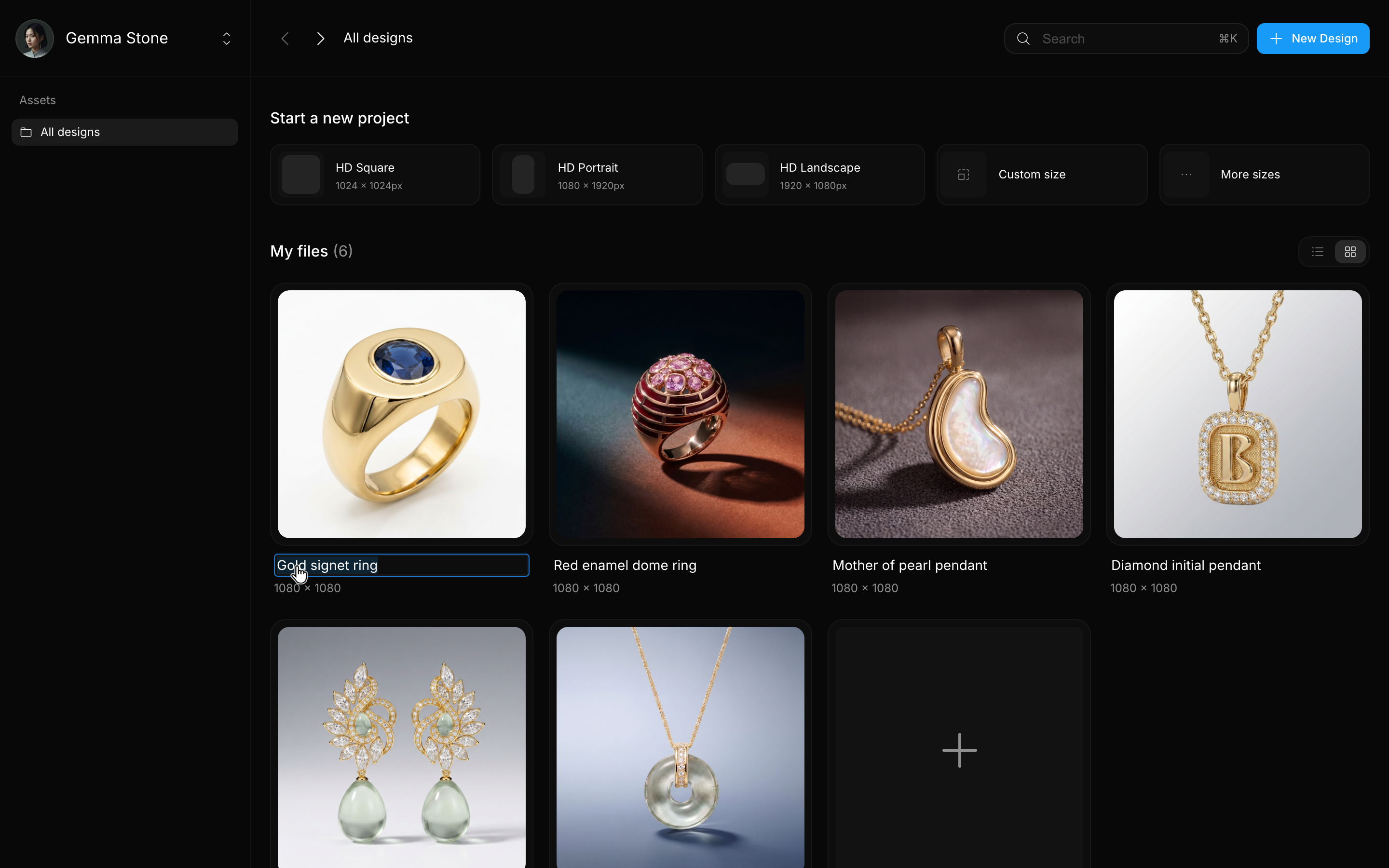
- On the Dashboard, double-click the design's name on its tile, or right-click the tile and choose Rename.
- In the editor, double-click the file name at the top of the screen.
Type anything that helps you find it later: a client name, a date, a material. Searching "rose gold" from the Dashboard then finds every matching design at once.
Deleting projects
When you no longer need a design, you can remove it from your Dashboard to keep things tidy.
- Go to your Dashboard, where all your designs are displayed as tiles.
- Right-click the design you want to remove, or click its More options button in list view.
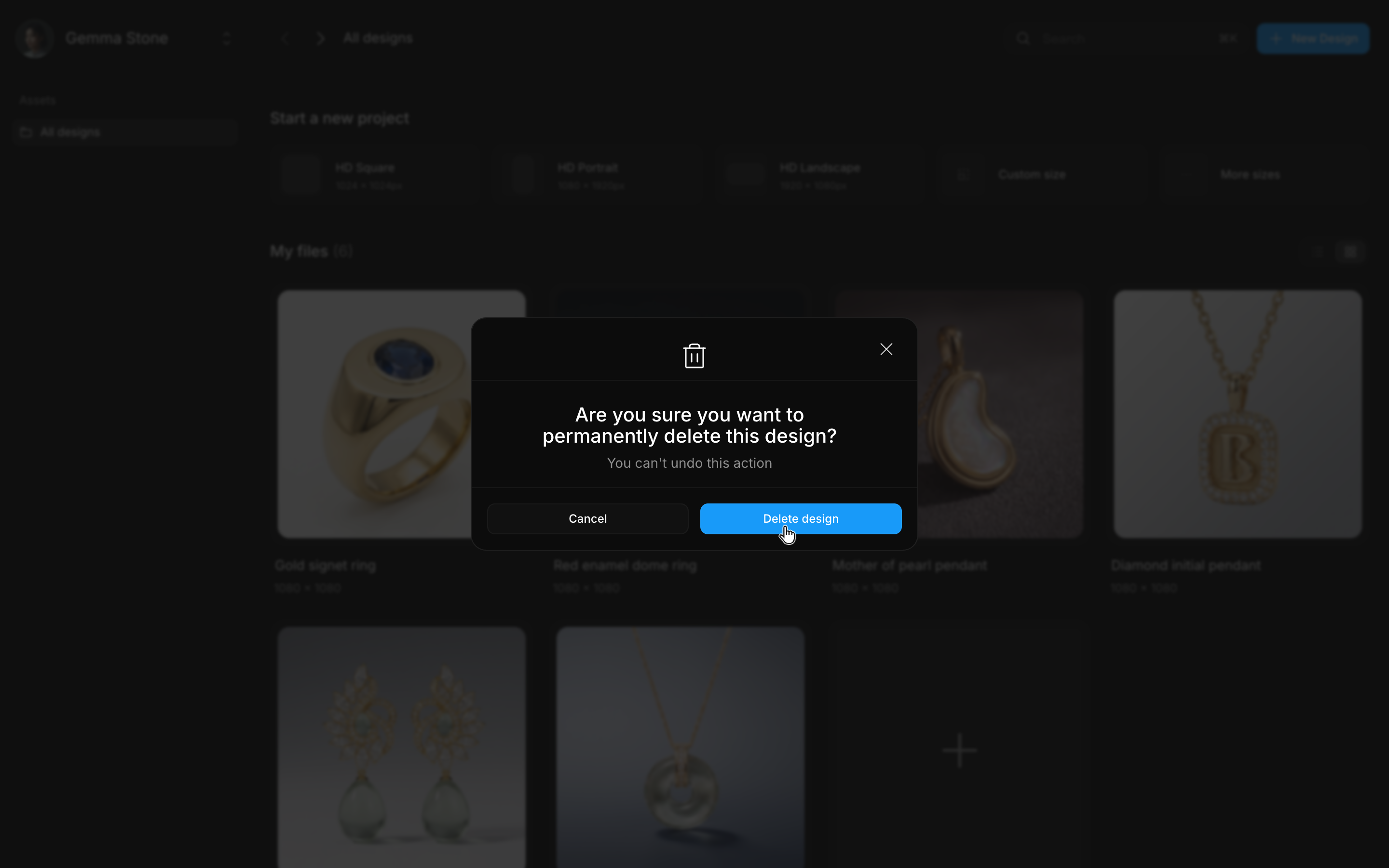
- Choose Delete and confirm.
Deleting is permanent, which is why BLNG asks you to confirm. If you might want the design later, open it first and save a copy with Download (Cmd/Ctrl + S).
On Starter (Free) you can keep three design files at a time, and creating a fourth opens an upgrade prompt instead, so deleting one you no longer need frees room for a new design. Every paid plan is unlimited. See Plans & Pricing.
Delete several designs at once
Hover a tile and click its selection checkbox, or Cmd/Ctrl + click tiles to select more than one. Shift + click selects a range. An action bar appears with the count and the actions that fit the selection: delete applies to all of them, while things like open and rename only make sense on a single file. Press Escape to clear the selection.
Saving and sync
Your designs live in your BLNG account rather than on the machine you made them on. BLNG saves as you work, and signing in from your browser or from the iPad and iPhone app brings up the same files. They stay there on every plan: the free plan's 24-hour limit applies to chat history, not to your designs.
Working offline
A banner appears at the top of the Dashboard when you lose your connection, and the features that need the internet pause: search is one of them. You can keep viewing and working on your canvas, and AI features resume once you reconnect. See Access & Devices.