
Selection
A selection is an area of the canvas you mark out so your next action only lands there: painting, erasing, and AI regeneration stay inside it. It is also the step before a mask: once a selection is right, you can turn it into one. See Masks.
Selection works the way it does in most design tools. Pick the Selection tool from the toolbar or press M, then mark the area with one of the selection modes, or combine several until it covers exactly what you want.
Selection modes
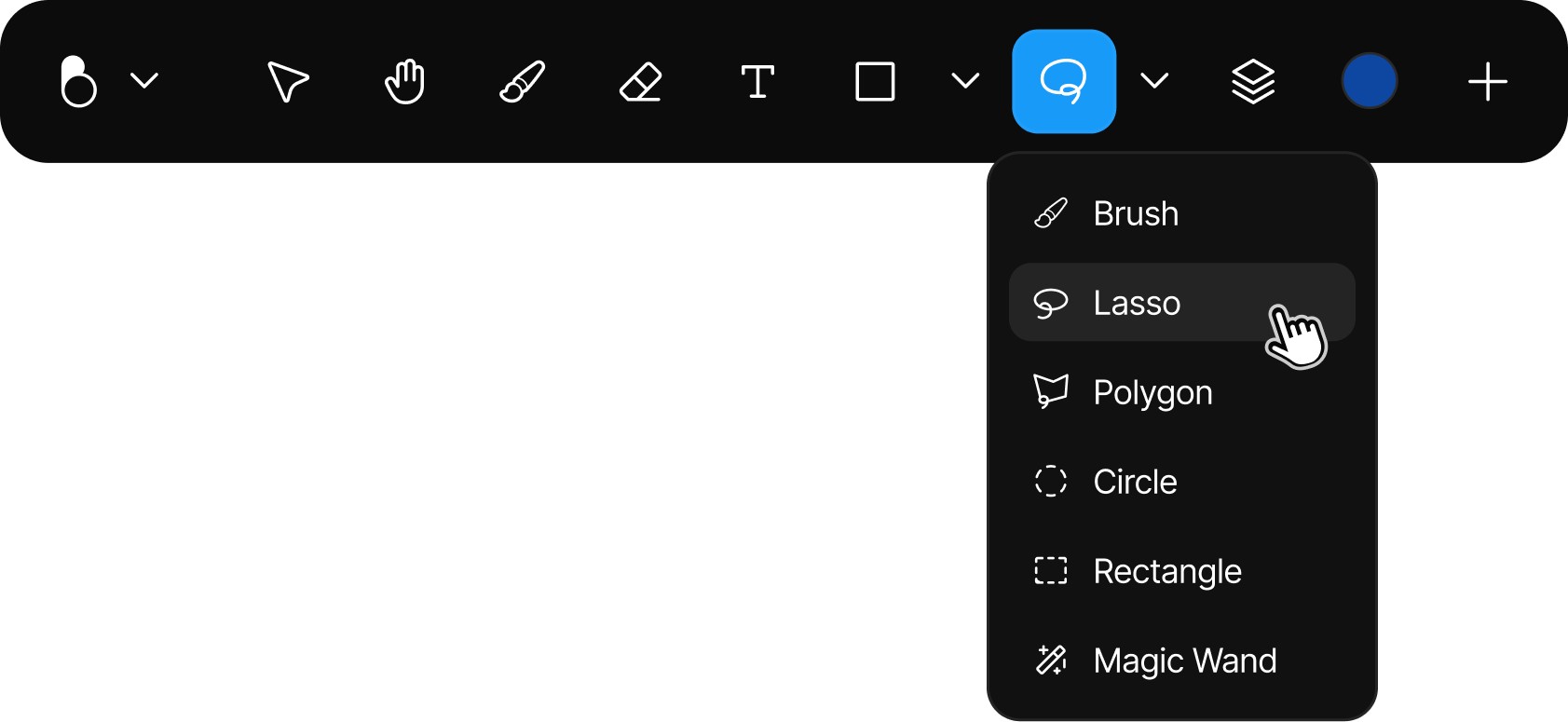
The modes decide how you draw the area. Open the Selection tool's dropdown to switch between them.
| Mode | Best for |
|---|---|
| Brush | Painting a freeform selection with adjustable Size, Opacity, and Hardness. |
| Lasso | Drawing an irregular outline freehand. |
| Polygon | Clicking points to build a straight-edged shape. |
| Circle | Dragging out a clean round selection. |
| Rectangle | Dragging out a clean rectangular selection. |
| Magic Wand | Selecting similar areas automatically with a click. Click a flat area of the material, not a sparkling highlight, so it grabs the object instead of the glare. |
Editing a selected area

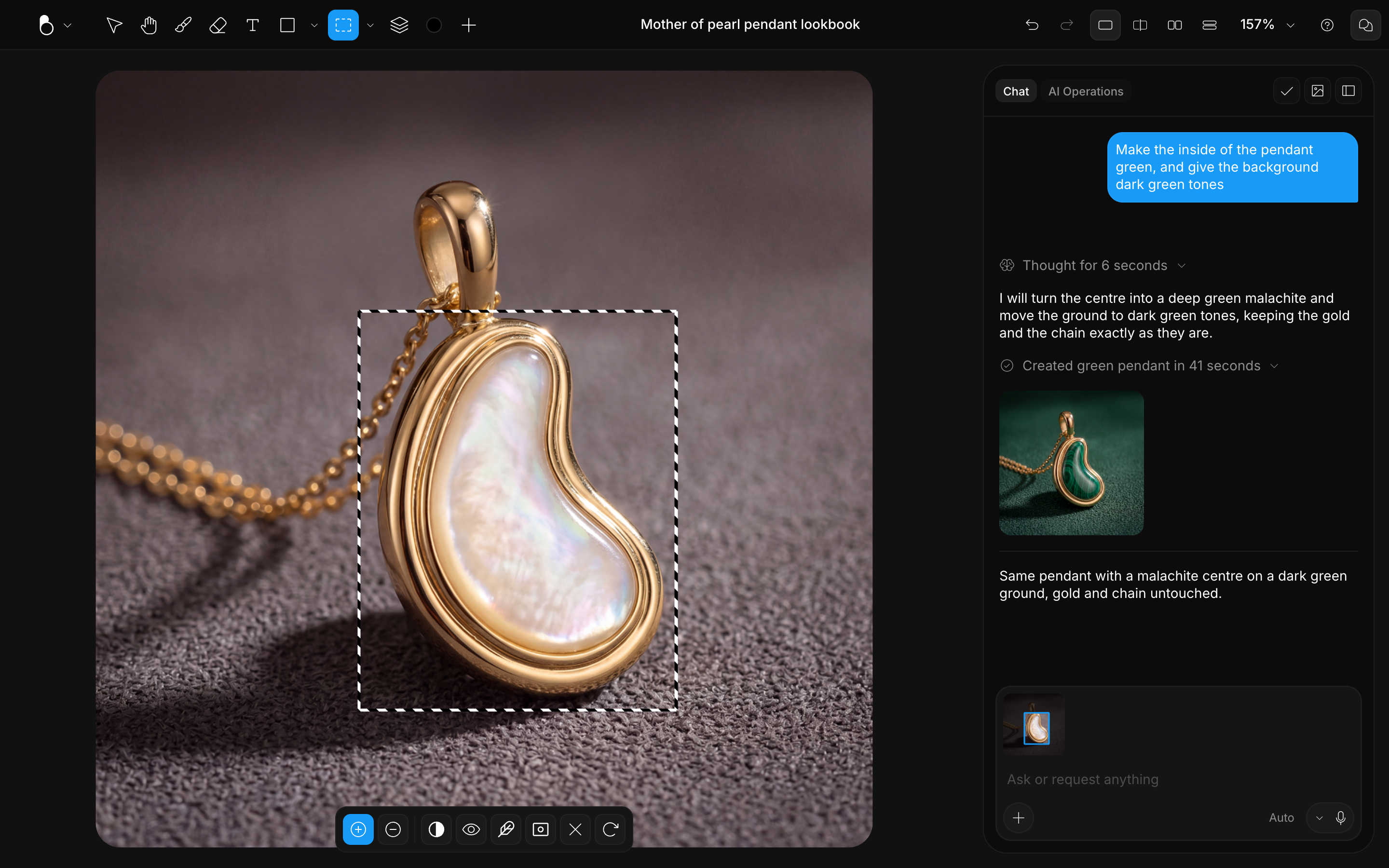
A selection stays live even when you switch to the Brush or Eraser, and the Selection tool button keeps a blue, active tint to remind you a selection exists. Your strokes are clipped to the selected area: paint outside it and nothing shows up. When you're done, press Cmd/Ctrl + D to clear the selection. Once you leave the Selection tool with nothing selected, that shortcut goes back to duplicating the selected layer.
Refining a selection
Once you've started a selection, the bottom toolbar lets you shape it:
- Add / Subtract: extend or trim the selected area. Subtract stays disabled until there is something to subtract from.
- Invert: flip the selection so everything else is selected (Cmd/Ctrl + Shift + I).
- Feather selection: soften the edge by a number of pixels, from 0 to 5000, for smoother blends. While you drag the slider, the canvas temporarily shows the red overlay so you can see the softness live.
- View mode: the eye button toggles between marching ants and a red overlay so you can clearly see what's selected. Left alone, the view follows your mode: Brush shows the red overlay, the others show marching ants; clicking the eye overrides that.
- Clear selection / Reset selection: start over.
Some actions run from the keyboard only. Cmd/Ctrl + A selects the whole canvas, and Alt/Option + Backspace fills the selection with the active color on a new Color Fill layer, while Ctrl + Backspace fills it with white.
When the selection is right, press Enter or click Create mask to turn it into a mask, so everything outside it is protected on that layer. See Masks.

Selection with Apple Pencil
On iPad and iPhone you draw selections by touch or with an Apple Pencil, with the same modes and refine actions as on the web. The Pencil gives you finer control when painting a Brush selection around detailed edges. See Apple Pencil (iOS).