
Influence
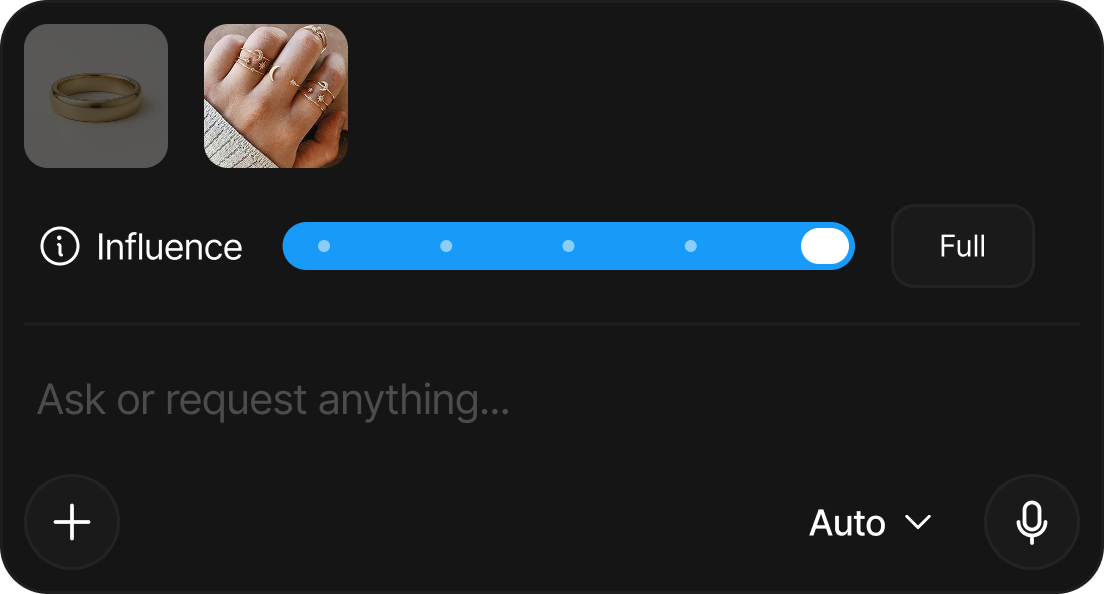
Influence controls how closely the AI follows a given input, either your canvas or an individual reference image. It's the dial between "use this as a loose inspiration" and "stick to this exactly."
The Influence levels
Influence runs across five levels, from no effect to a strict match:
| Level | What the AI does |
|---|---|
| None | Ignores the input entirely. |
| Low | Treats it as a loose guide, with lots of creative freedom. |
| Mid | Balances your input with the AI's own interpretation. |
| High | Aligns closely, keeping most of the input's structure. |
| Full | Follows the structure of your input as strictly as possible. |
Influence isn't a magic lock; it changes how much freedom the AI is told to take with your input. Full is the only level that requests maximum adherence, so when preserving your design matters (an edited canvas, an exact product shot), use Full rather than High.
Two defaults worth knowing: a newly attached reference starts at Full, and your canvas influence is remembered per design.
If a result still drifts at Full, the fastest fixes are a mask (pixels outside your selection can't change at all; see Masks) or a cleaner input image. Influence guides the AI; a mask constrains it.
Setting influence
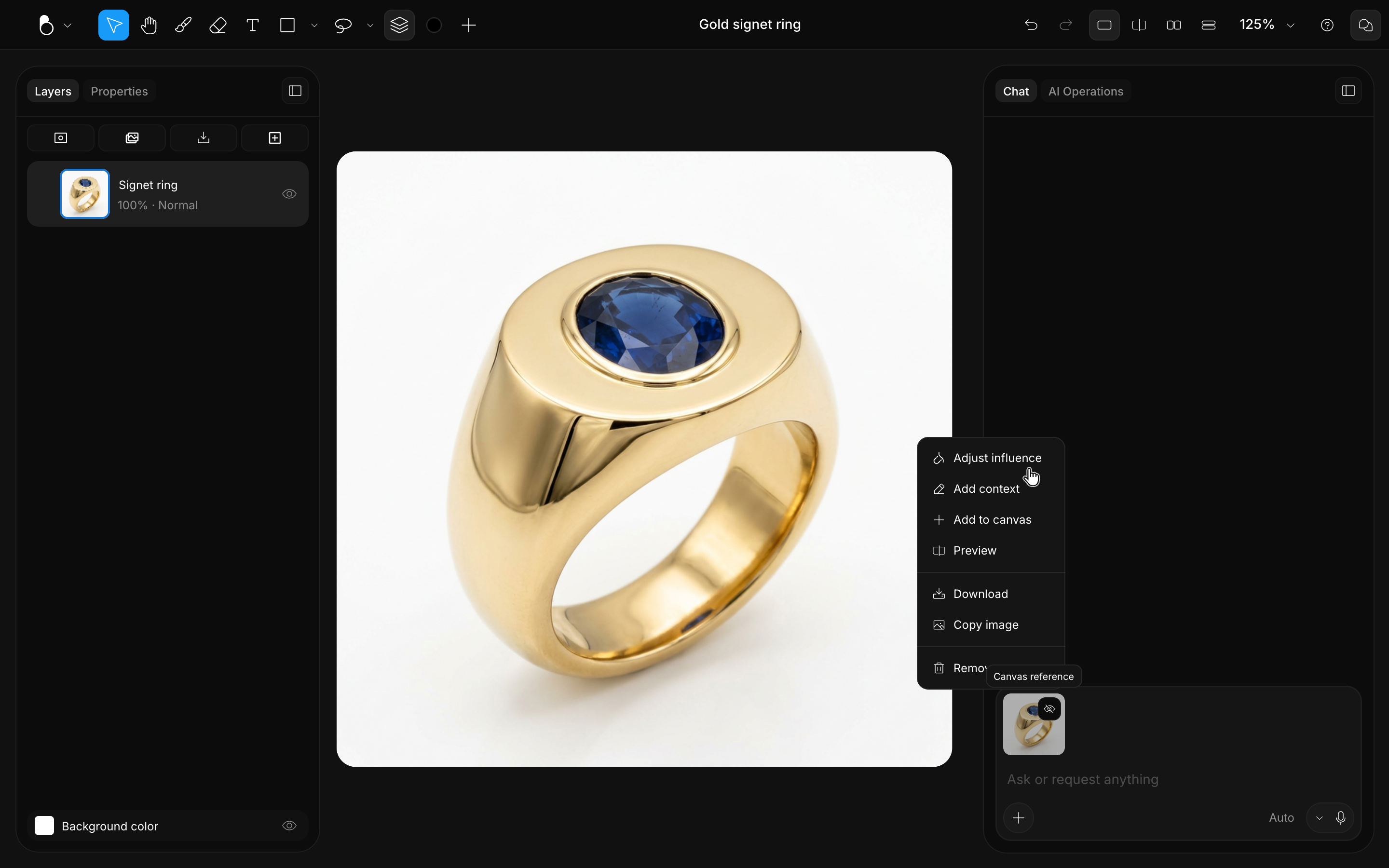
Influence is set on the thumbnails in the prompt area, before you send. Open a thumbnail's menu and choose Adjust influence, or simply double-click the thumbnail, and its slider appears; every thumbnail, canvas included, has its own. To check what a past prompt used, click the Info icon on that message: its Prompt settings list each influence as it was sent.
Canvas influence vs image influence
Two dials, same idea. Canvas influence weighs your canvas: set it Low when a rough sketch should only suggest the composition, High or Full to render a detailed drawing faithfully. And after you edit a result by hand, raise it back to Full before regenerating, so the AI respects your edits exactly. See Edit & Regenerate.
Image influence is per reference: each attached image has its own dial, so you can blend inputs, a product photo at High while taking only a hint of color from another at Low. See Reference Images.
If a result drifts from what you intended, raise influence; if it copies the input too literally, lower it.
Examples
These examples show how canvas input and influence shape results in different ways. They're references, not fixed recipes: the outcome depends on your intent and how you combine sketching, references, and prompting.
1. Fine-tuning details
Start from a detailed image and refine it by adjusting how closely the AI follows your visual. At Full the result stays very close to your input; at Mid it begins to introduce small structural changes; at Low the AI reinterprets freely, using the prompt as the main guide.
Prompt: “a ring made of pink sapphire stones set in white gold”
2. Changing morphology
Changing the influence affects how the AI interprets form and structure. At Full the result stays true to the butterfly shape; at Mid the AI reinterprets the silhouette toward a bird-like form while keeping a similar style; at Low the visual shifts completely, following the prompt over the original shape.
Prompt: “a white gold bird pendant with delicate filigree wings”
3. Changing color
Use the same input image and change only the color through text. The canvas stays fixed and, with canvas influence at Full, the AI respects the input entirely and applies only the color changes described in your prompt.
Prompts: “A ring, white gold, yellow sapphires” · “A ring, white gold, pink sapphires” · “A ring, white gold, blue sapphires”
4. Drawing complexity
The complexity and clarity of your drawing can guide your choice of canvas influence. All versions start from the same concept: the only difference is how refined the drawing is.
Prompt: “A rose gold ring with a fan-shaped center motif containing a flat white enamel inlay on one side, and a pavé channel-set diamond accent on the other side.”