Canvas & Views

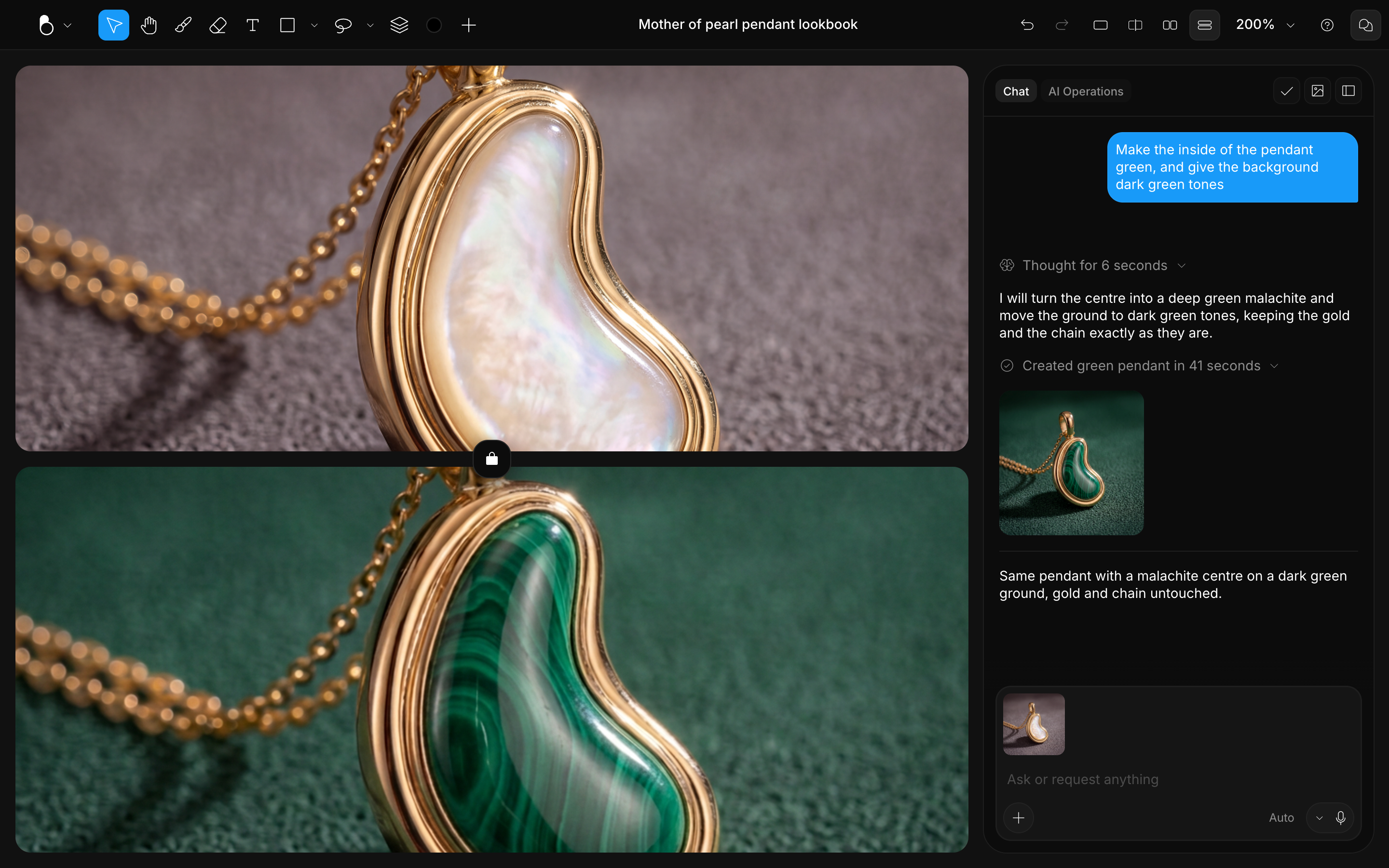
The Canvas is the heart of the editor, the central working area where your design comes together. It's drawn at exactly the size you chose when creating the design, for example, 1080 × 1080 pixels for the HD Square preset.
What lives on the canvas
Your canvas shows everything in your design: layers, images, brush strokes, text, shapes, and 3D models. You can zoom, pan, and interact with each object directly.
Getting content onto the canvas
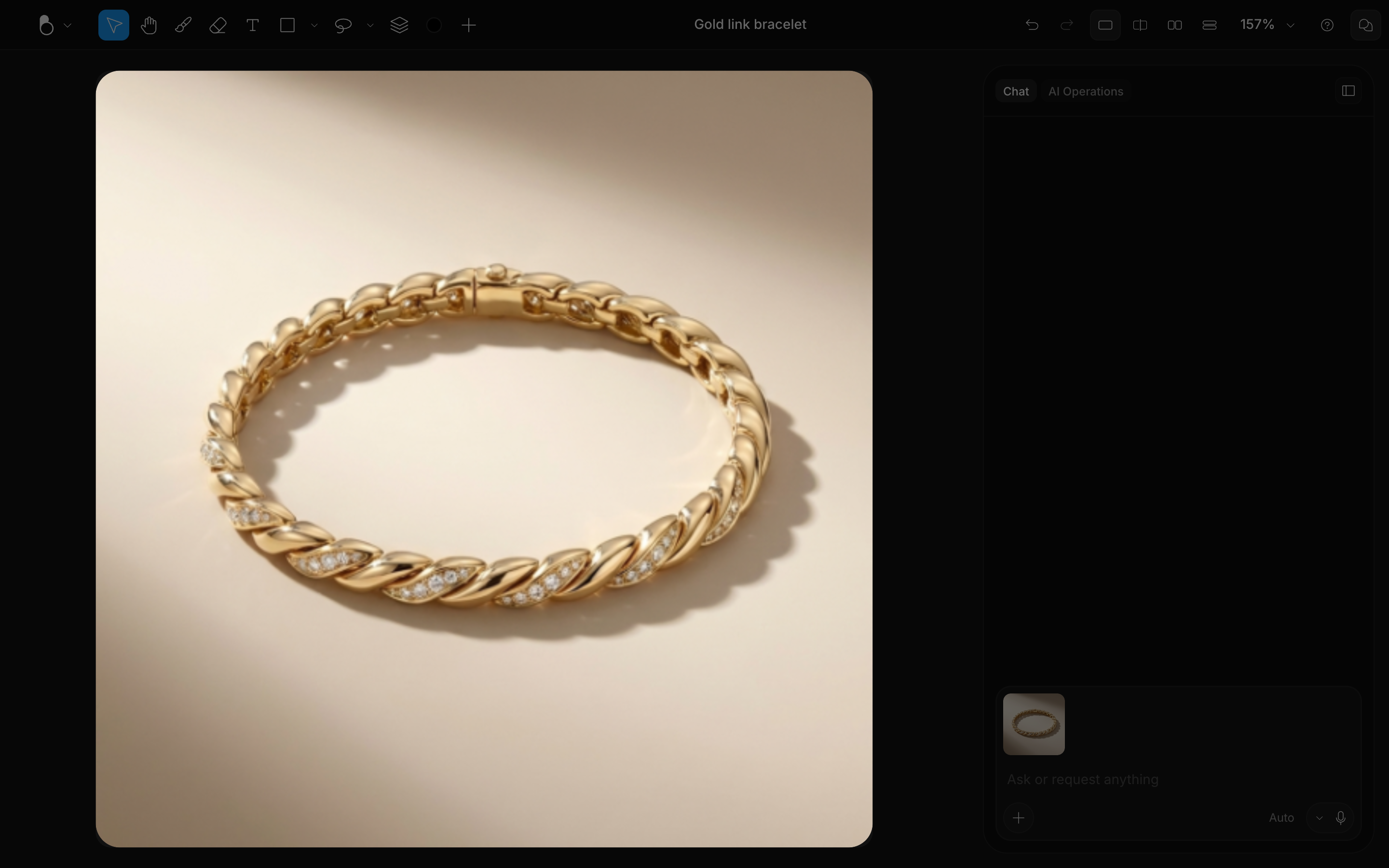
- Generate it: prompt the AI in the Chat panel, then add a result to the canvas.
- Drag and drop: drop image, video, and 3D model files straight onto the canvas to import them. You can also drag images from the Chat panel or the Layers panel onto the canvas.
- Import: use the Import (+) button (Cmd/Ctrl + I) to bring in an Image, Video, or 3D Object from your computer, or paste from your clipboard (Cmd/Ctrl + V).
Supported formats:
| Type | Formats |
|---|---|
| Images | JPEG/JPG, PNG, GIF, SVG, WebP, AVIF |
| Videos | MP4, WebM, MOV, MKV, up to 250 MB and 4096 × 4096 pixels |
| 3D models | GLB, GLTF (including a ZIP with its resources), USD/USDA/USDC/USDZ, OBJ, STL, PLY, ABC, DAE |
An imported 3D model doesn't flatten into a picture on its own: it stays a live object you can orbit on the canvas, and Merge › Flatten makes a still of the current view when you want one. See 3D on the Canvas.
Moving around
- Pan: use the Pan tool (H) or hold Space and drag.
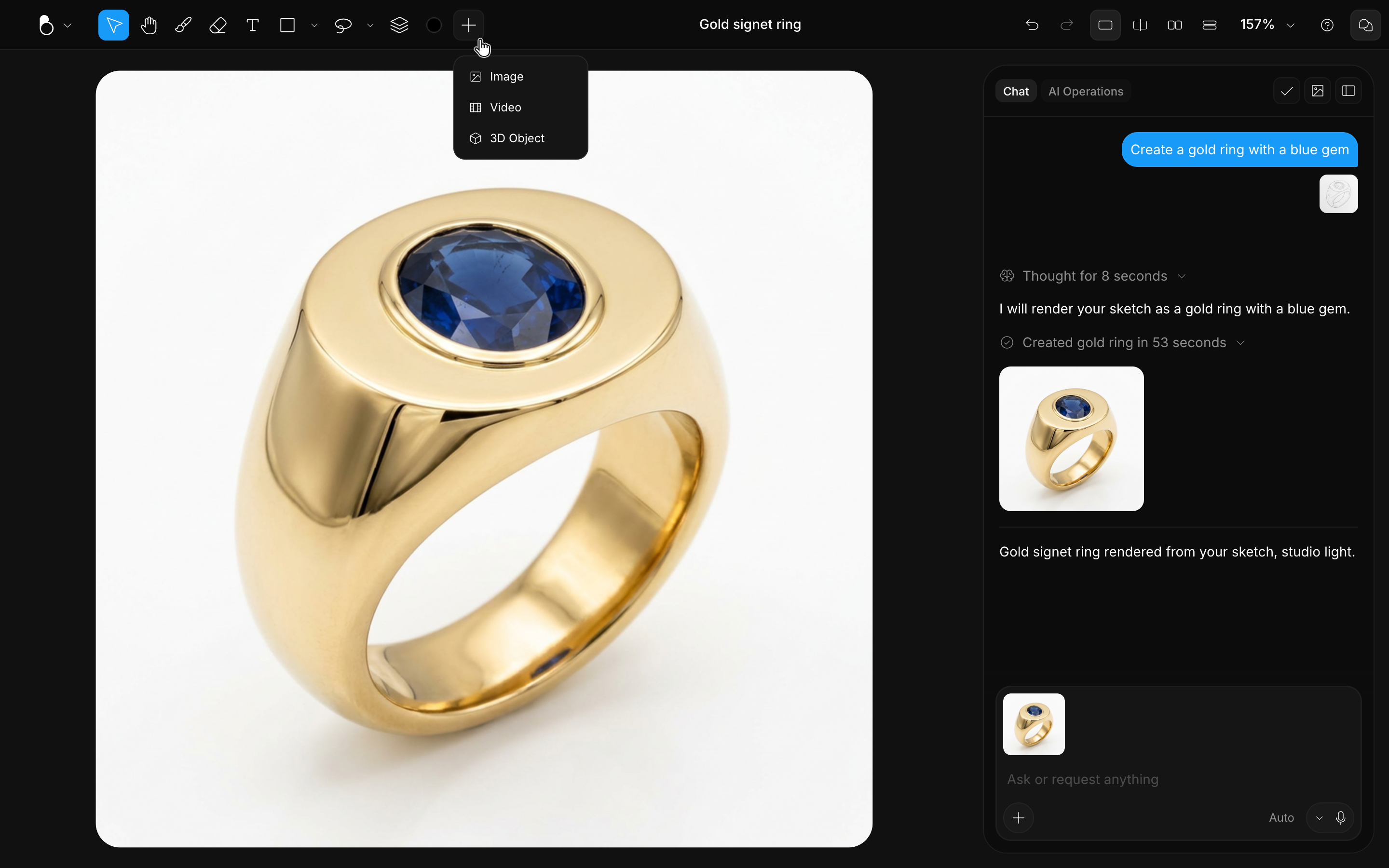
- Zoom: scroll with your mouse to zoom in and out, or use the zoom menu to zoom to fit, jump to 100%, or set a precise percentage. See Toolbar & Tools.
- Right-click: context menus give quick access to actions for objects, layers, and images.
Comparing results
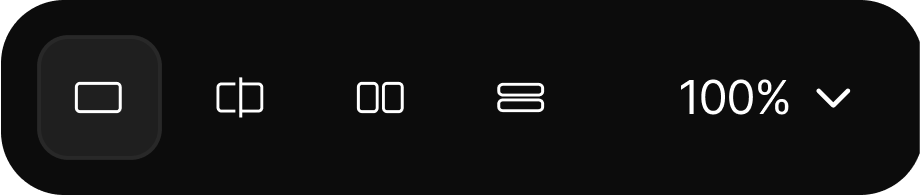
Click a generated image in the Chat panel and it opens in the Preview Pane over your canvas. From the toolbar you then choose how the two sit together, and zoom and pan keep working in every mode. If you enter a comparison view without picking an image first, BLNG compares against your latest generated result.
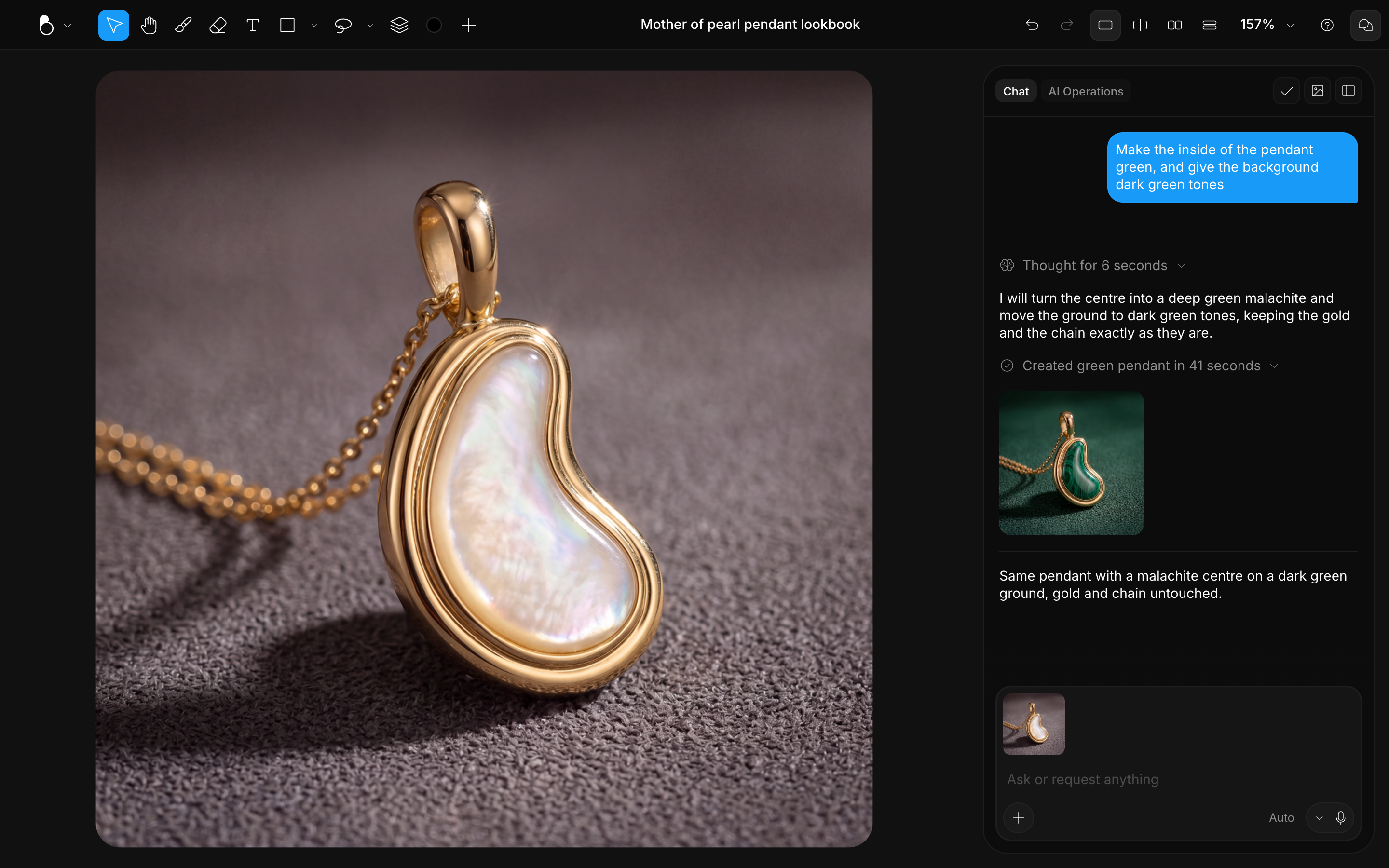
Canvas view
Canvas view (Alt + 1) shows your canvas on its own, no comparison. Switch back here to give your design the full view again.
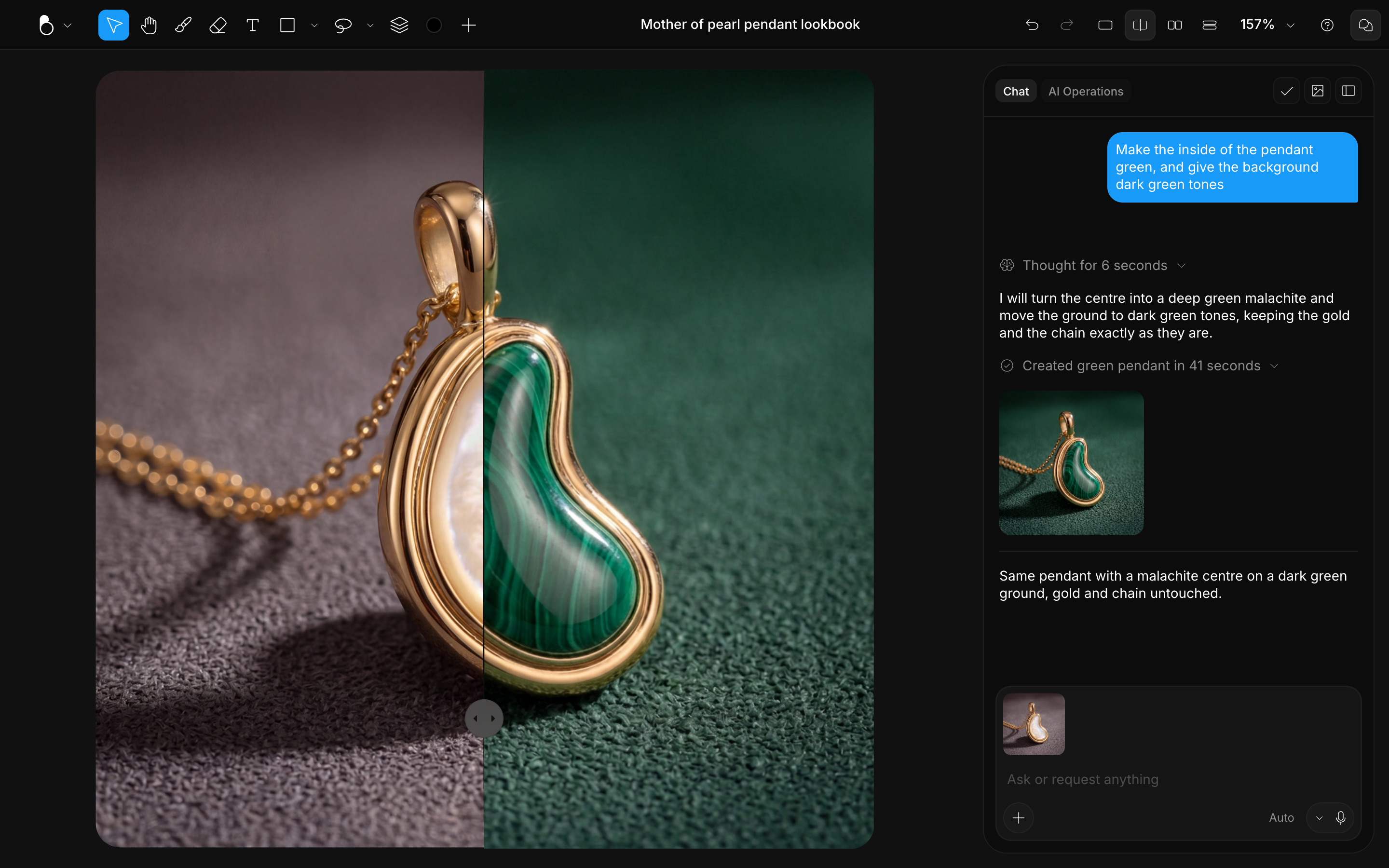
Split view
Split view (Alt + 2) overlays the generated image on the canvas, with a draggable slider. Drag it across to see exactly where the result differs from your work.
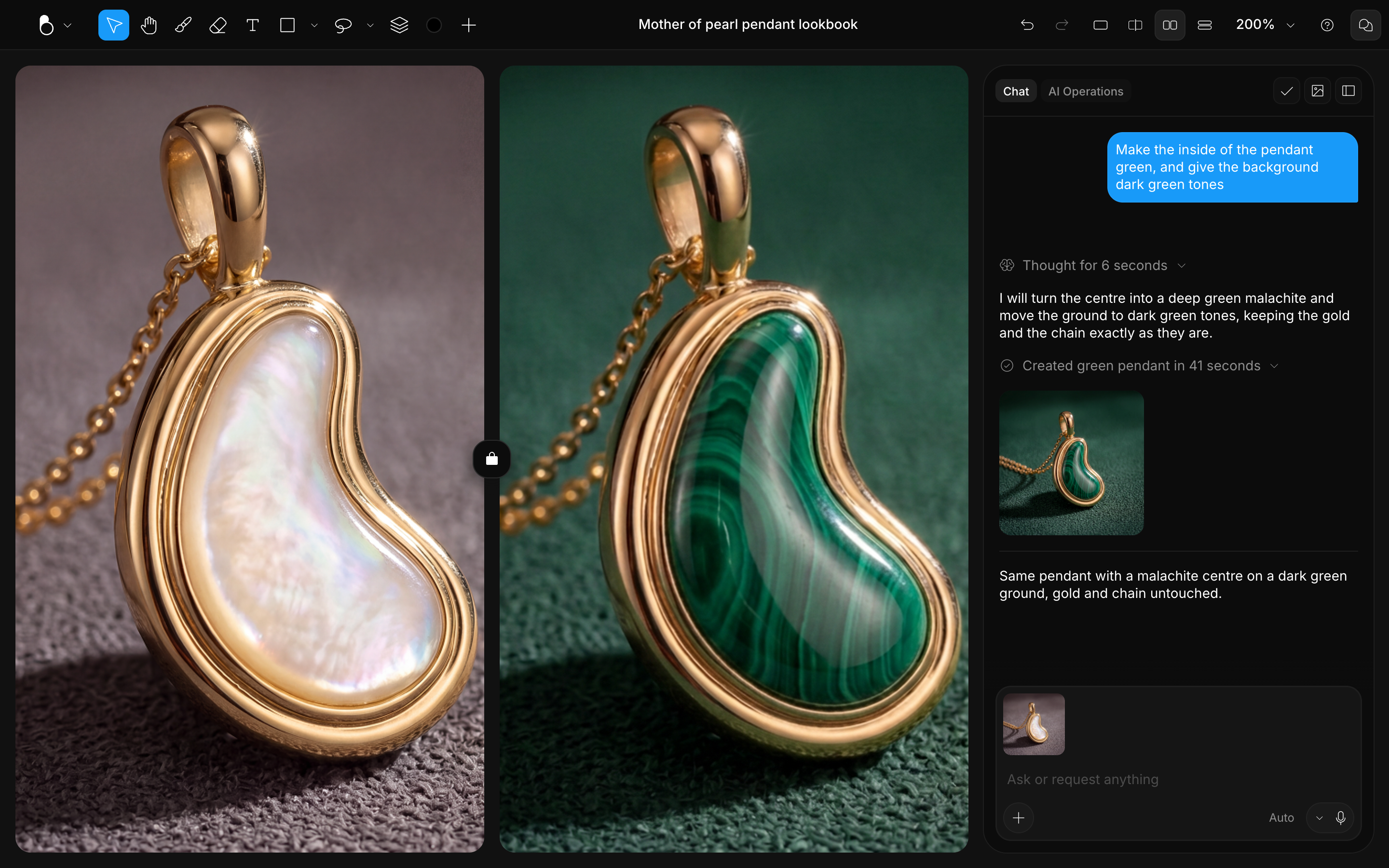
Side by side
Side by side (Alt + 3) shows your canvas and the image next to each other, both full size, for judging color, proportion, or finish. It's the natural view for the generate, edit, regenerate loop: you see your canvas edits and the latest result at the same time. See Edit & Regenerate.
Stacked
Stacked (Alt + 4) shows canvas and image one above the other.