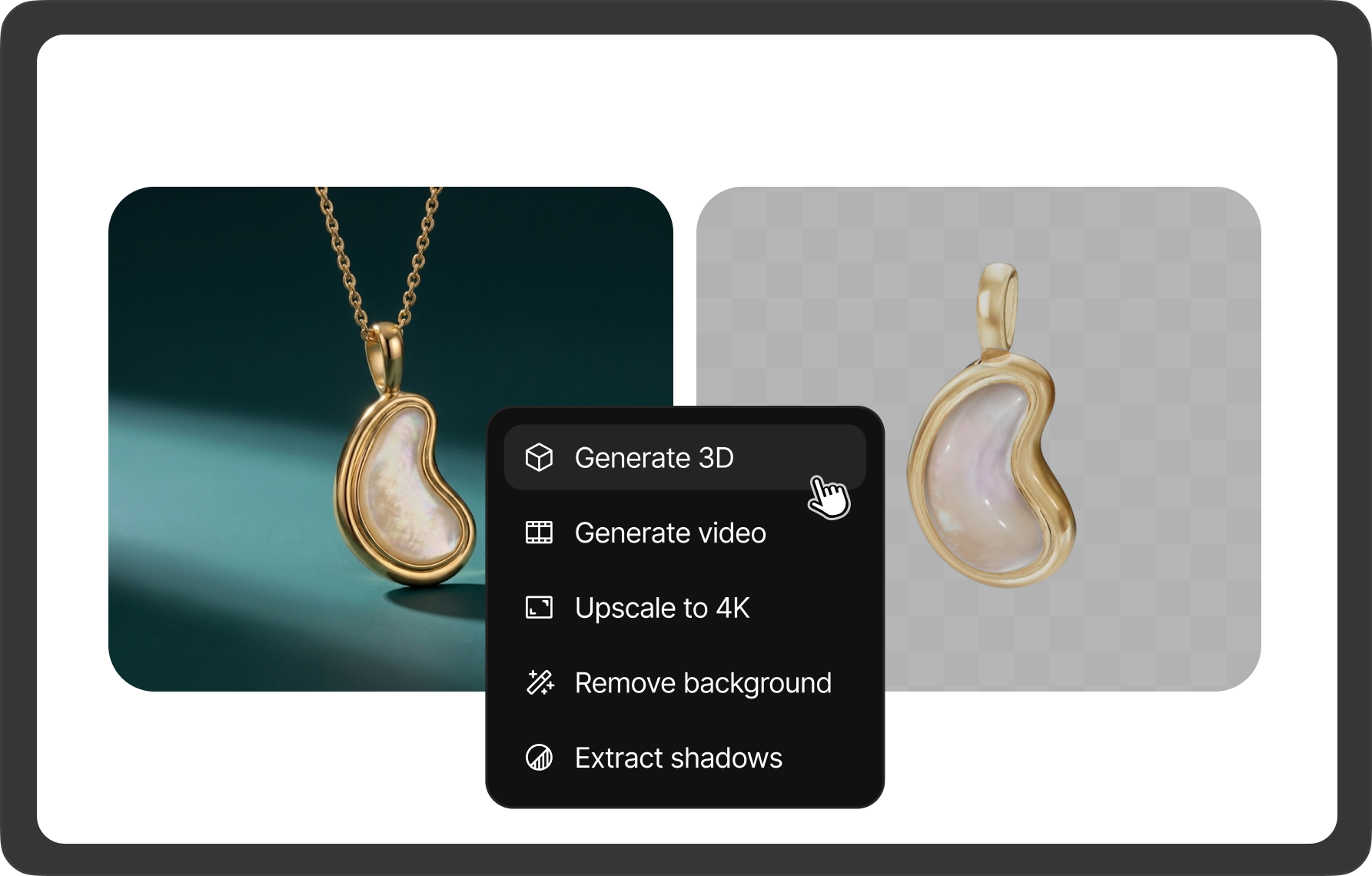
AI Operations
An AI operation is a one-click job that takes an image you already have and returns a new asset from it: a sharper version, a cutout, a 3D model, or a video clip. You don't write a prompt; you pick the operation and BLNG runs it in the cloud.
Operations are the same wherever you start them. The four entry points all lead to the same jobs:
- In the chat: right-click a result, or open its More actions (⋯) menu. With several results selected, the operation runs on all of them at once.
- On the canvas: right-click an image and open AI Tools.
- In the Layers panel: right-click an image layer's row and open AI Tools.
- By asking: for 3D and video you can also just ask the chat ("generate a 3D model of this", "make a turntable video of this ring").
Every result arrives as a new layer or a new tile, so your original stays intact: compare by toggling visibility, and delete the new layer if you prefer the source.
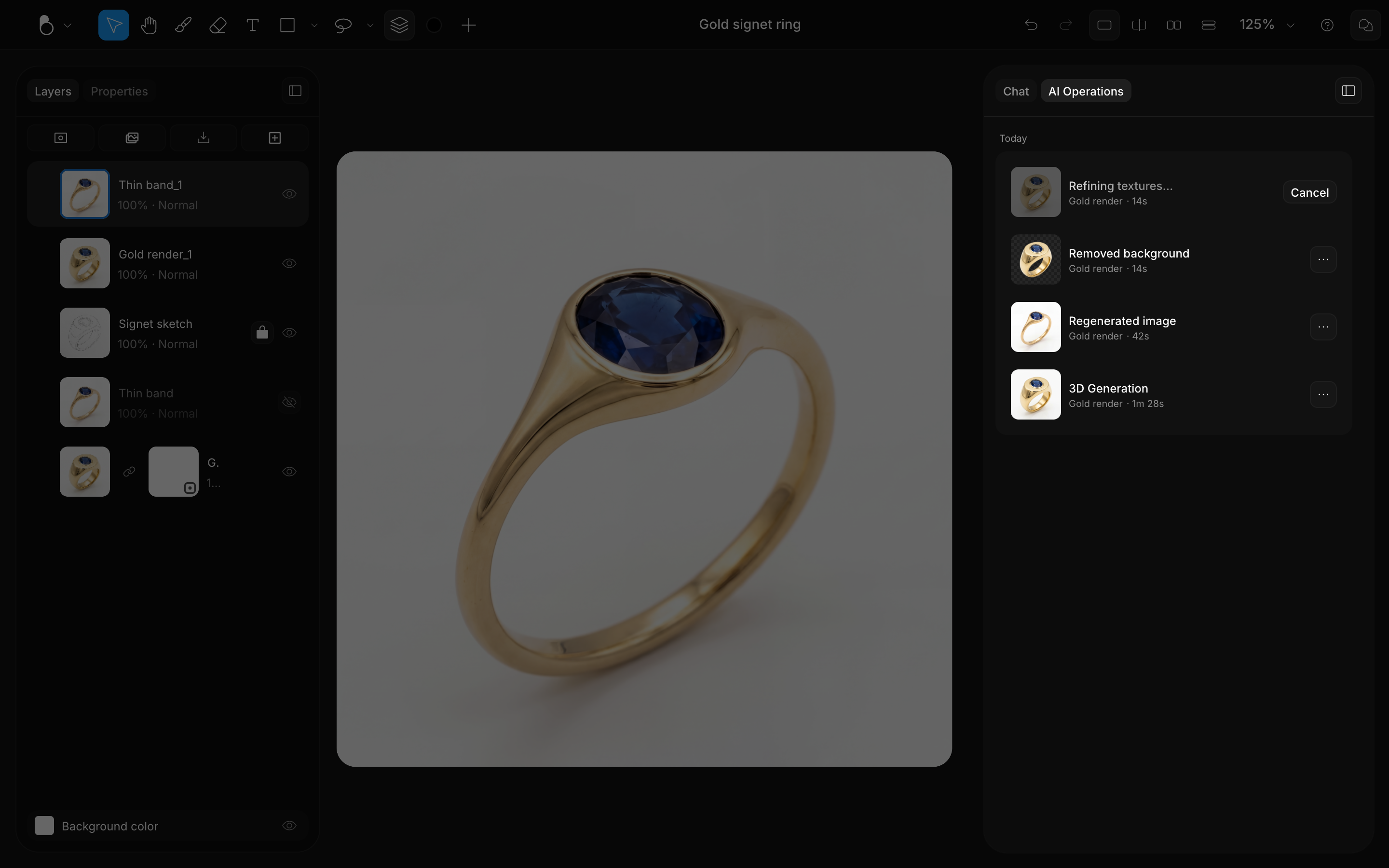
The AI Operations tab
The Chat panel has a second tab, AI Operations. Every job you start from a menu (not by asking in the chat) lands there as a tile with its source thumbnail, its name, its live status ("Upscaling image…", "Removing background…", "Converting 3D Model") and, when it's done, the result and how long it took. Several jobs can run at once, and you can keep working while they do. A finished tile offers Add to canvas and its own right-click menu with downloads.
A failed operation, video included, has Try again on its tile; BLNG does not retry it automatically. A video you ask for in the chat isn't listed here, and neither is a result you redo with Try again in the chat: both stay on their tiles in the chat.
Operations run in the cloud, so they need an internet connection.
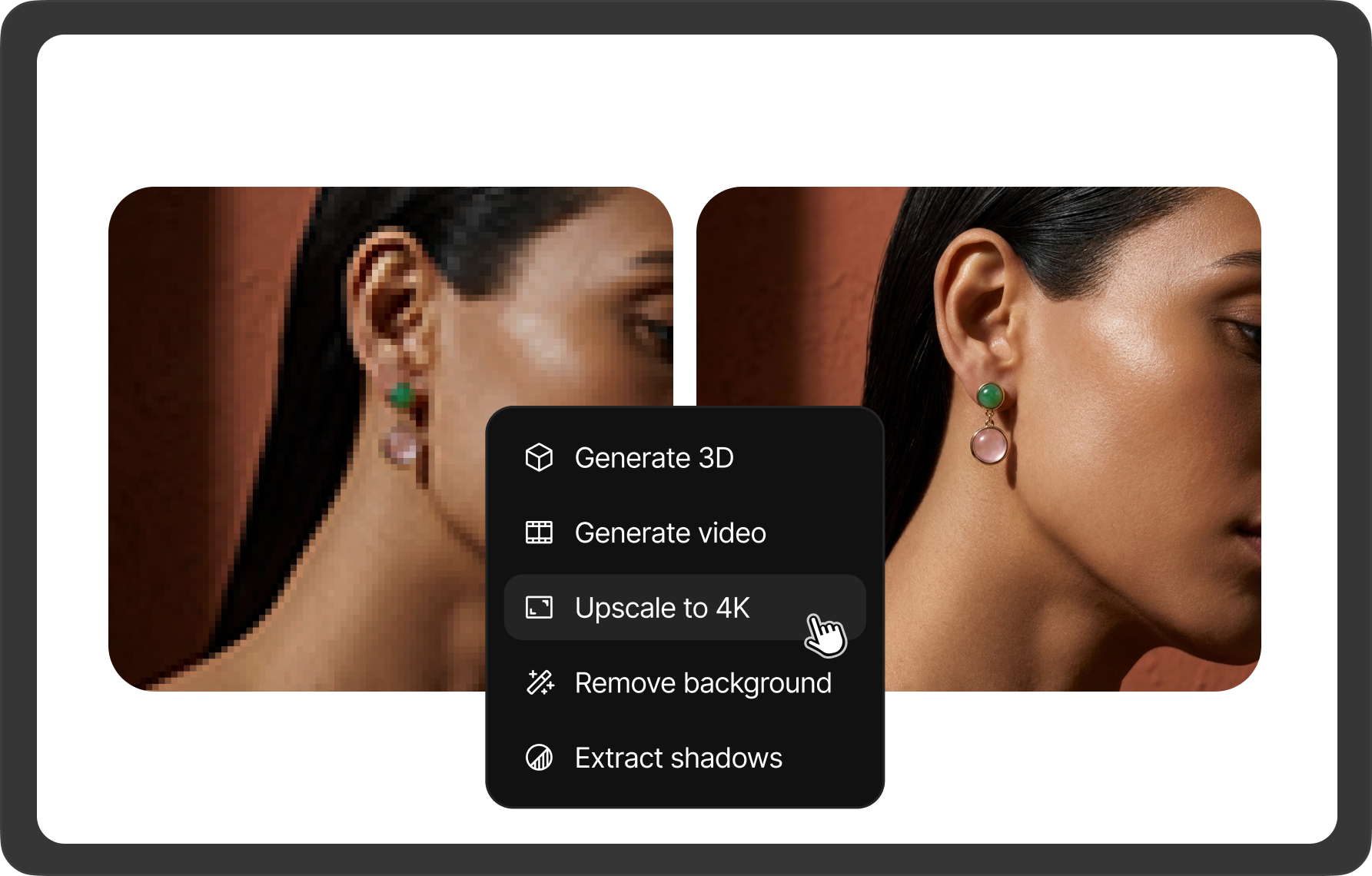
Upscale to 4K
Upscale raises the resolution of an image, sharpening fine detail so the work holds up in print, in close-up review, and in high-detail jewelry renders. Get the composition right first and upscale at the end, so you don't re-process versions you won't keep. An image can only be upscaled so far: at the ceiling BLNG says "Max resolution reached".
Upscale is a Professional feature, listed in the plan comparison as 4x upscale. On a plan without it, the entry shows a PRO badge and opens the upgrade options instead of running. See Plans & Pricing. Upscale to 4K works on images and on video layers, where the entry reads Upscale video to 4K and upscales the whole clip: AI Tools › Upscale video to 4K on the layer, or ask the chat “upscale this video to 4K”. To upscale one frame as an image, flatten it first (Merge › Flatten) and upscale the result.
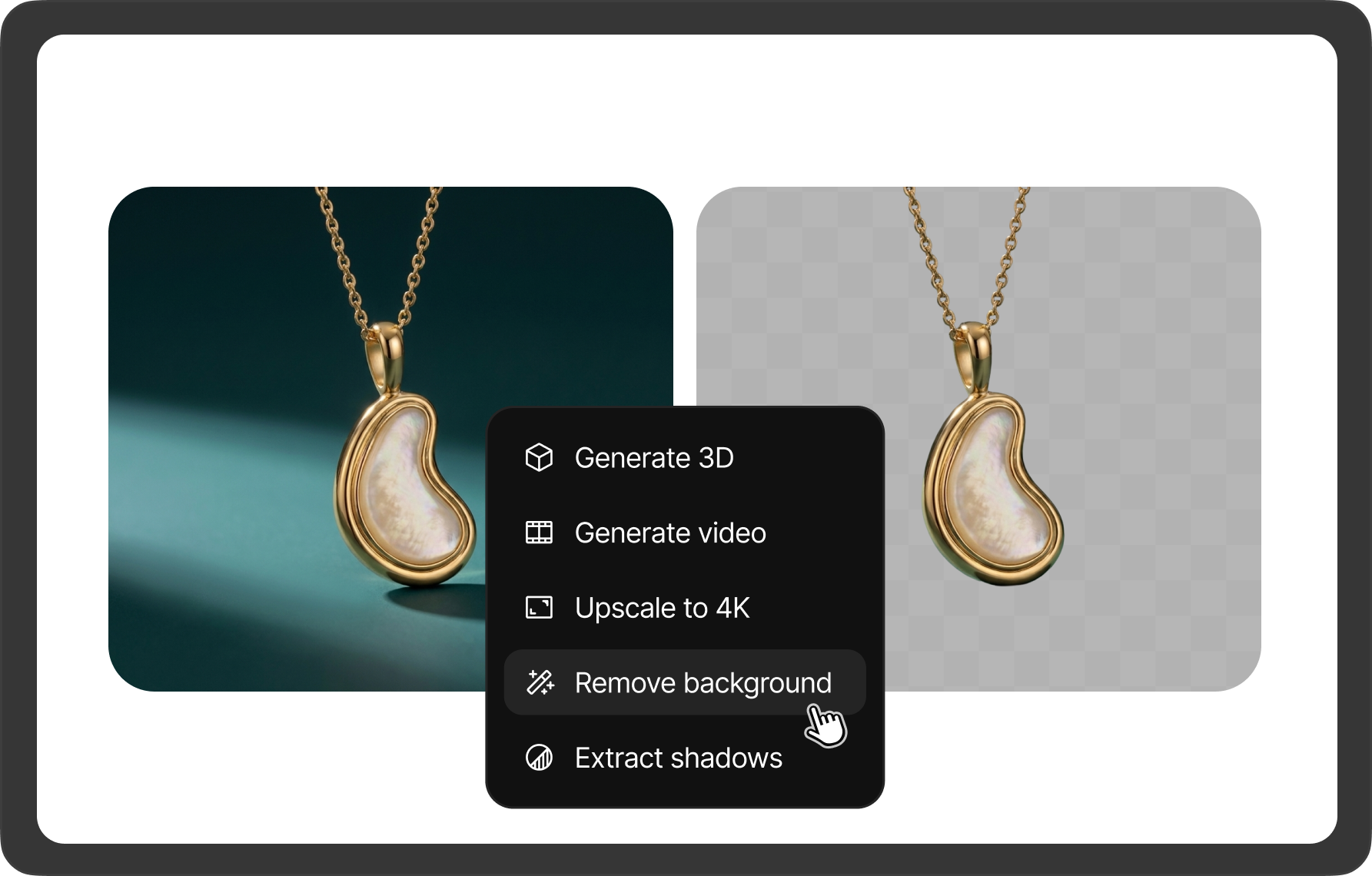
Remove background
Remove background cuts out the subject and drops everything behind it, leaving an isolated result you can place on any backdrop or composition: a mockup, a deck, or a canvas that mixes subjects from different generations. It is included on every plan, the free Starter plan included.
To skip the cutout entirely, set the scene style to Transparent before you generate, and the subject arrives already isolated. See Scene Styles.
Extract shadows
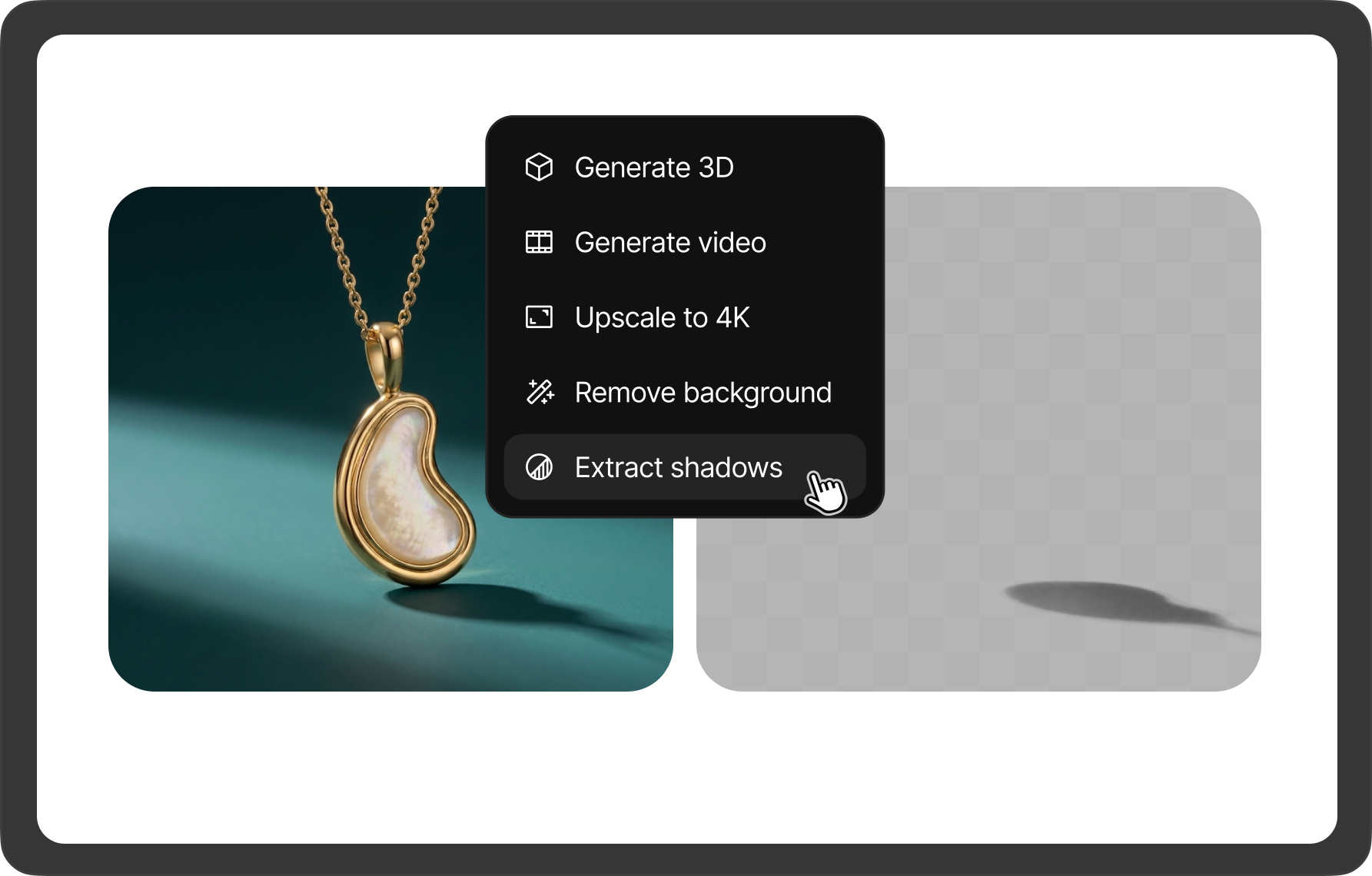
Extract shadows pulls out just the shadow the piece casts, on its own transparent layer, without the piece itself. Place it under a cutout from Remove background and the piece still looks grounded on a new backdrop. You'll find it right below Remove background: under AI Tools on the canvas and in the Layers panel, and in a result's menu in the chat. On a video layer, it works on the frame you paused on; see Video on the Canvas.
Generate 3D
Generate 3D turns a 2D image into a live 3D model you can orbit, place in your design, and export. It runs on every plan. How the model is built, what to expect from it, and how to view and export it is covered in 3D on the Canvas.