
Editor Overview

When you open a design you enter the editor: your home for everything you make in BLNG. The canvas sits in the middle, the toolbar runs across the top, the Chat panel opens on the right, and the Layers and Properties sidebar opens on the left.
The main areas
Everything you do in the editor happens in one of these areas.
Toolbar
The bar across the top holds your tools, the view modes, zoom, and the Chat toggle. Every tool has a keyboard shortcut, and Help > Shortcuts lists all of them. See Toolbar & Tools.
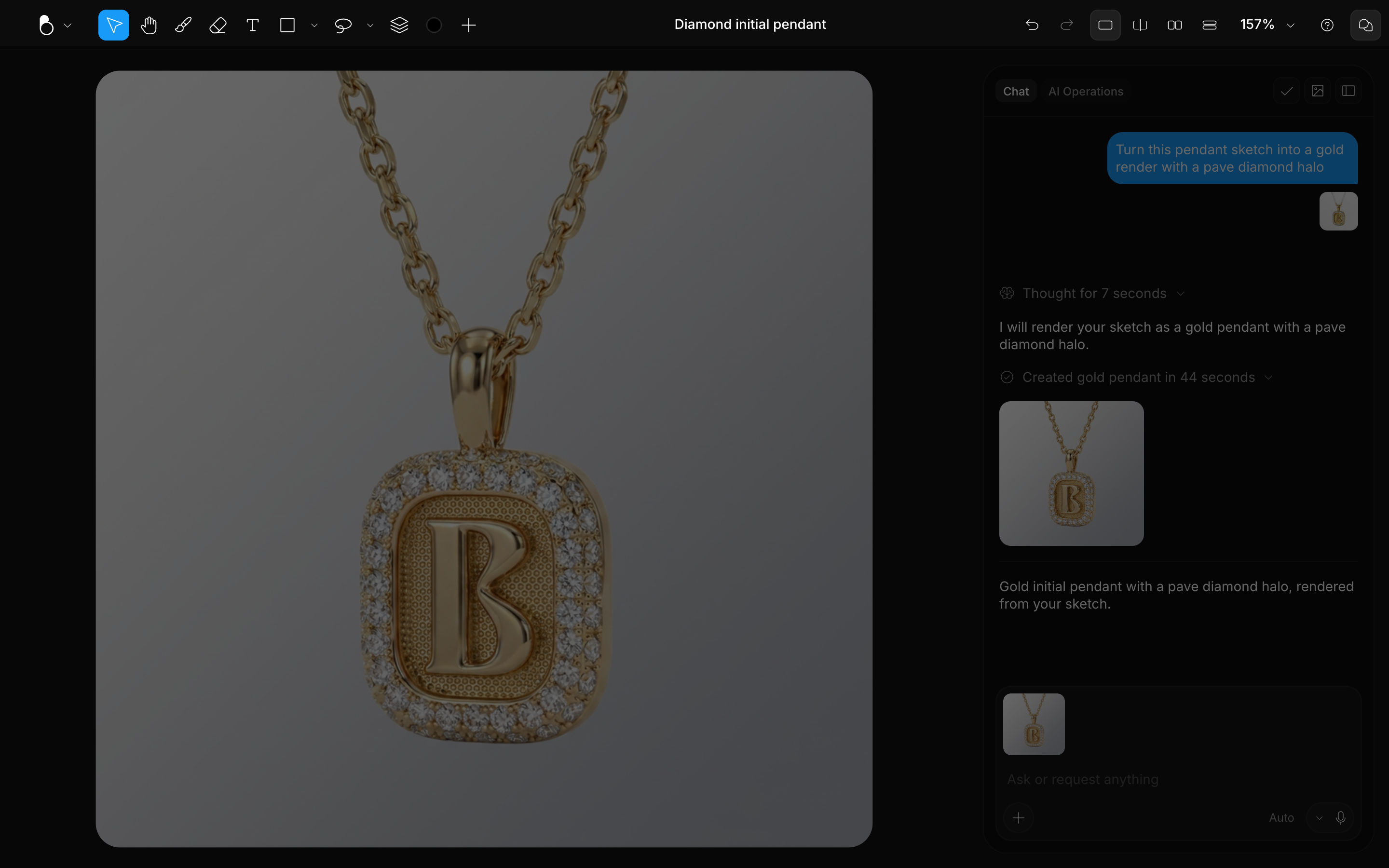
Canvas
The central working area, where your design actually lives: layers, images, brush strokes, text, shapes, and 3D models. See Canvas & Views.
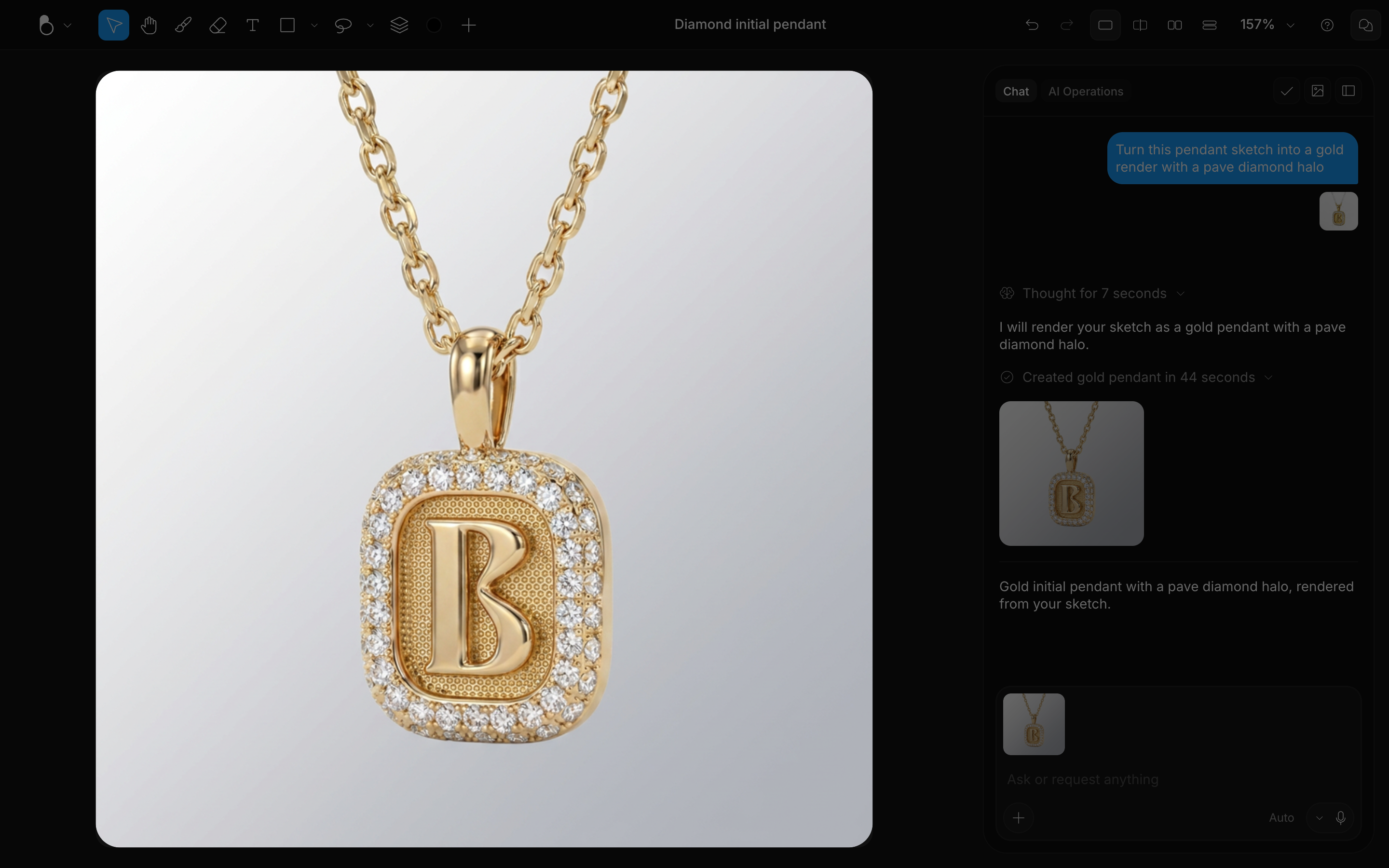
Chat panel
The panel on the right, where you describe what you want and the AI generates it. Everything you send travels from here: your prompt, your references, and your settings. See Chat Panel.
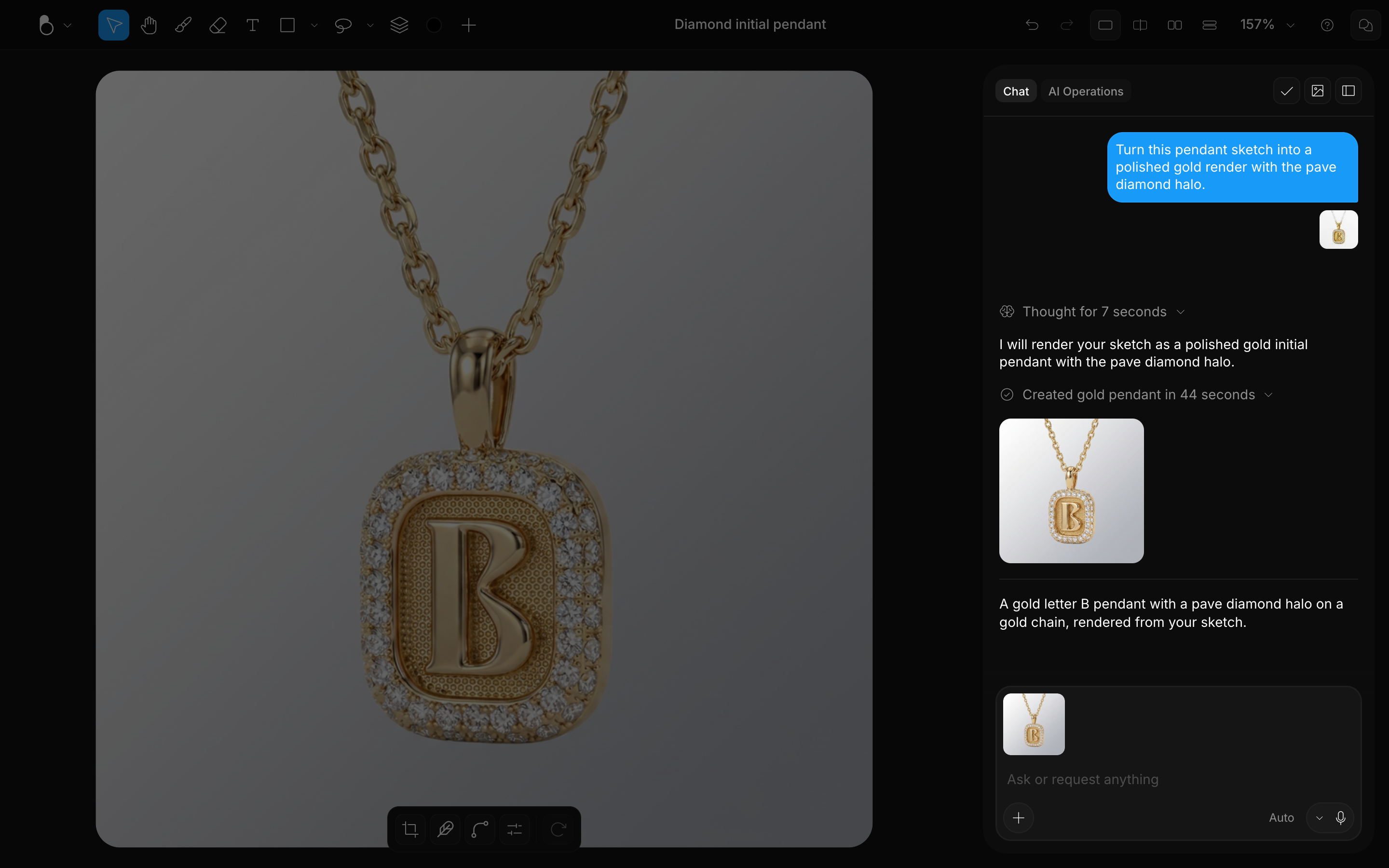
AI Operations
The other tab of the same panel: every one-click operation you run (upscales, background removals, 3D and video generations) lands here with its live status and result.
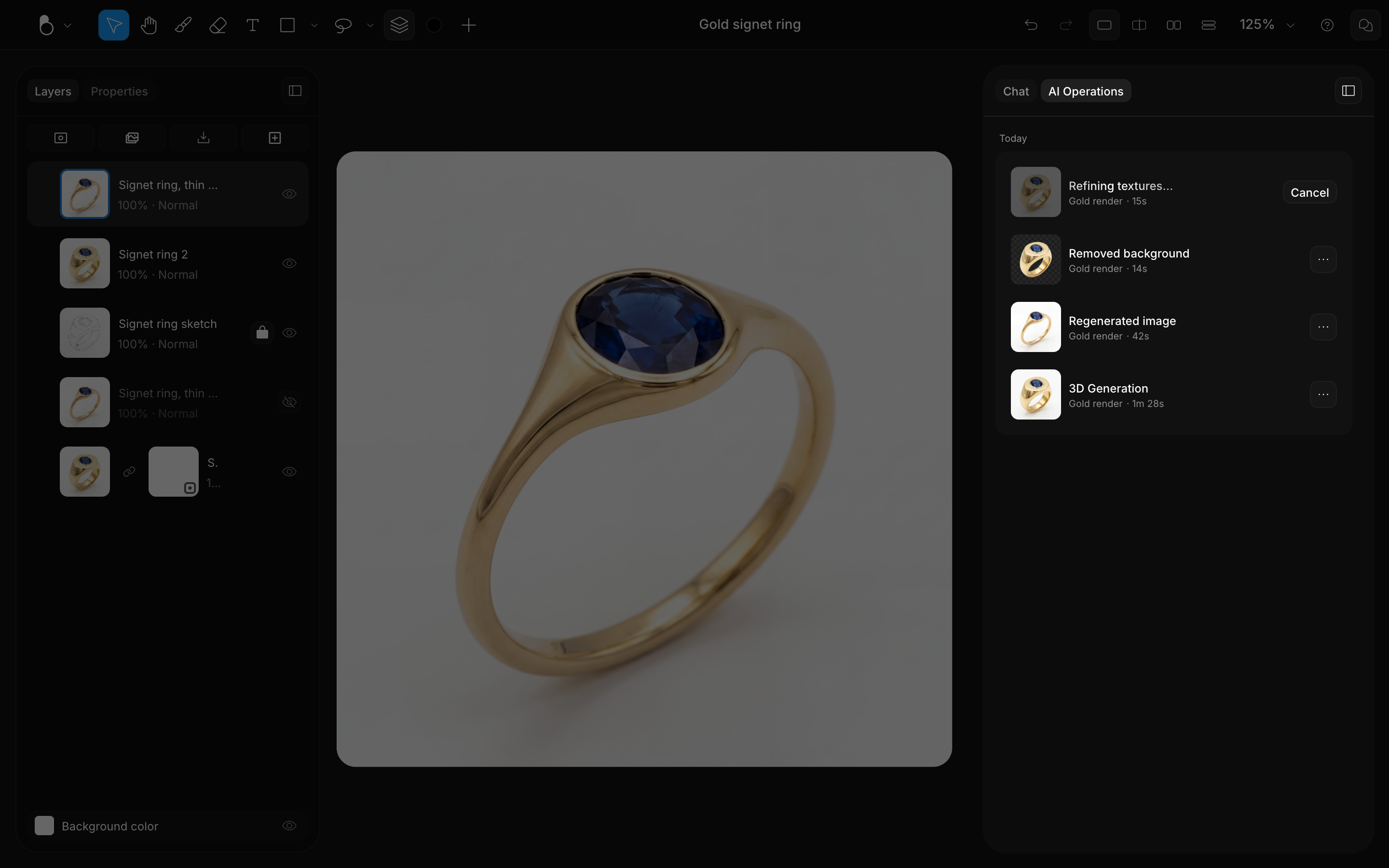
Layers
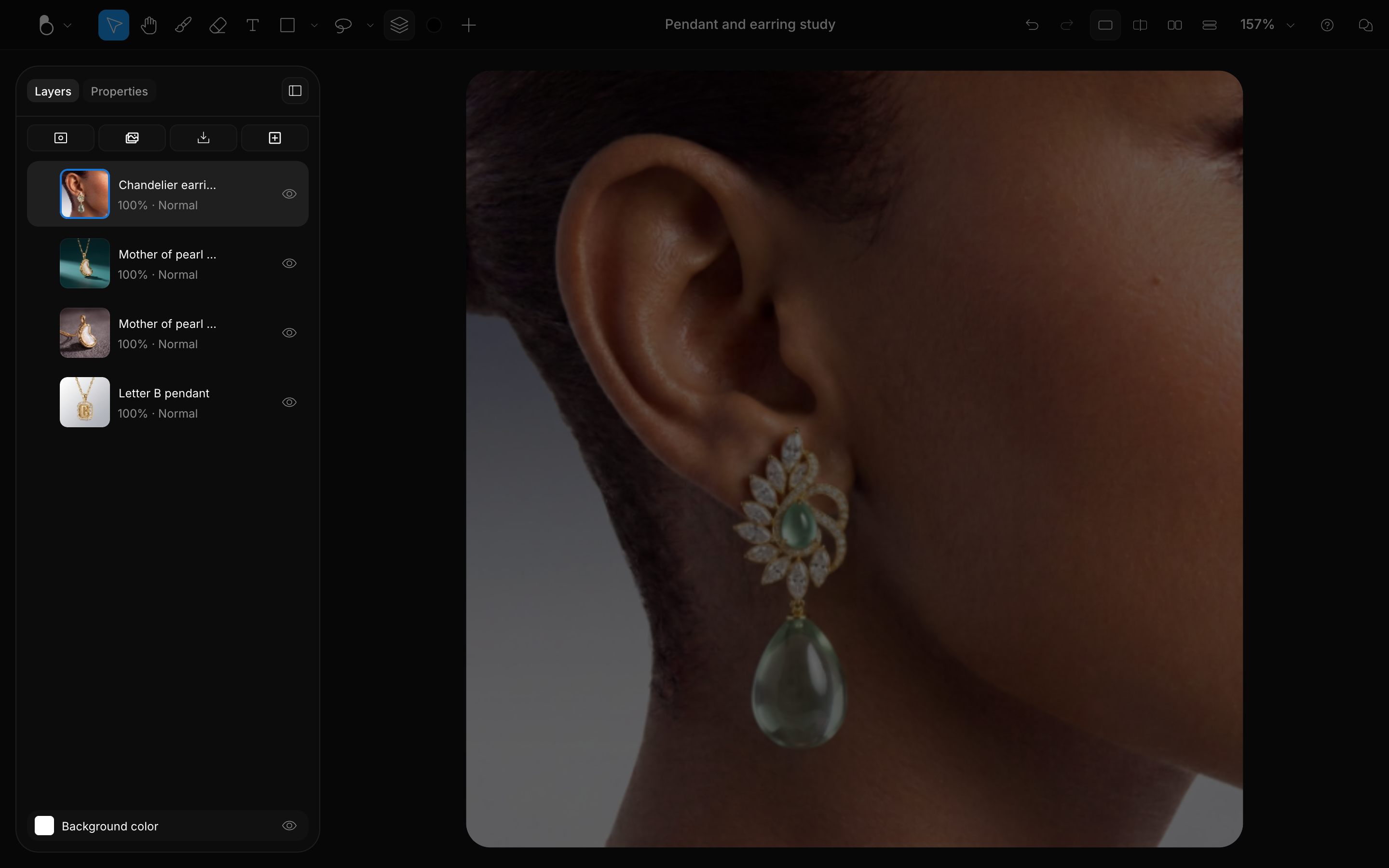
One tab of the left sidebar. Layers break your design into stackable pieces you can reorder, hide, mask, and group (L opens the panel). See Layers.
Properties
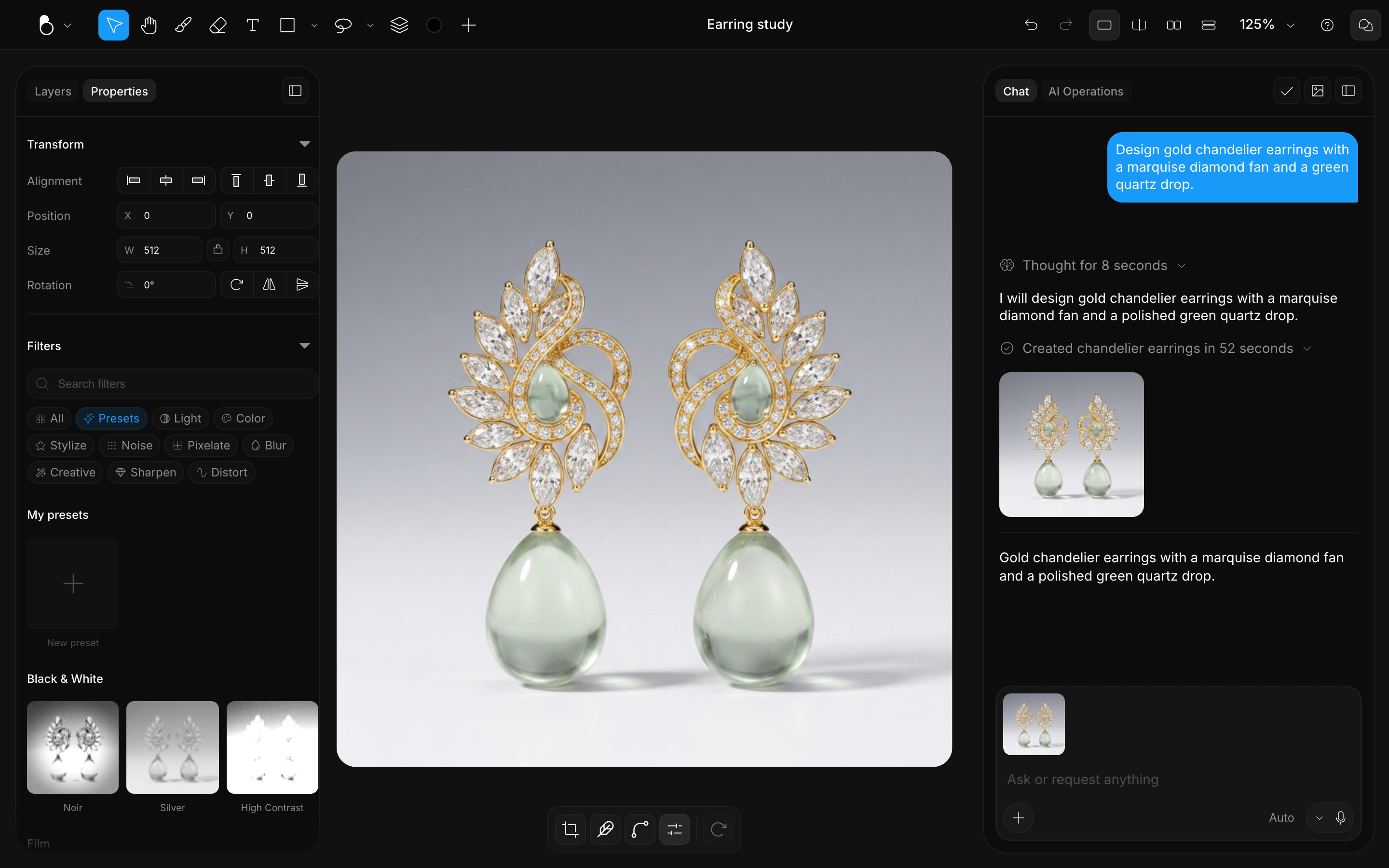
The other tab of that sidebar. Properties holds the active tool's settings and, with an image selected, its Filters. You can also reach it with the Image properties button on a selected image. See Filters & Adjustments.
How they work together
You prompt the AI in the Chat panel, bring the result onto the canvas, refine it with the tools in the toolbar, and generate again from what you changed. The view modes sit on top of that loop: they let you compare a generated result against the work it came from.
Everything you make is saved to your account and shows up on your Dashboard across devices. See Dashboard & Projects.
Compare with view modes
Click a generated image to open the Preview Pane, then switch view modes from the toolbar: Canvas view, Split view, Side by side, and Stacked. See Canvas & Views.
The in-app tour
A short in-app tour walks you through the essentials in eight stops: the Canvas, the Toolbar, the Chat, AI Mode, Scene Style, visual references, Influence, and view modes. You can leave it at any point, and reopen it from Help > Getting Started.