
Edit & Regenerate

A generated image is a starting point, not a final answer. BLNG gives you several ways to edit and regenerate a result until it's exactly right, from a one-click Try again to targeted, masked changes and hands-on touch-ups.
What the AI works from
On every prompt, BLNG checks your canvas for changes. That check decides the default input:
- You edited the canvas since the last generation: moved a layer, painted, erased, masked, added anything visible: the updated canvas becomes the input. Your edits are never silently ignored.
- The canvas is unchanged: a follow-up prompt like "make it rose gold" builds on your most recent generated result, even one you didn't add to the canvas.
- You say so explicitly: "work from the canvas image" or "edit the previous result" pins the input regardless of the check.
You can also refer to earlier results by what they are ("the thick one", "the first version"), and BLNG will find the image you mean in this conversation. For the full set of rules, see Which Image Does BLNG Work From?
Abandoning a result you don't like
Ignoring a bad result isn't enough on its own: with an unchanged canvas, your next prompt builds on it. Either edit the canvas between prompts, pin the input ("work from the canvas image"), or, for a clean restart inside the same design, clear the canvas and begin again from a text prompt. Each design's conversation is fully independent; nothing carries across projects.
Try again
Not quite there? Try again re-runs the same prompt to get a fresh variation, useful when the composition is close but you'd like another take. Right-click a result in the chat and choose Try again; it works the same on images, videos and 3D models in the chat. Each run intentionally explores the same interpretation slightly differently, so trying again a few times is a legitimate way to land a better result, often faster than rewording the prompt. Try again lives in the chat, and its runs stay there rather than in the AI Operations tab. On a canvas layer, run the tool again instead.
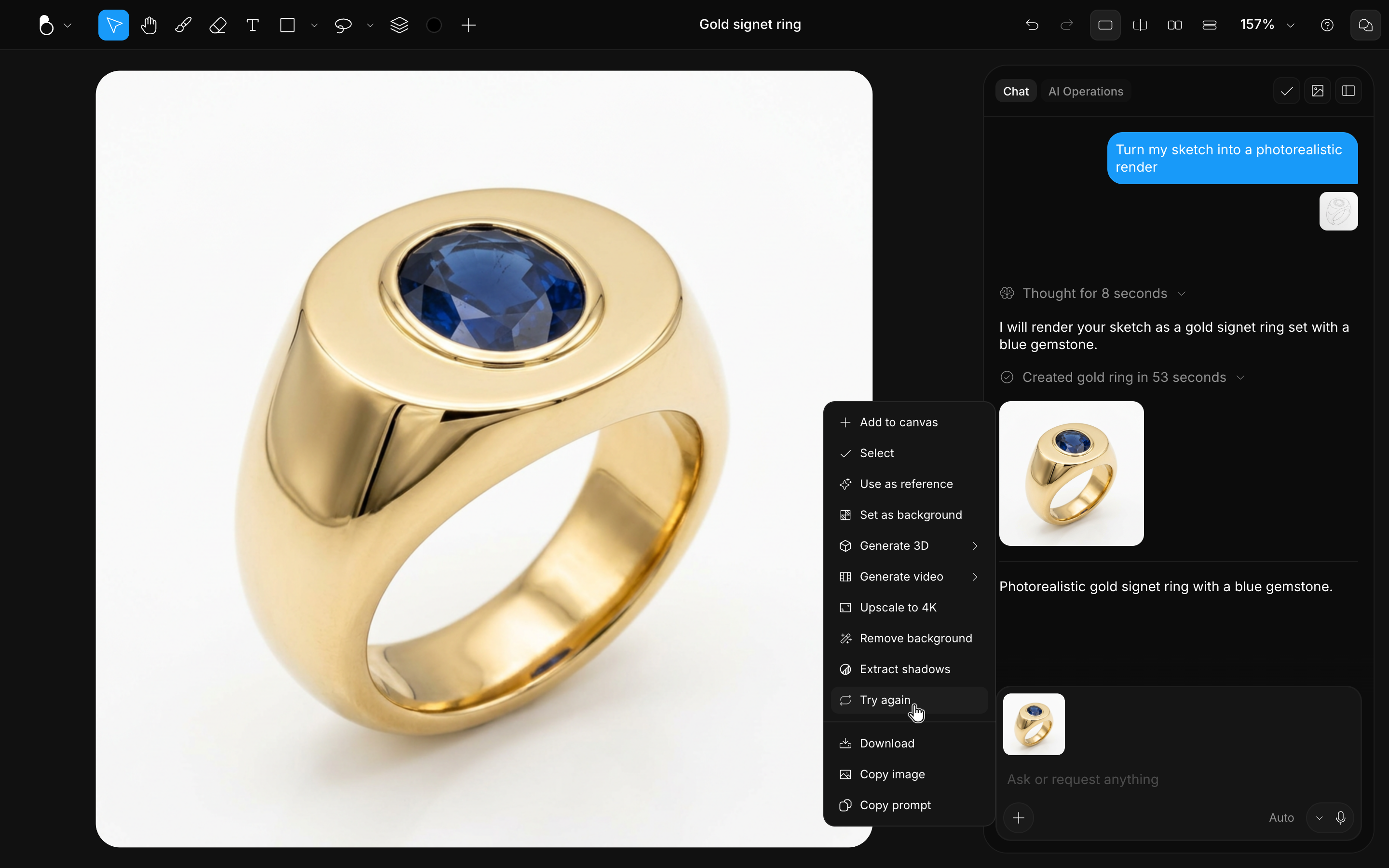
Refine with a new prompt
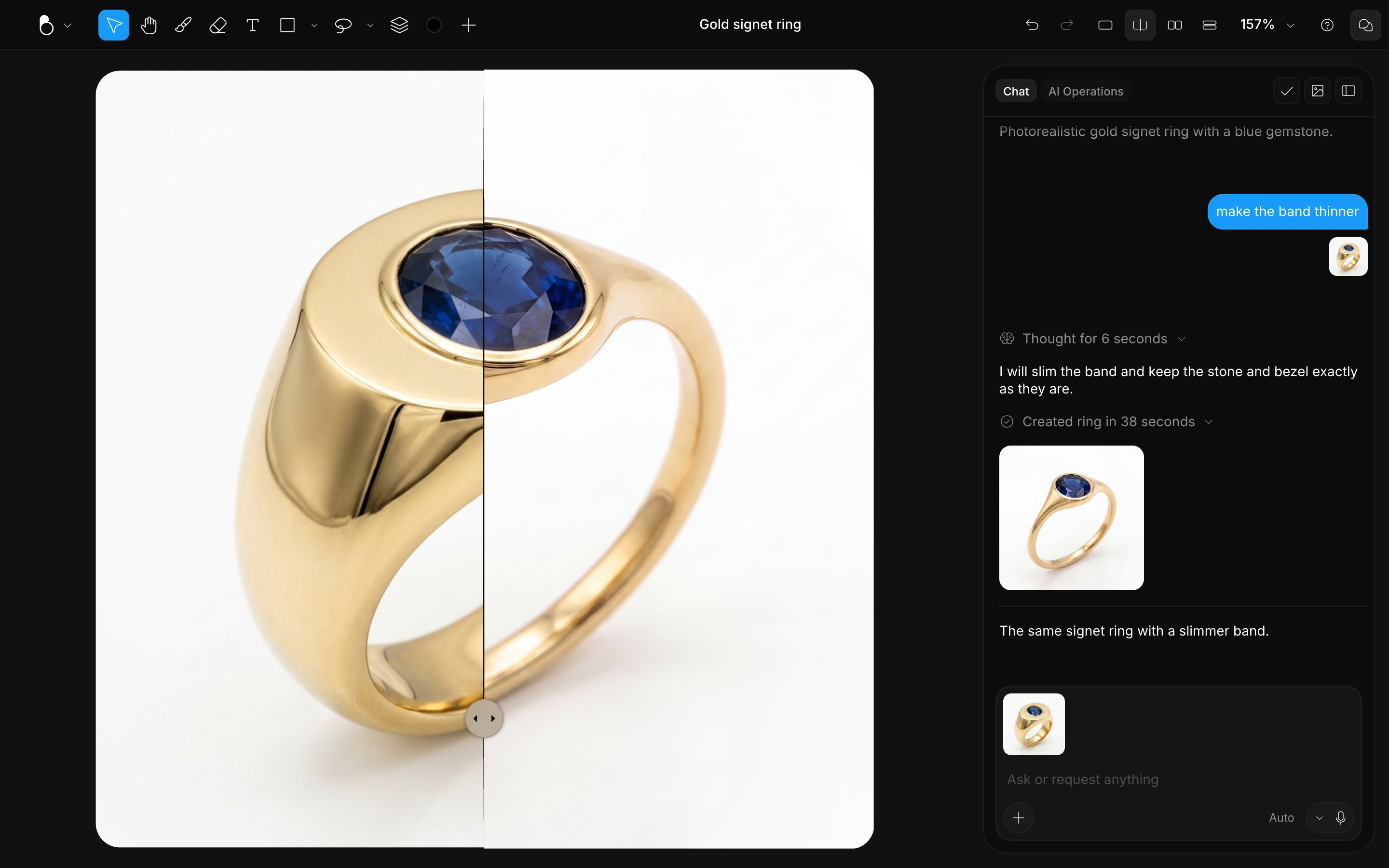
To steer the result, send a follow-up prompt describing the change, for example "make the band thinner" or "warmer lighting". Keep the parts you like and iterate on the rest. Adjust Influence to control how closely the AI sticks to the existing image versus your new instructions.
From generation to editing, and back
The core BLNG workflow is a loop: generate, edit by hand, regenerate. A typical pass looks like this:
- Generate and pick the result you like.
- Add it to the canvas: hover the result and click Add to canvas, or pick the same action from its menu. It lands as a new layer, which you can reorder and hide like any other.
- Edit by hand: bring it to the top of the layer stack, then erase the details you don't want and draw in what you do (say, a couple of blue cabochons where you want stones).
- Raise Influence to Full: your edited canvas is now the driver, and you want the AI to follow it exactly.
- Regenerate with a prompt for the remaining changes: "render this in silver, and add a bezel setting around the cabochons."
Each pass tightens the design: the AI does the rendering, you keep control of the shape.
Edit just one area with a mask
When only part of an image should change, bring it onto the canvas and mask the area you want to redo: select it with the Selection tool and press Enter to apply the mask. Regenerate, and the AI updates only inside the mask while everything outside stays exactly as it was, perfect for swapping a stone, reshaping a setting, or fixing a small detail. For everything masks can do, see Masks.
Paint and adjust by hand
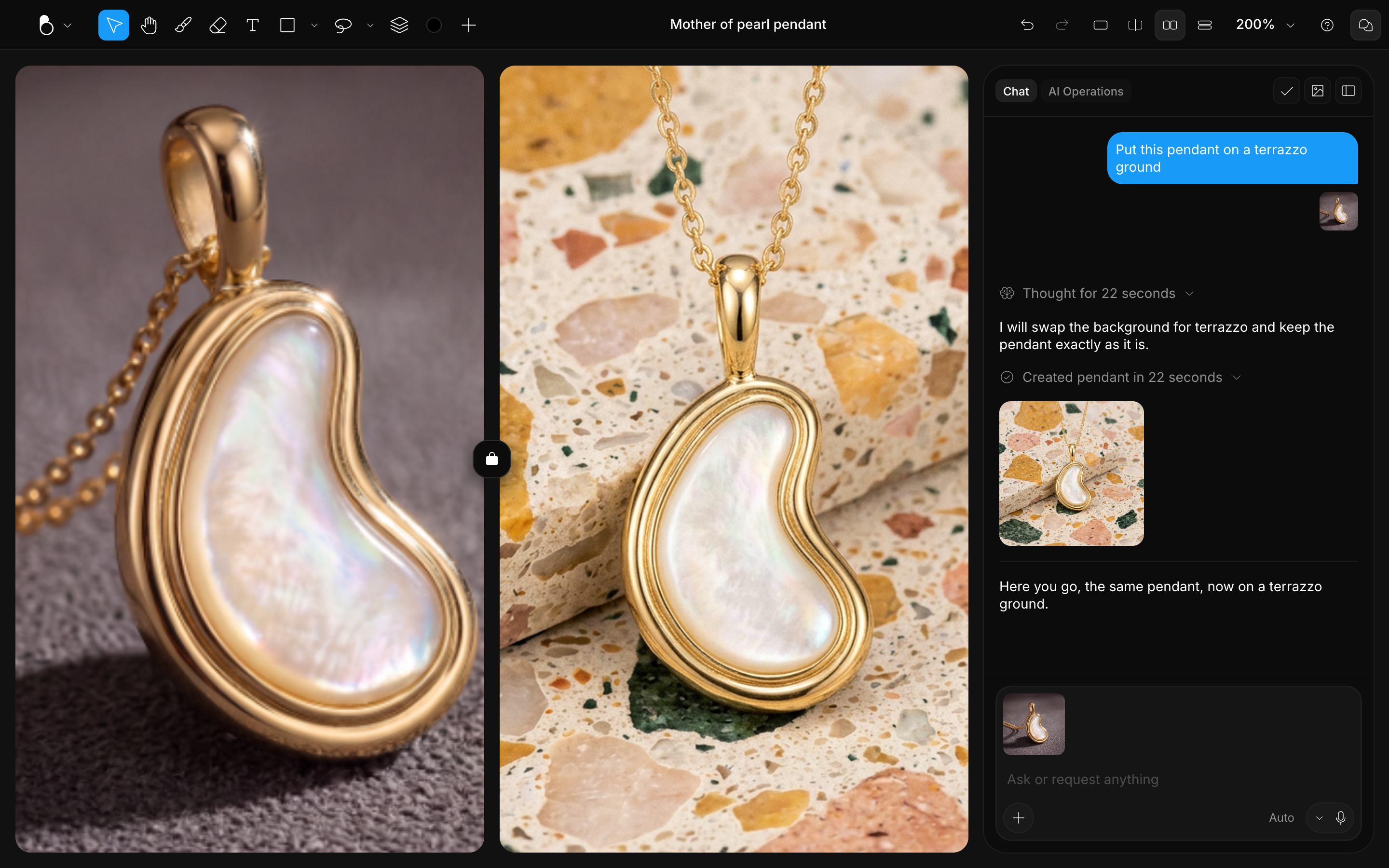
You can also edit directly. Add the result to the canvas, then use the Brush, Eraser, and layers to paint over details, clean up edges, or combine elements from different generations before regenerating.
Compare your edits
Click any result to open it in the Preview Pane over your canvas. Switch view modes from the toolbar to compare versions. See Canvas & Views for what each layout shows.
More result actions
Every prompt and result stays in your conversation, so you can always scroll back to an earlier version and branch from there instead of starting over.