
Eraser
The Eraser (E) removes pixels from the active layer. Use it to erase parts of brush strokes, clean up the edges of a sketch, or remove painted detail you no longer want.
Using the Eraser
Pick the Eraser from the toolbar or press E, set its size, and stroke over what you want to remove. It works on the layer that's active in the Layers panel, so check which layer is selected before you stroke; if several layers or objects are selected, the stroke erases across all of them.
The Eraser borrows the Brush panel, retitled Eraser Brush: the whole brush library and the same settings sit behind it, so a soft airbrush erases with a feathered edge where a hard brush cuts a clean one. See Brushes.
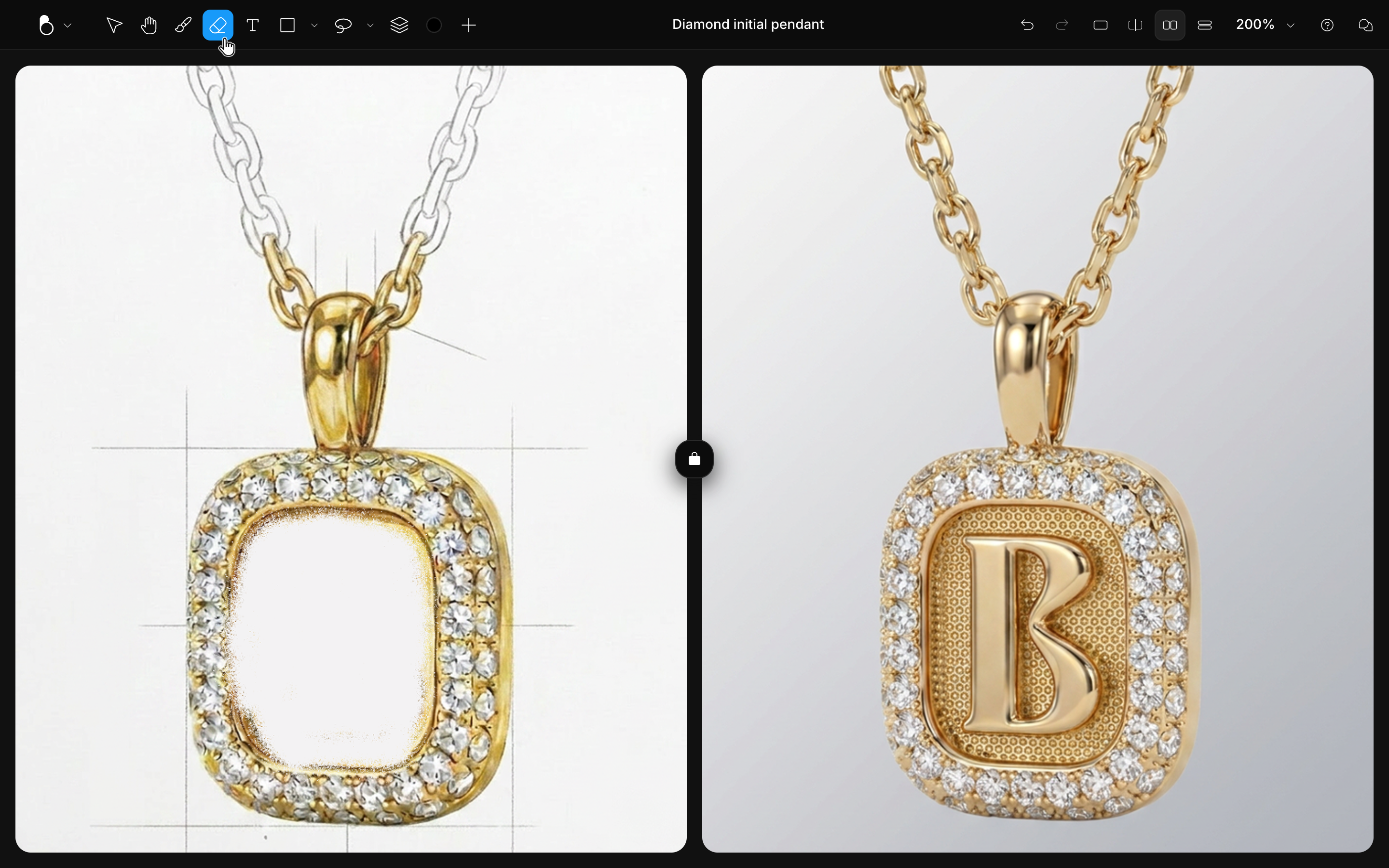
Erasing inside a selection
While a selection is active, erasing is clipped to the selected area: strokes outside it do nothing. That makes the Selection tool (M) the fastest way to erase precisely: select the region first, then erase freely inside it. See Selection.
Erasing vs. masking
Erasing deletes pixels from the layer. To hide part of a layer while keeping the option to bring it back, use a layer mask instead: a mask hides pixels without deleting them, and you can refine or remove it at any time. See Masks.
Note that masks themselves are edited with the Brush, not the Eraser: painting black on a mask hides, painting white reveals.
Erasing to guide the AI
Erasing is also an editing signal: erase an unwanted element from the canvas, optionally draw what should replace it, and regenerate. Because BLNG works from your edited canvas, the erased area is treated as space to fill. The erase + draw combination inside a masked region is one of the most precise edits available. See Edit & Regenerate and Precise Edits.
Heads up
Erased too much? Cmd/Ctrl + Z steps back through the edits you just made.