
Toolbar & Tools
The toolbar runs along the top of the editor. It holds every tool you use to build a design, plus controls for comparing results and moving around the canvas.
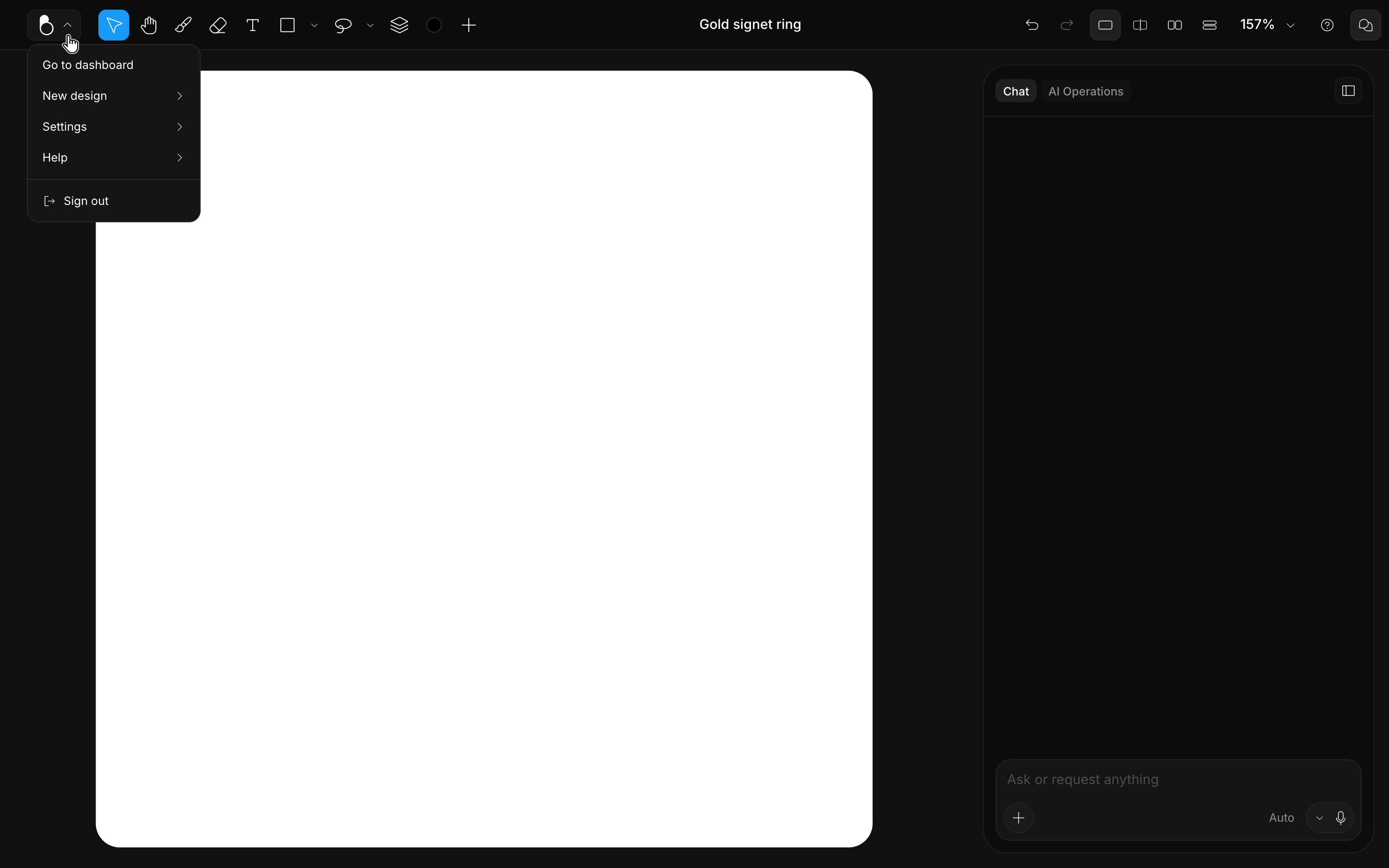
The BLNG menu
The BLNG icon at the left end of the toolbar opens the main menu. It holds everything that isn't editing: going back to the dashboard, starting a New design in a new tab while the current one stays open, editor preferences under Settings (toggles like Smart Focus, Snapping, and Guide lines), and the help entries, from the shortcut panel to the Help Center.
The three Settings toggles shape how the canvas behaves while you work. Smart Focus makes the Split view follow your clicks: interact with one side of the comparison and the divider sweeps to reveal it. Snapping pulls the object you're dragging into alignment with edges, centers, and equal spacing. Guide lines draws those alignment lines and spacing labels while you drag; turn it off for a cleaner canvas, and snapping still works on its own.
Design tools

The design tools sit in the middle of the toolbar, and they are what you'll reach for most while you build: selecting, drawing, typing, shaping, and importing content. The ten buttons, in toolbar order:
| Tool | Shortcut | What it does |
|---|---|---|
| Move | V | Select and move objects on the canvas. |
| Pan | H | Click and drag to pan around the canvas (or hold Space). |
| Brush | B | Draw freehand strokes on the canvas. |
| Eraser | E | Erase parts of your brush strokes. |
| Text | T | Add text objects to the canvas. |
| Shape | R / O / Shift + L / Shift + A | Draw shapes: rectangle, ellipse, polygon, star, heart, pen, line, arrow. Each shortcut jumps straight to its shape (Rectangle, Ellipse, Line, Arrow). |
| Selection | M | Draw a selection with brush, lasso, polygon, circle, rectangle, or magic wand; edits only affect the selected area, and a selection can be converted into a mask. See Selection. |
| Layers | L | Toggle the Layers panel. |
| Color picker | C | Open the color picker. |
| Import | Cmd/Ctrl + I | Import an Image, Video, or 3D Object from your computer. |
Two more tools live on shortcuts only, without a toolbar button:
- Crop: Cmd/Ctrl + Shift + X, or double-click an image on the canvas. See Crop & Resize.
- Eyedropper: I, to sample a color from the canvas.
View & canvas controls

The controls on the right side of the toolbar change how you see the work rather than what you make: step back through edits, compare results, zoom, and open help or the Chat panel.
| Control | Shortcut | What it does |
|---|---|---|
| Undo / Redo | Cmd/Ctrl + Z / Cmd/Ctrl + Shift + Z | Step back and forward through your edits. |
| View modes | Alt + 1 to Alt + 4 | Compare a result against your canvas in Canvas view, Split view, Side by side, or Stacked. See Canvas & Views. |
| Zoom | Cmd/Ctrl + 0 / 1 / 2 | Zoom In and Out, Zoom to fit, or jump to 50%, 100%, or 200%. You can also scroll with your mouse to zoom the canvas directly. |
| Help menu | Shortcuts shows the complete shortcut list in a panel on the right; the menu also opens the Help Center and Getting Started. | |
| Chat toggle | Show or hide the Chat panel. |
For the complete list of shortcuts, see Web Shortcuts.