Shapes
The Shape tool adds clean vector geometry to your design: rectangles, circles, stars, lines, arrows, and custom outlines that stay editable after you place them. Use shapes for layout guides, callouts, and packaging mockups, or as clean elements the AI can work from.
Drawing a shape
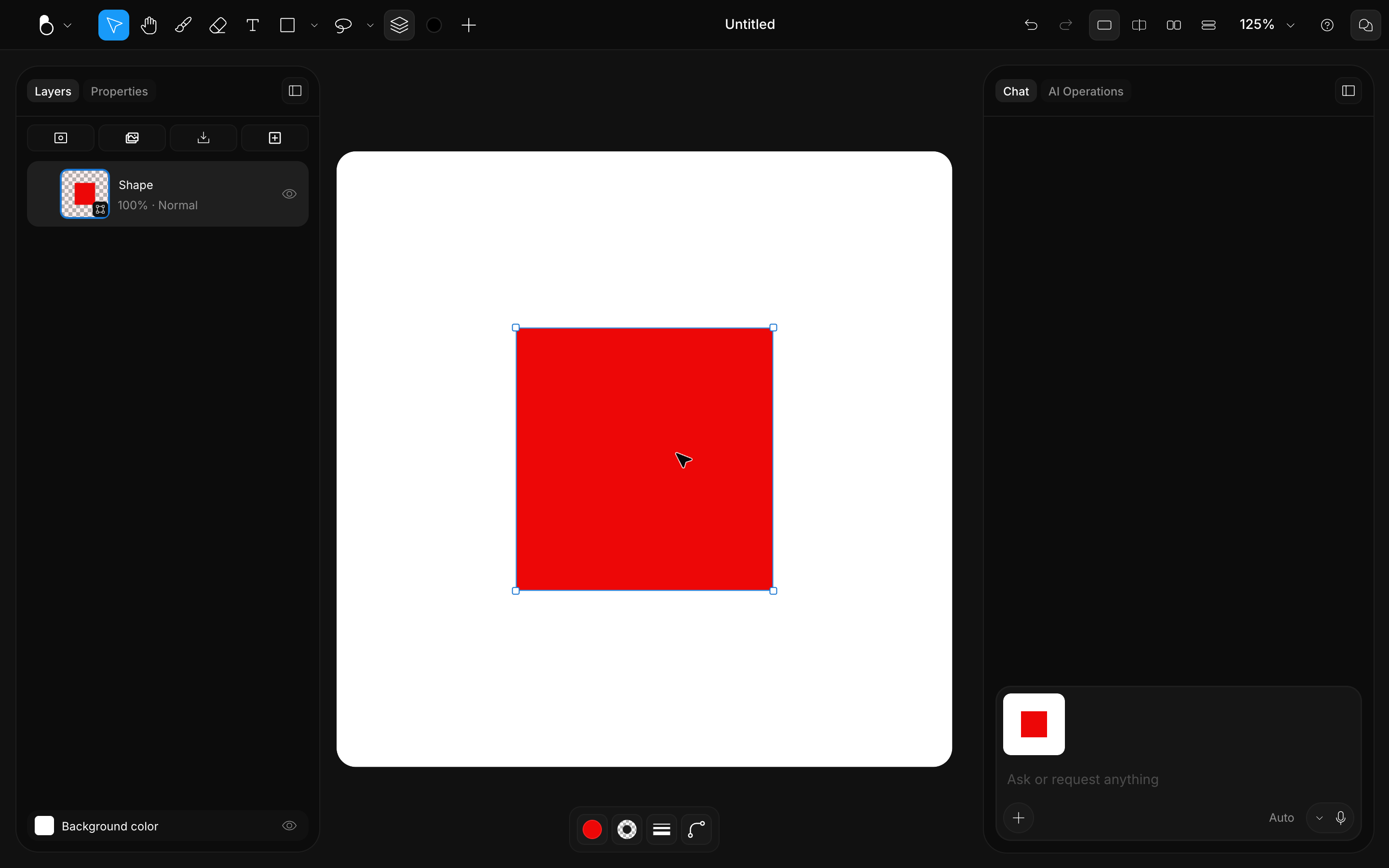
Drag on the canvas to draw the shape, or just click to place one at a default size. Hold Shift while dragging to constrain the proportions: an ellipse stays a perfect circle, a rectangle stays a square, and any other closed shape keeps equal width and height, while Line and Arrow snap to 45° angles. The Pen works differently: instead of dragging a shape out, you click point by point to build a custom outline.
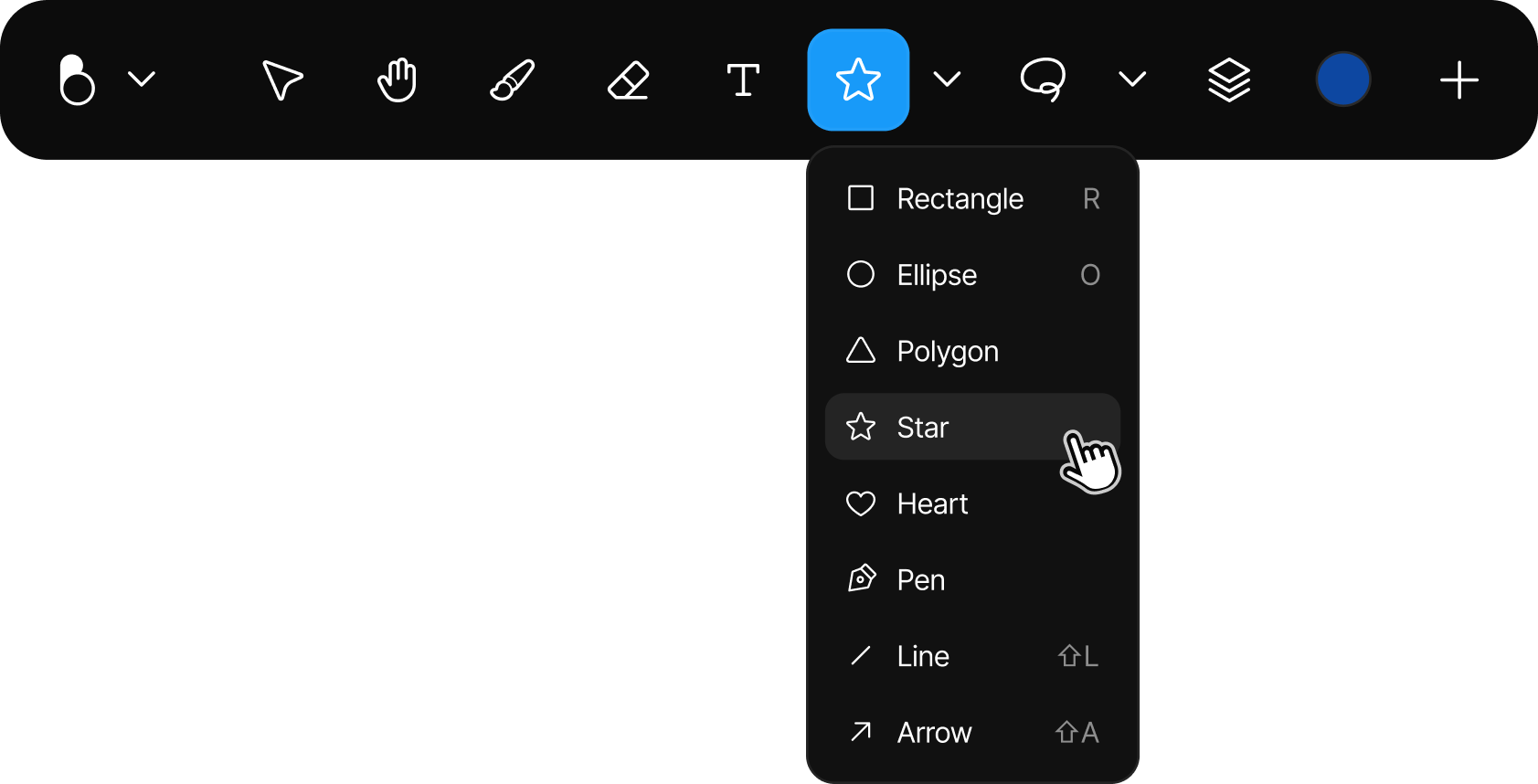
The Shape tool draws vector geometry that stays editable after you place it. Select it from the toolbar, then open its options to choose one of the eight shapes: Rectangle (R), Ellipse (O), Polygon, Star, Heart, Pen, Line (Shift + L), and Arrow (Shift + A).
Styling a shape
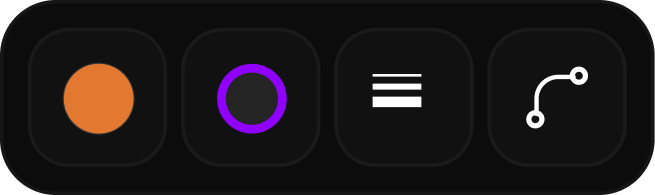
Clicking a shape opens the bottom toolbar, which lets you style it:
- Fill color: fill the shape's region with any color from the picker or presets. (Lines and arrows have no fill.)
- Stroke color: set the outline color.
- Stroke options: width (up to 500), an on / off toggle if you don't want any outline at all, plus alignment (Inside, Center, Outside: inside draws the stroke inward from the shape's edge, outside outward, and center straddles it) and join style (Miter, Round, Bevel). Stars, polygons, and ellipses always use miter joins.
- Corner radius: round the corners of a rectangle, together or per corner.
- Count, Radius & Ratio: polygons and stars have their own controls for the number of sides or points (3–60), corner rounding, and the star's inner-to-outer ratio.