
Introduction
BLNG is AI jewelry design software: you describe a piece or sketch it, and BLNG turns it into a photorealistic render, with no CAD skills needed. It combines a drawing canvas with an AI Chat assistant, imports CAD files and 3D models, and runs in the browser and on iPad and iPhone.
You can draw, sketch, paint, and refine your designs with a full set of drawing tools, and use image and text prompts to make, modify, and extend them using AI. You guide the look, and BLNG does the heavy lifting to turn it into photorealistic renders.
BLNG runs in your web browser and as an iOS app for iPad and iPhone. Your projects sync automatically, so you can move between devices and pick up where you left off.
BLNG won an LVMH Innovation Award in 2024 and was selected for LVMH's Scale program.
What you can do with BLNG
- Draw and sketch: use the Brush, Shape, Eraser, and Text tools to build the design you have in mind.
- Import images and 3D: bring in reference images, photos, your own artwork, or 3D models like CAD files as a starting point.
- Generate with AI: describe what you want in Chat and let BLNG render it, while using artwork from your canvas as a visual guide.
- Compare results: switch between view modes to compare before and after results side by side, and see your designs progress.
- Organize with layers: keep separate layers you can reorder, hide, mask, and group.
- Manage projects: create new projects, search, and view all of your designs from the dashboard.
Popular use cases
These are the most common ways people use BLNG. Each one has a dedicated, step-by-step guide under Workflows & Tutorials.
For catalog-grade renders from CAD files, see BLNG Studio, our managed service.
Generate & refine product imagery
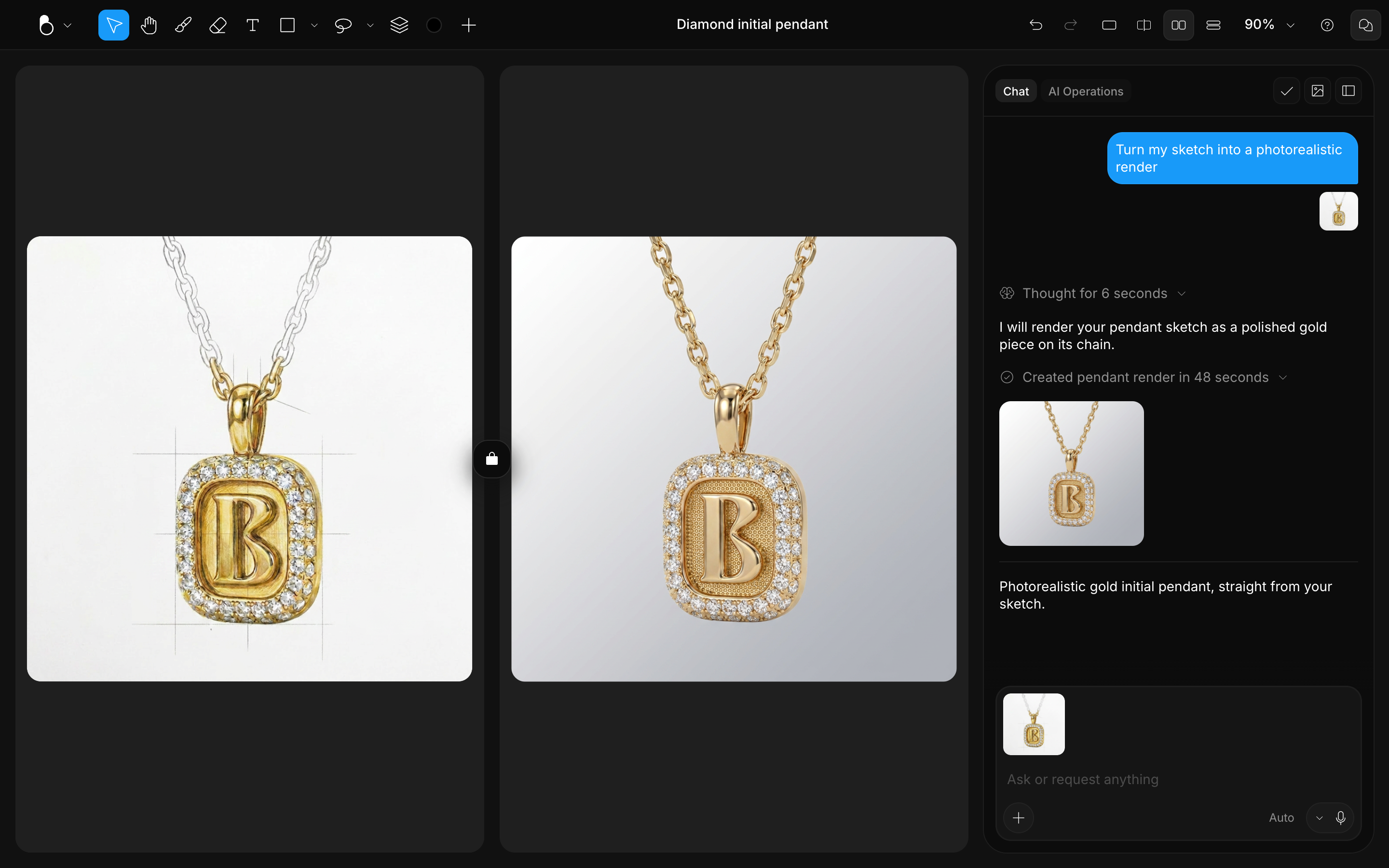
Describe what you want in the Chat panel and generate photorealistic results, then iterate with Try again and follow-up prompts. Add a result to the canvas to keep editing it.
- Sketch to image: rough out an idea on the canvas and let the AI turn it into a finished design.
- Precise edits: change exactly the part you name (a stone, a setting, a texture) while the rest of the design stays put.
- Mixing existing designs: combine elements from two designs you like into one new piece.
Build collections & present products
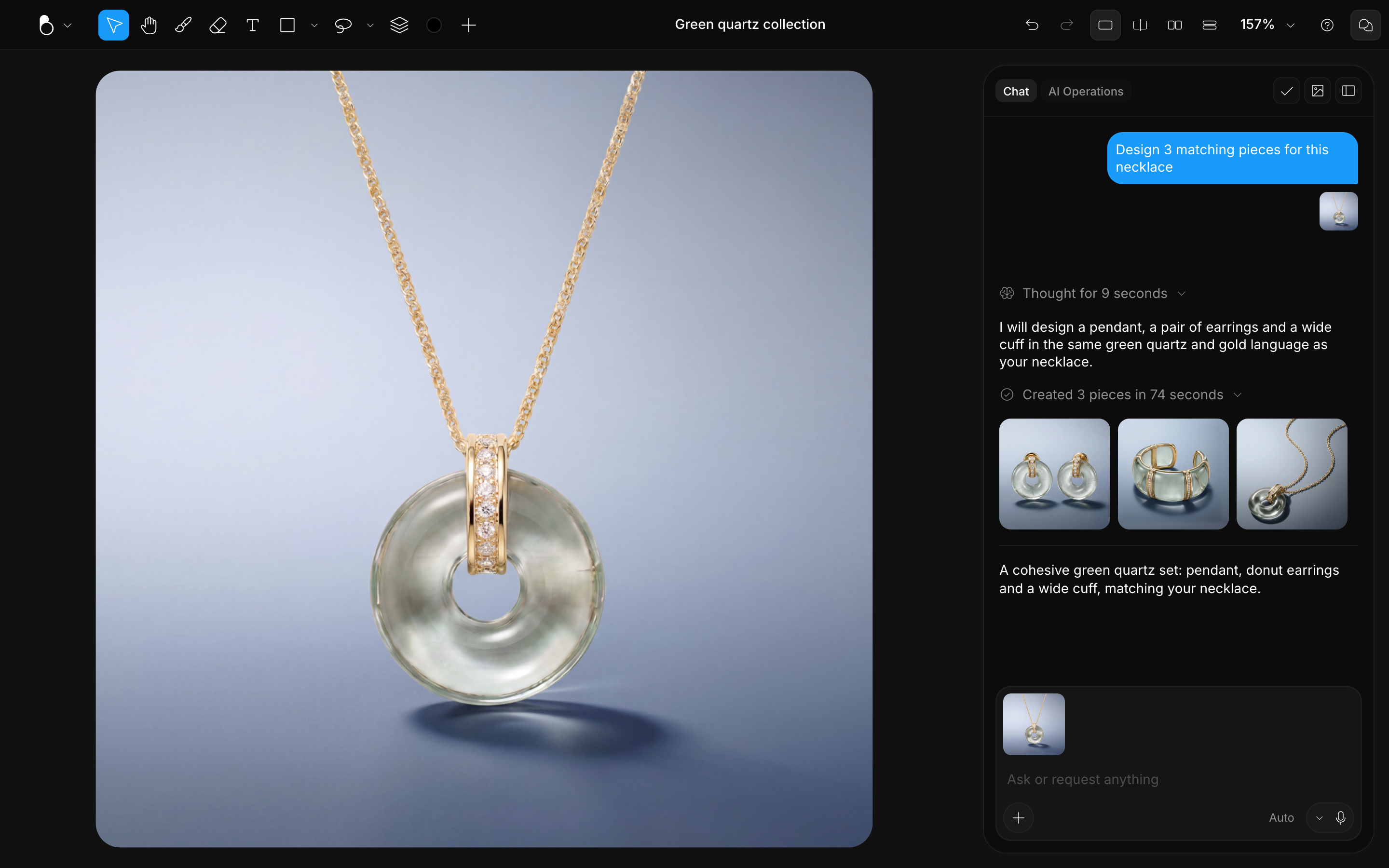
Go beyond a single image to design a whole line and show it the way a client expects to see it.
- Collections & pairings: design a hero piece, then generate matching companions for a cohesive set.
- Package design: design packaging and present it as a realistic still or mockup.
- On-model & lifestyle shots: place a product on a model or in a lifestyle scene while keeping it accurate.
- Campaign imagery: build one coherent set of product, on-model and packaging images for a launch.
Work in 3D
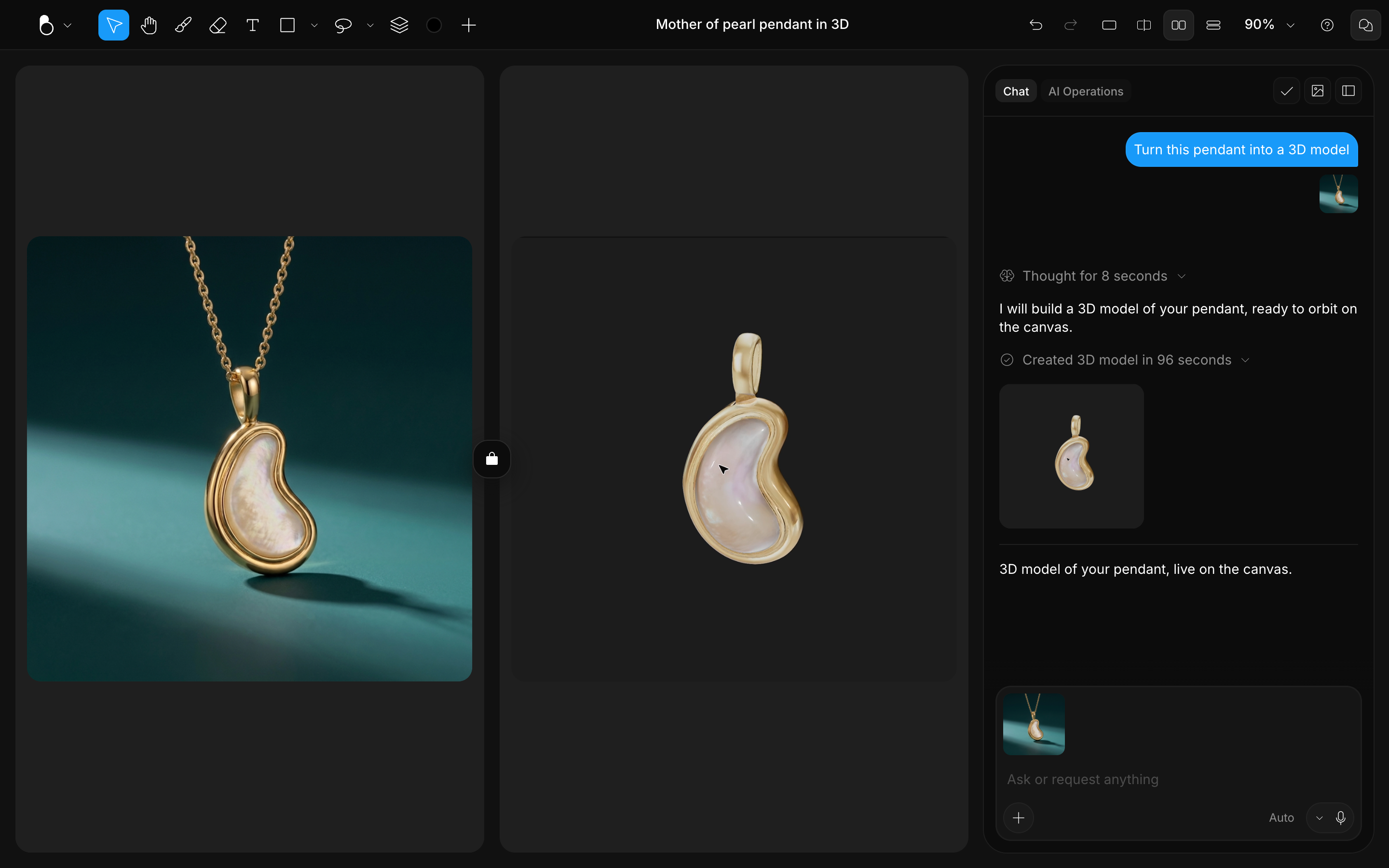
Move between flat artwork and 3D in both directions.
- 2D to 3D: turn a flat design into a 3D model you can orbit, apply materials to, and capture from the best angle.
- CAD visualization: turn CAD models and renders into photorealistic, presentation-ready visuals.
Where to go next
- Create your account and sign in at app.blng.ai. See Account & Login.
- Take a quick tour of the canvas, toolbar, Chat, and the sidebars. See Editor Overview.
- Walk through your first design, from blank canvas to first result. See Your First Design.
- Unsure what a word means? See Key Terms.