
Text
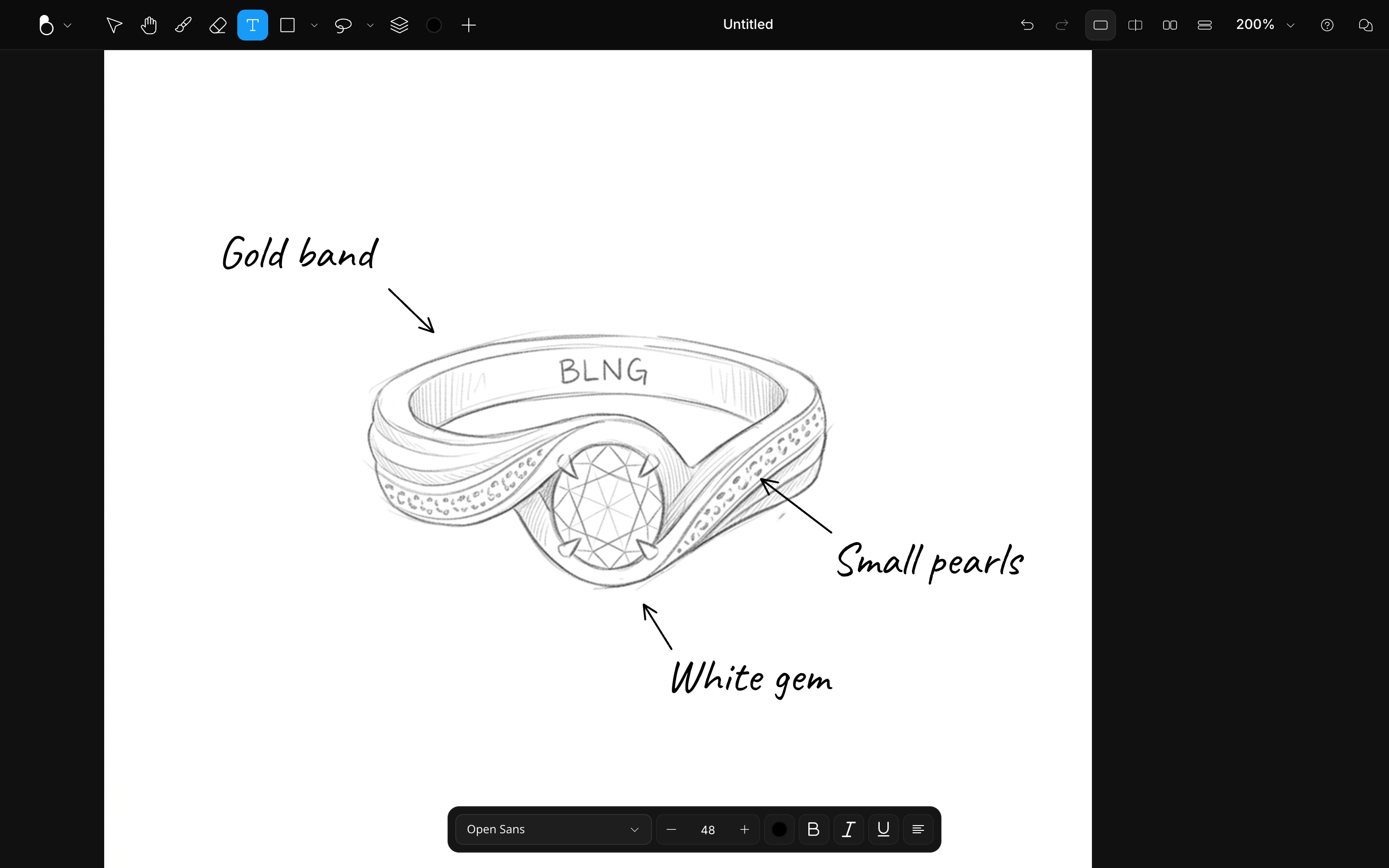
The Text tool places editable type on the canvas: labels, product copy, and any wording your design needs. Text is an object like any other, so you can move, scale, and rotate it, and restyle it at any time.
Placing text
The Text tool places editable type on the canvas. Select it (T), then click on the canvas (or drag out a text area) and start typing. How you place the text sets its box mode:
- Click to place text that grows with what you type, "Dynamic text size".
- Drag out a box to set a fixed width the text wraps inside, "Fixed text width".
You can switch between the two modes any time with the toggle in the text action bar. Like any object, text can be scaled and rotated with its handles.
Styling text
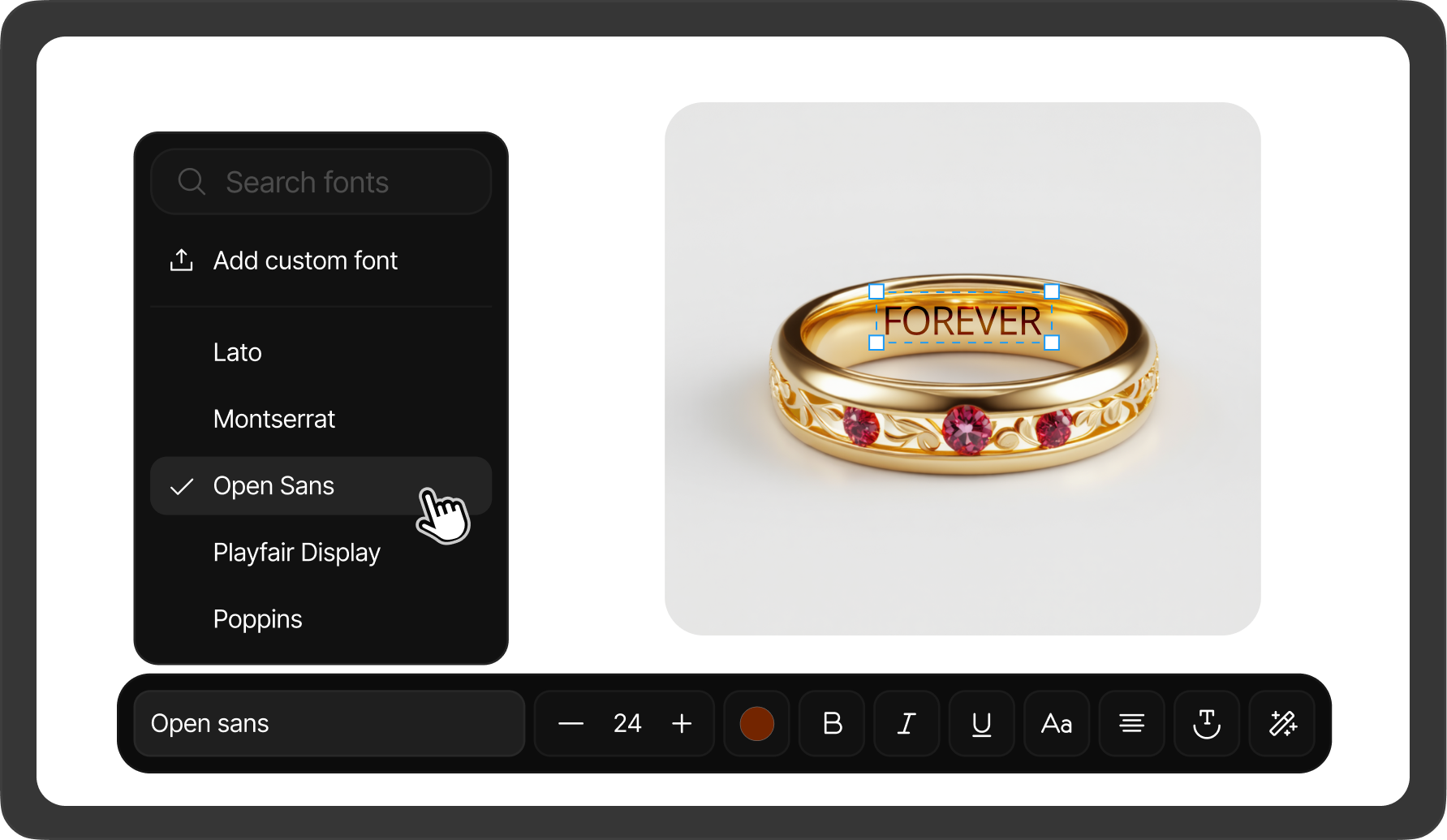
The text action bar gives you:
| Control | What it does |
|---|---|
| Font family & Font size | Choose from 27 typefaces, from Inter and Open Sans (the default) to Playfair Display, JetBrains Mono, and Pacifico, and set a size from 1 to 1000 (default 48). |
| Text color | Set the color from the picker or presets; text has its own color wheel. |
| Bold / Italic / Underline | Cmd/Ctrl + B / I / U. |
| Change case & Alignment | Cycle letter case (Title Case → UPPERCASE → lowercase → as typed) and align left, center, or right. |
| Dynamic / Fixed width | Toggle between Dynamic text size (grow with the text) and Fixed text width (wrap in a set width). |
Press Cmd/Ctrl + Enter to confirm your text, or Esc to exit editing.