Images on the Canvas
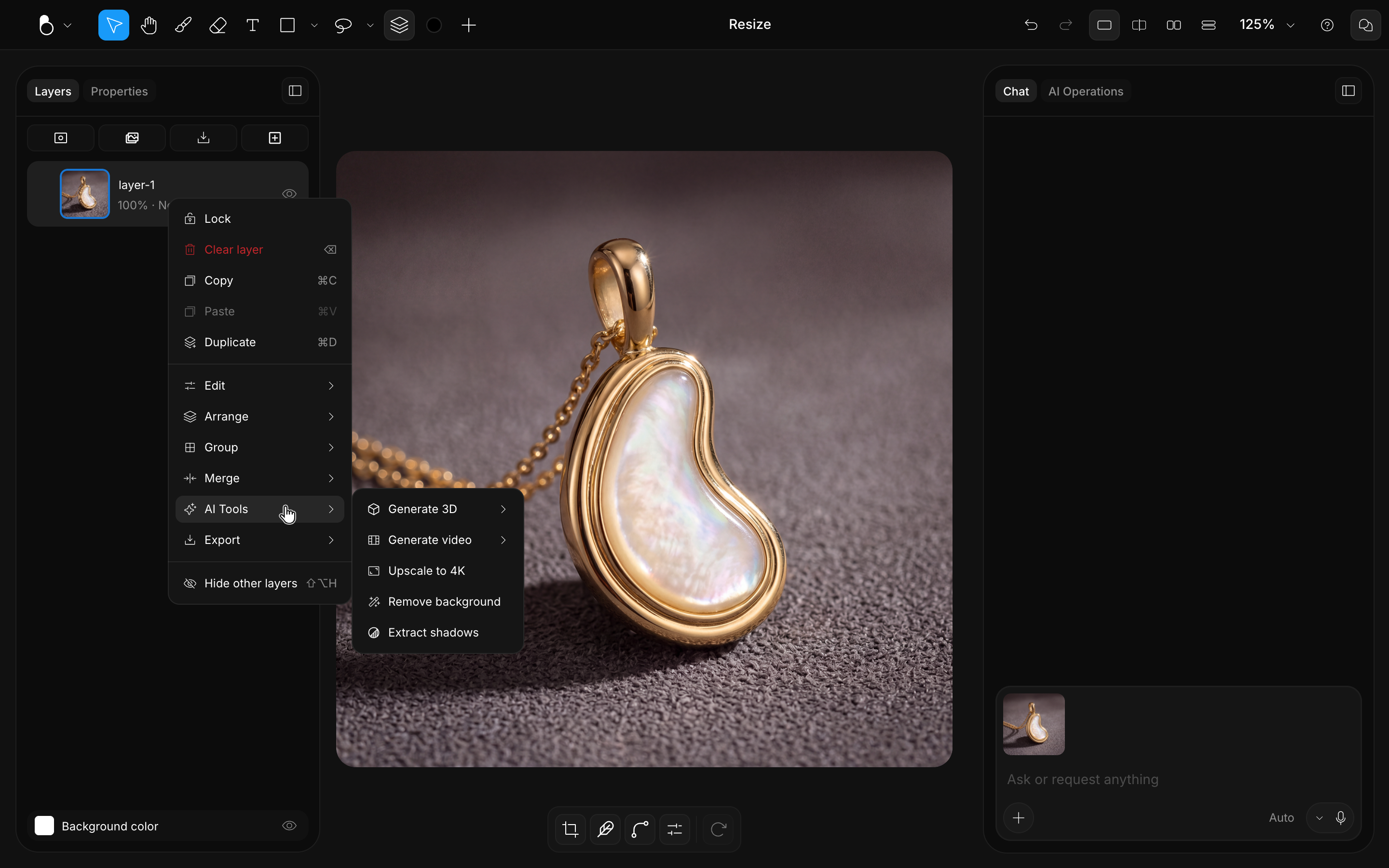
Every image on your canvas is an object with its own right-click menu. Most of what it holds acts on the object right there, and one entry, AI Tools, sends the image to the cloud and brings back a new layer. The same image has a second menu on its row in the Layers panel, with the layer-level actions; see Layers.
Getting images onto the canvas
Images arrive in several ways: a generated result added from the Chat panel, Import (Cmd/Ctrl + I), drag and drop, or paste (Cmd/Ctrl + V). See Canvas & Views for the supported formats.
Editing an image in place
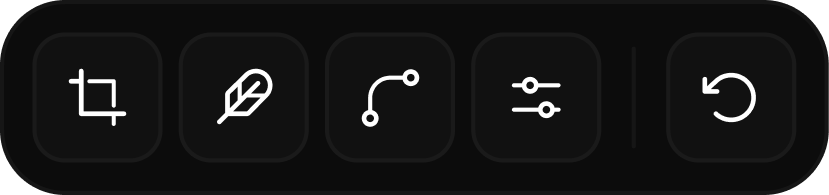
The canvas menu covers what you can do to the object where it sits: things like cropping it, flipping it horizontally or vertically, moving it in front of or behind its neighbors, and downloading just that object as a file. Crop opens the crop frame, and holding Cmd/Ctrl as you start dragging a corner handle crops without leaving the Move tool; see Crop & Resize. For restacking and the rest of the Move tool, see Move & Arrange.
Two edits you might expect here live on the image's row in the Layers panel instead, under Edit: Fill with color floods the image with the active color, and Add layer mask hides parts of it without deleting anything. See Masks.
AI Operations on an image
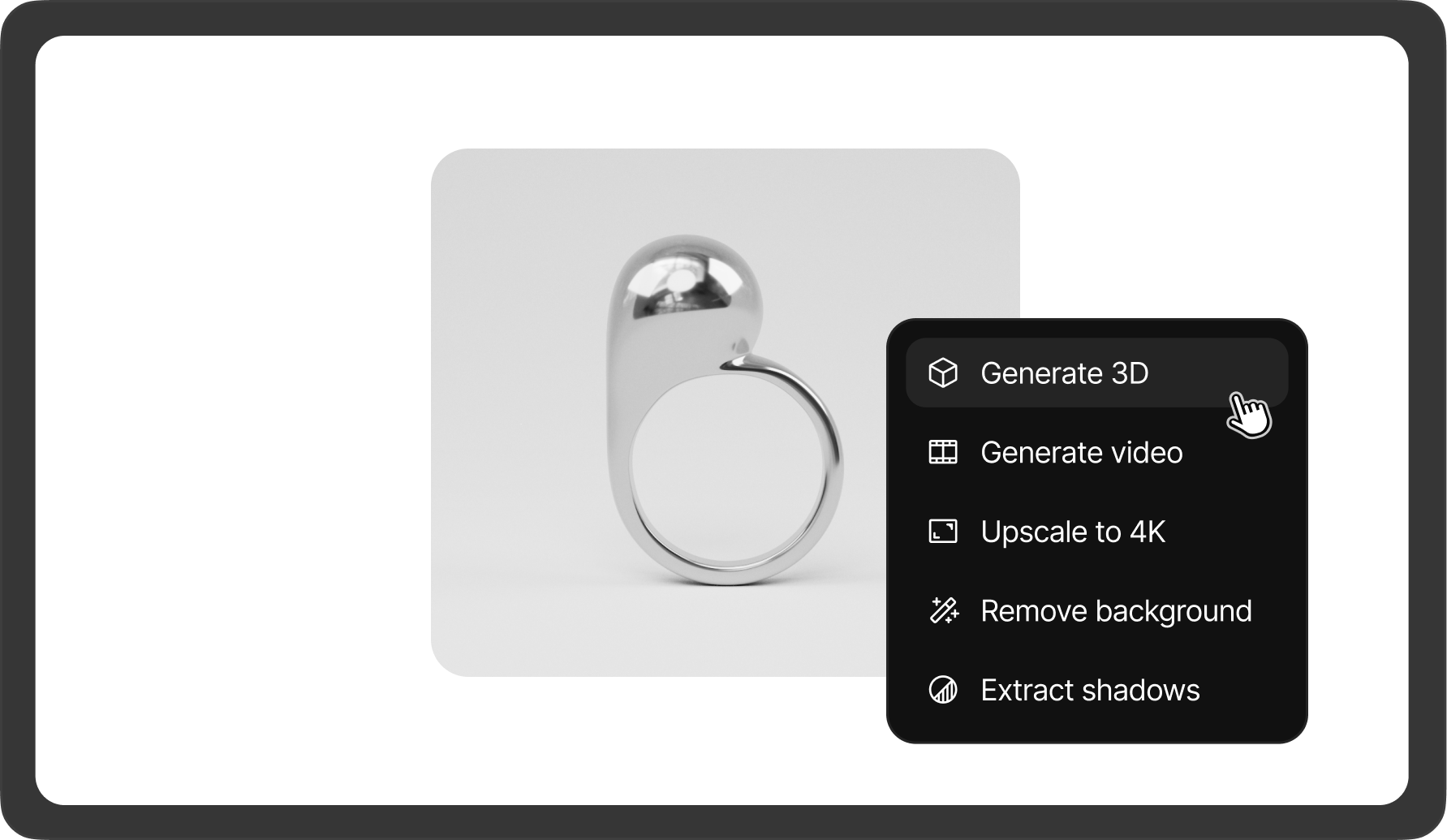
Under AI Tools, an image object carries the one-click operations: Generate 3D, Generate video, Upscale to 4K, Remove background, and Extract shadows. Each runs in the cloud and delivers its result as a new layer, so the original stays intact: compare before and after by toggling visibility, and delete the new layer if you prefer the source. The same entries live on the image's row in the Layers panel. For how the operations work and where they land, see AI Operations.