
Scene Styles
Scene styles control the background and overall mood of the images BLNG generates. Setting a scene style is usually easier (and more consistent), than describing the backdrop in your prompt. Open the scene style picker with the palette button in the prompt area.
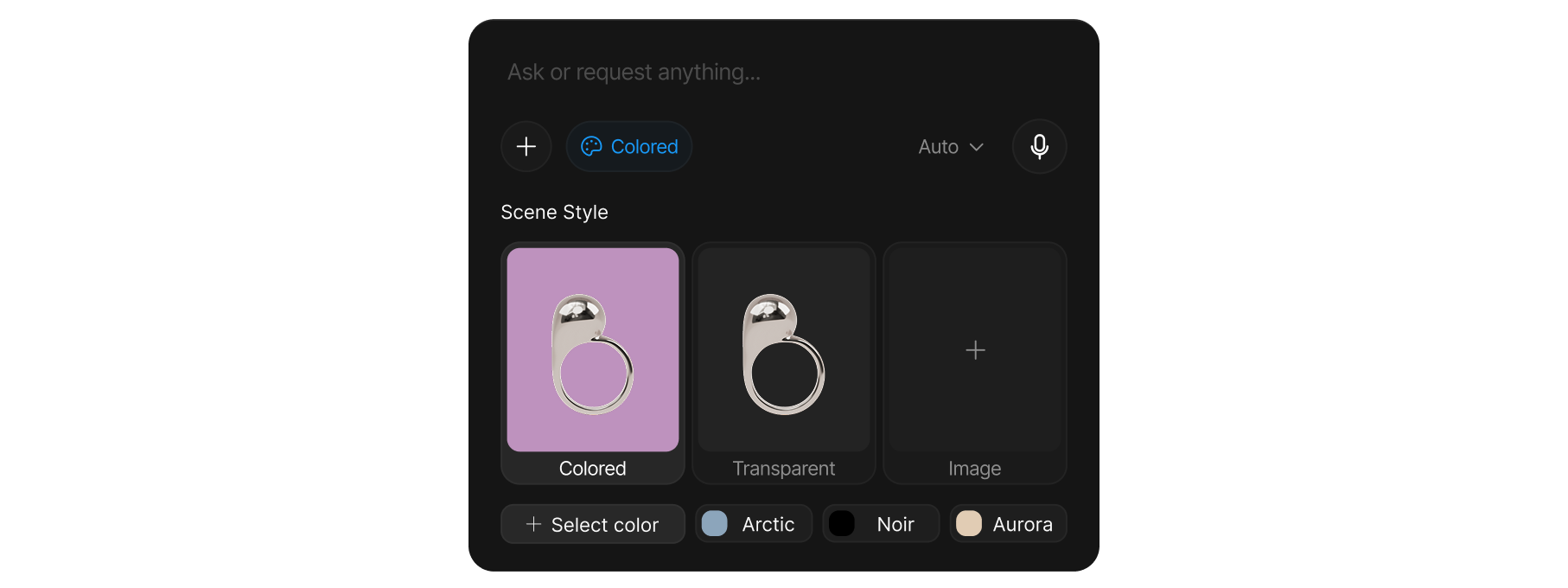
Style presets
By default no scene style is selected: the AI chooses the backdrop from your prompt, your canvas and your previous generations. Pick one to take control. The picker offers three scene types:
| Scene | Look |
|---|---|
| Colored | A solid color background. Pick White (a clean, neutral studio backdrop), Arctic, Noir or Aurora from the color row below the cards, or any custom color. |
| Transparent | No background at all, so the subject is isolated. Ideal when you'll place the result onto your own composition, or convert it to 3D later. |
| Image | Your own photo as the scene: the AI matches its lighting, environment, and context, which is what makes a product look like it belongs in a real setting. |
The color row sits under the cards and drives Colored. Four swatches are ready to go: White (a clean, neutral studio backdrop), Arctic (cool blue-grey), Noir (deep black), and Aurora (warm sand). Select color opens the Scene color picker for any exact color you want, alpha included. You can also sample a color straight off your canvas with the eyedropper.
For an Image scene, click the Image card to pick a file, or drag an image onto the open picker: a photo from your computer, a layer, a reference, or a generated result all work. The thumbnail's X forgets that image. To go back to letting the AI choose, clear the scene style chip above the prompt field.
How scene styles work with prompts
The scene style sets the environment; your prompt describes the subject. Keeping them separate makes prompts cleaner and results more predictable: change the scene without rewriting your prompt, or keep one scene while you iterate on the subject.
A scene style shapes the background and mood. To control how closely the AI follows a reference image or your canvas, use Influence instead.
Match backgrounds across a set
If your design is part of a collection or product line, reuse the same scene style and color for every piece so the set looks cohesive. Mismatched backdrops are the most common reason a collection looks disjointed.
-