
Crop & Resize
Crop and resize are different jobs. Cropping trims what an object shows; resizing scales the object itself. Both apply to objects on the canvas; the canvas size is a separate decision you make when creating the project.
Cropping an object
Cropping starts from the image itself rather than from the toolbar: there is no Crop button among the design tools. Double-click the image on the canvas, right-click it and choose Crop, press Cmd/Ctrl + Shift + X with it selected, or click Crop in the bottom toolbar that appears under the selected image. For a quick trim without leaving the Move tool, hold Cmd/Ctrl as you start dragging a corner handle: the drag becomes a crop instead of a scale.
A crop frame appears over the image. Drag its edges and corners to trim, and hold Shift to lock the aspect ratio (diagonal guides appear). Drag inside the frame to reposition the content under it, and use the Crop slider (100 to 400%) to zoom that content in or out. The check button commits the crop, Cancel walks away. The same bottom toolbar carries a Feather slider that softens the object's edge by the number of pixels you set, so a crop can blend instead of cutting hard.
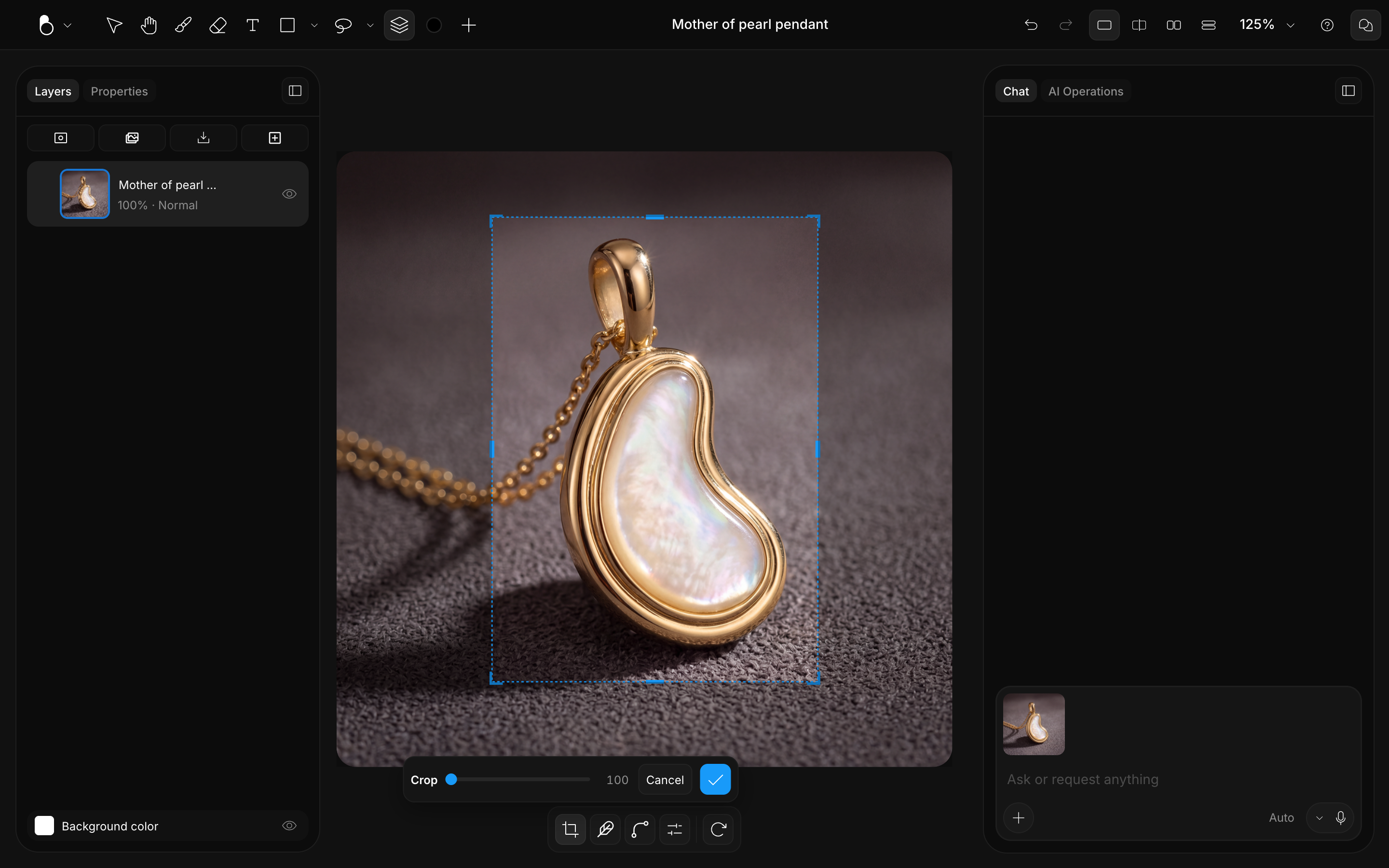
Crops don't delete anything
A crop is stored as a mask on the object: the trimmed pixels are hidden, not gone. Re-enter Crop on a cropped object at any time to loosen it, tighten it, or move the frame. Crops work on video layers too, and a cropped or shaped clip keeps its transparency when you download it as WebM. See Video on the Canvas.
Resizing an object
Resizing lives with the Move tool: select an object and drag its handles. Corner handles scale proportionally; edge handles stretch one axis. Shift flips each one: on an edge it scales uniformly, on a corner it frees the proportions. For rotation, arranging, and the rest of the Move tool, see Move & Arrange.
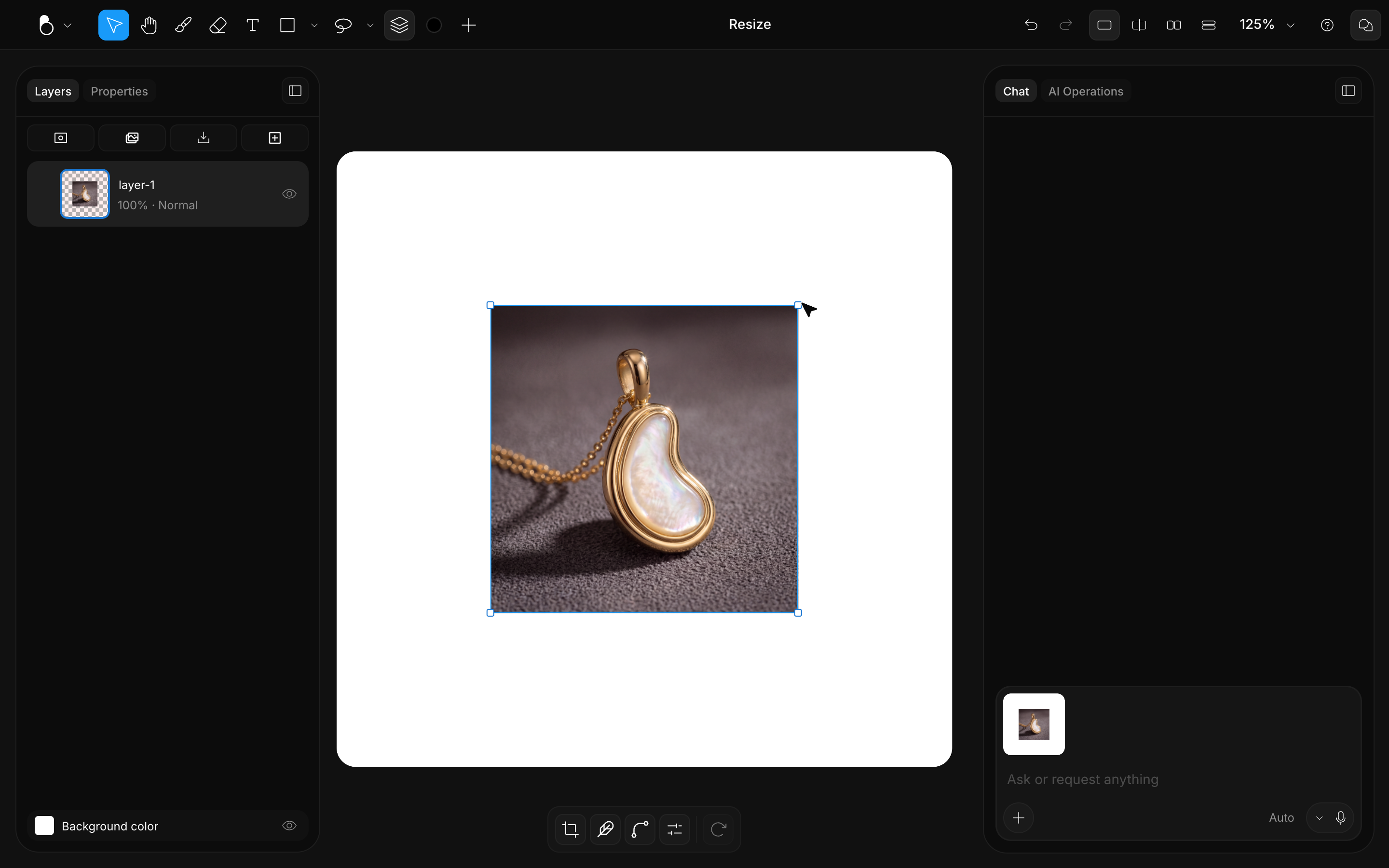
Canvas size
The canvas size is set when you create the project (from 16 up to 16,384 pixels per side) and there is no canvas-resize control in the editor today. If a design needs a different canvas, start a new project at the right size; see Templates & Canvas Sizes for the built-in sizes and custom presets.