
Move & Arrange
The Move tool (V) is the editor's default tool. It selects and moves objects on the canvas (images, brush-stroke layers, text, shapes, and 3D models), and gives each selected object transform handles and an Arrange menu.
Selecting objects
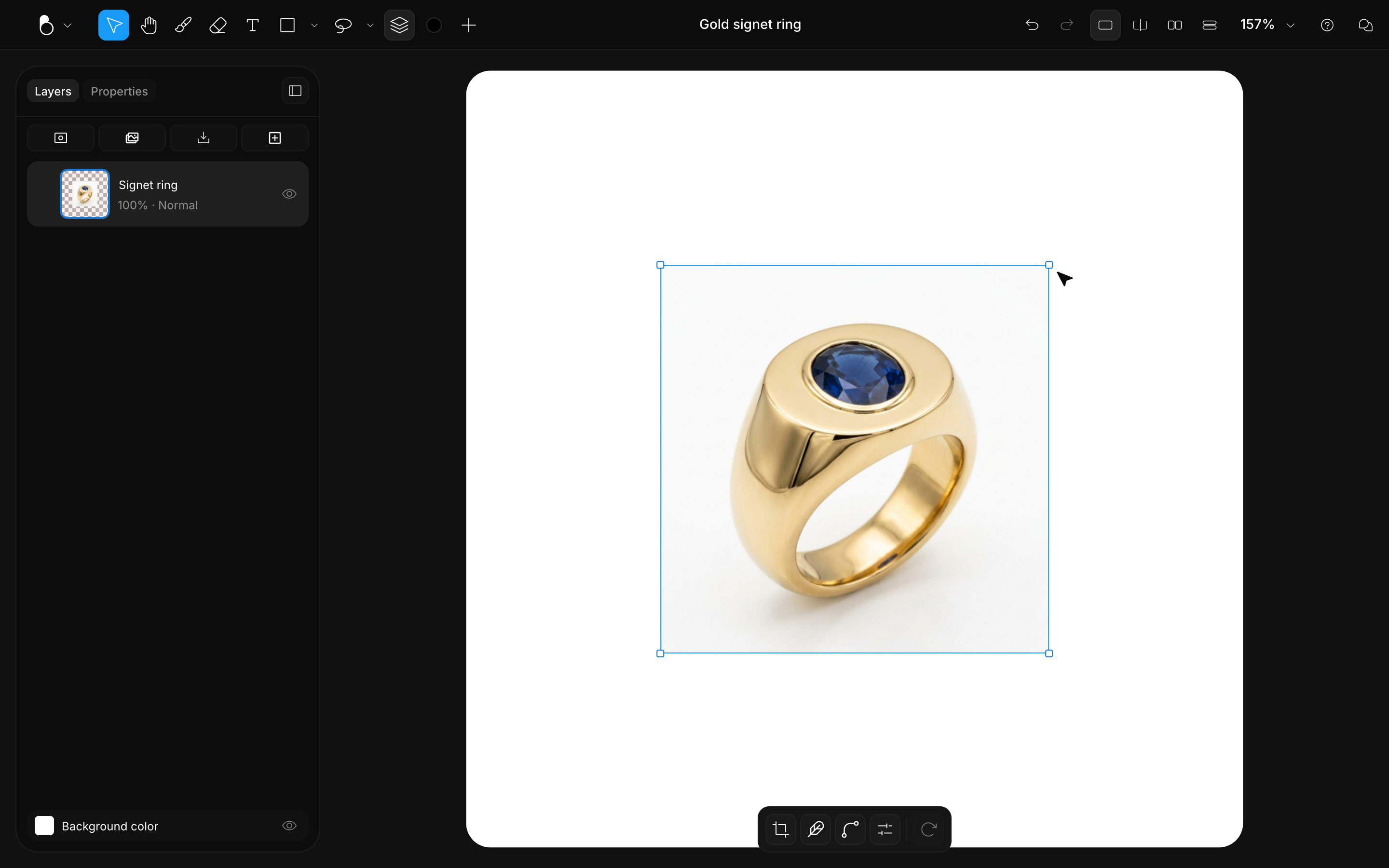
With the Move tool active, click any object to select it: a frame with handles appears around it. Click a layer's row in the Layers panel to select the same object from there; the canvas and the panel stay in sync.
- Select all: Cmd/Ctrl + A. Press Esc to deselect.
- Walk the layer tree: press \ (backslash) to select the parent group. The key is the same on Mac and Windows. Tab / Shift + Tab moves between siblings, and Enter selects a group's children.
- Delete: press Delete or Backspace to remove the selected objects.
Moving and transforming
Drag a selected object to move it, or drag its handles to resize and rotate. The modifiers do the fine work:
- Nudge: arrow keys move the selection 1 px; hold Shift for 10 px steps.
- Constrain to one axis: hold Shift while dragging.
- Snap rotation: hold Shift while rotating to snap to 15° steps.
- Duplicate: Cmd/Ctrl + D, or hold Alt/Option and drag to move a copy instead of the original.
- Crop from a corner: hold Cmd/Ctrl and drag a corner handle to crop instead of resize.
- Flip: Shift + H flips horizontally, Shift + V flips vertically.
Arrange
Right-click a selected object and open Arrange to control how objects stack and sit relative to each other:
- Bring to front / Send to back: ] and [. Bring forward / Send backward one step with Cmd/Ctrl + ] and Cmd/Ctrl + [.
- Align: line up the selected objects with each other.
- Group / Ungroup: Cmd/Ctrl + G and Cmd/Ctrl + Shift + G. Grouped objects move and transform together, and a group can carry its own mask. See Layers.
- Merge: combine the selected layers into a single layer.
Stacking order can also be changed by dragging rows in the Layers panel, which is also where you lock an object against accidental edits, hide it, or isolate it while you work. See Layers. For the full shortcut list, see Web Shortcuts.